Listening Guides / Apple built-in speech
How to Use Text to Speech on iPhone in 2026
Learn how to use text to speech on iPhone with Read & Speak, Accessibility Reader, Safari, Live Text, and a dedicated document reader for longer listening.
By AudioPage Editorial · Published · Updated · 12 min read
How to Use Text to Speech on iPhone in 2026
iPhone already has useful text-to-speech tools built in. For a paragraph, email, note, or page on screen, start with Settings → Accessibility → Read & Speak and use Speak Selection or Speak Screen. For a cleaner reading view, iOS 26 also includes Accessibility Reader. Safari can read supported webpages with Listen to Page, while Live Text can turn text in a photo into selectable words. If you regularly listen to long PDFs, books, documents, or scans, a dedicated reader can organize those files and remember where you stopped.
Quick takeaway: use Apple’s built-in speech for text you need to hear once. Use a document-listening app when the job becomes a library: importing files, saving progress, returning later, handling scans, or preparing material for offline listening.
The five main ways to use text to speech on iPhone
“Text to speech on iPhone” can mean several different jobs. Picking the right route is easier if you start with the source instead of the voice.
| What you want to hear | Best first route | What it is good at | Main limitation |
|---|---|---|---|
| A paragraph or short block of text | Speak Selection | Precise, quick, built into iOS | You select the text manually |
| Most text on the current screen | Speak Screen | Fast whole-screen reading | Can include interface or page furniture |
| Text in a cleaner full-screen view | Accessibility Reader | Focused reading plus listening | Depends on text the app can expose or detect |
| A supported Safari article | Safari Listen to Page | Simple web-article playback | Available only on supported webpages |
| A long PDF, EPUB, DOCX, scan, or saved article | Dedicated reader | Imports, saved library, resume position | Another app and its plan boundaries |
That distinction matters because the iPhone does not have one universal “read anything” button. A selectable PDF, an image-only scan, a web article, and a DOCX file expose text in different ways.
Method 1: use Speak Selection for a paragraph
Speak Selection is the simplest way to hear a specific sentence or paragraph.
Apple’s current Read & Speak guide documents the setup under Settings → Accessibility → Read & Speak. Turn on Speak Selection, then return to an app with selectable text.
- Touch and hold a word.
- Adjust the selection handles around the text you want.
- Tap Speak in the selection menu.
- Stop or change the selection when you are finished.
Use this for a paragraph in Notes, a message, a short email, or one section of a webpage. It is also a good diagnostic tool: if you cannot select individual words in a PDF, the page may be an image rather than a usable text layer.
Speak Selection is less convenient for a 40-page report because you keep managing selections. That is where Speak Screen or a saved reading app starts to make more sense.
Method 2: use Speak Screen for the current page
Speak Screen reads exposed text across the current screen. After enabling it in Read & Speak, open the page you want and swipe down from the top of the display with two fingers.
The speech controller can pause playback, move forward or back, and change the speaking rate. Apple also lets you configure highlighting, voices, language behavior, and pronunciations in Read & Speak.
Speak Screen works best when the app presents a clean block of text. On a busy webpage, it may encounter navigation, captions, button labels, or other text around the article. On a complex PDF, the visual order on the page does not guarantee the underlying text order is correct.
If you want exact setup and troubleshooting steps, the dedicated Speak Screen guide covers the two-finger gesture, controller, lock-screen testing, and common failure cases in more detail.
Method 3: use Accessibility Reader for a cleaner view
Accessibility Reader is useful when you want reading and listening in a focused full-screen layout. Apple says it can work with text in apps across iPhone, and it provides controls for font, layout, background, and autoplay.
Turn it on under Settings → Accessibility → Read & Speak → Accessibility Reader. Apple’s Accessibility Reader guide explains how to launch it and configure the reading view.
This is a stronger option than Speak Screen when visual clutter is the problem. It still does not turn every image into perfect document text or create a persistent cross-document library. Think of it as a focused reader for what iPhone can currently expose, rather than a replacement for document importing and organization.
Method 4: listen to supported webpages in Safari
For articles on the web, Safari has its own Listen to Page control. Apple documents the route as Safari → open the webpage → Page Menu → Listen to Page on supported pages.
That gives you a cleaner web-specific path than using a general screen-reading command. You can pause and resume from the Page Menu while the page is being read.
If a page is cluttered, Safari Reader can also hide much of the surrounding navigation on supported articles before you listen. For a one-off story, this may be all you need. If you want to save many articles in one queue and resume them later alongside PDFs or books, a dedicated read-later or TTS app is a better fit.
Method 5: make photos and printed pages speak
A photo is not automatically text. iPhone first needs to recognize the words in the image.
Apple’s Live Text documentation says supported iPhones can recognize text in photos, videos, and the camera view. You can then select the recognized text and use Speak Selection. That makes Live Text useful for a menu, sign, worksheet, or one photographed page.
For longer printed material, OCR quality matters more than voice quality. Check names, dates, decimal points, minus signs, measurements, and formulas against the image before relying on spoken output. If you regularly work with scans, use the more detailed scan-to-speech guide or the scanned PDF OCR guide.
When a dedicated iPhone text-to-speech app helps
Apple’s tools are strong for immediate reading. A dedicated reader becomes useful when you want to keep listening material around instead of starting from the source app every time.
Typical reasons include:
- importing PDFs, EPUBs, DOCX files, articles, pasted text, photos, or scans into one place;
- keeping a separate progress position for multiple long documents;
- reopening a document tomorrow without finding the paragraph again;
- preparing a voice and document before a flight or commute;
- using a consistent player with skip, speed, voice, and resume controls;
- separating a listening library from the rest of Files, Safari, Mail, and Notes.
AudioPage is built around that saved-document workflow on iPhone. Its add sheet exposes file import, pasted text, web links, scans, and photos so different sources enter the same library.
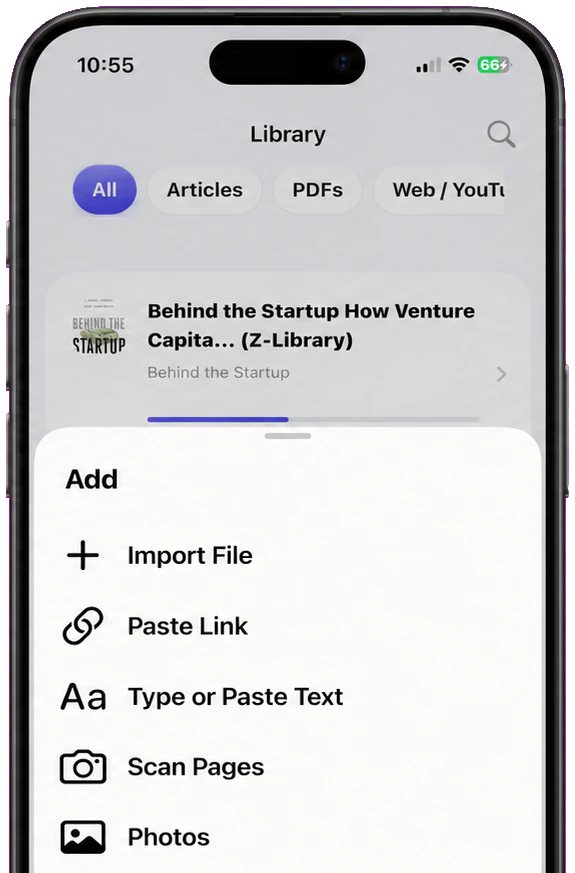
The important boundary is what happens after import. AudioPage’s core reading and listening are local-first after the first voice setup downloads the required resources. Free supports up to 10 saved items. Lifetime Offline covers eligible local features without a recurring subscription, while Pro adds connected document summaries, document chat, and optional sync when you choose those features. Current plan details are listed in AudioPage support.
What listening inside a dedicated reader looks like
For long material, the reading screen and player matter as much as the voice. You should be able to see the document, know the current position, change speed, pause, and return later without rebuilding the session.
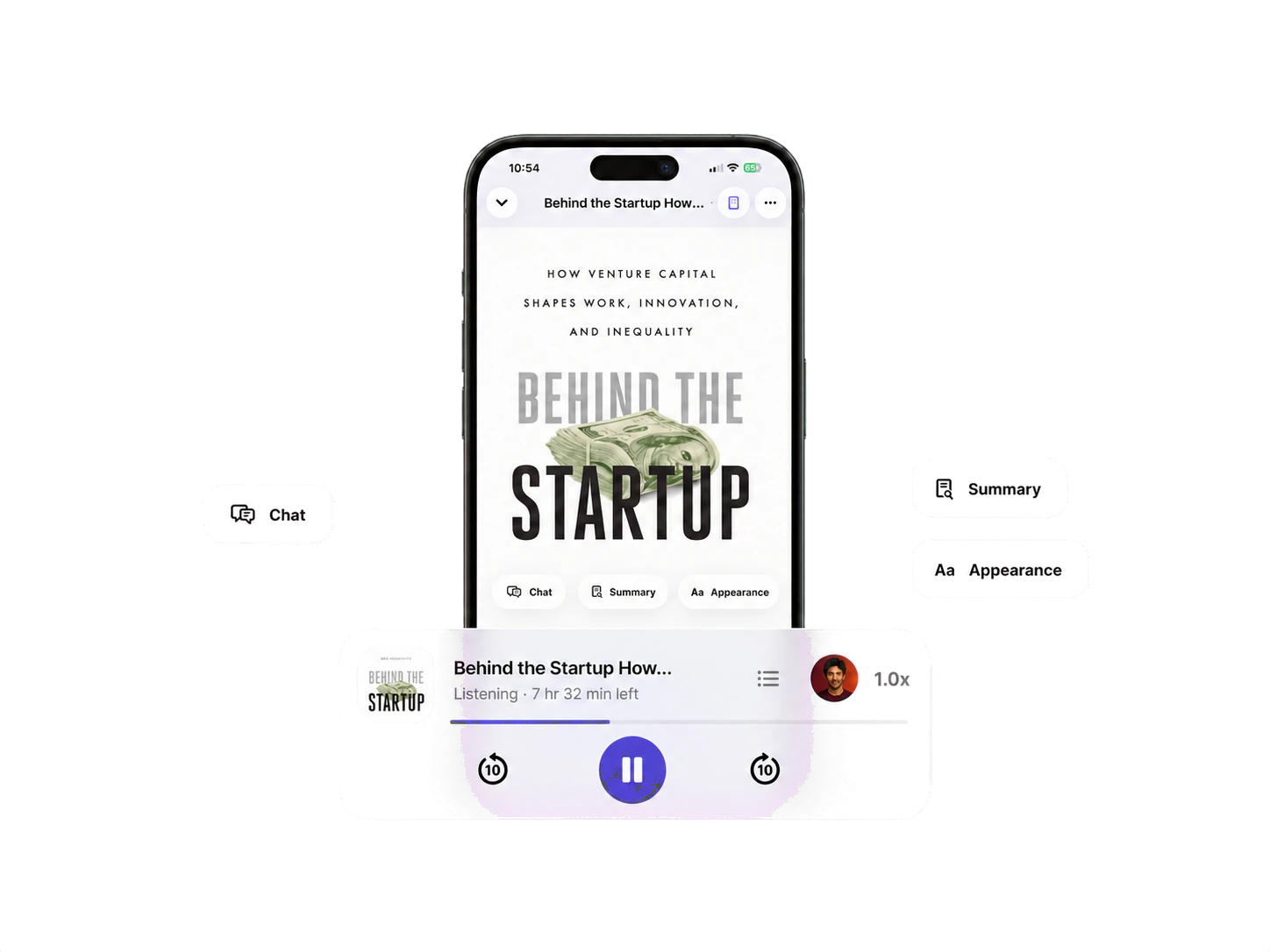
A saved library also makes progress visible across items instead of hiding it inside unrelated apps.
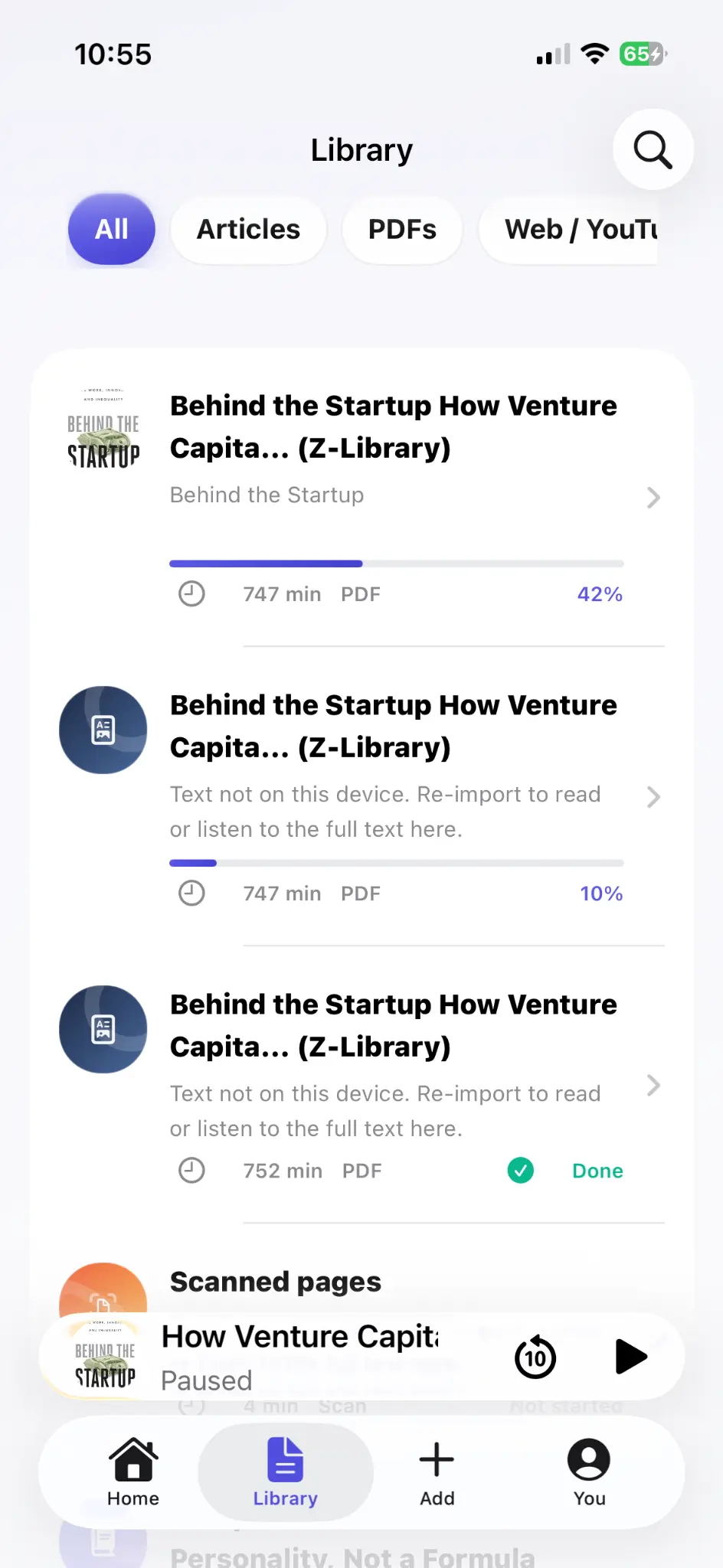
This is the main reason to add a reader even if Speak Screen already works: the problem changes from “make this page talk” to “manage material I listen to every day.”
A practical setup for PDFs, books, articles, and notes
Use this workflow before spending time comparing dozens of voices.
- Identify the source. Is it selectable text, a webpage, a document file, or a scan?
- Try Apple first. Use Speak Selection for a paragraph, Speak Screen for a page, or Safari Listen to Page for a supported article.
- Check the text order. Listen through a heading, paragraph break, number, and any columns or table cells.
- Decide whether you need to save it. If this is a one-time listen, stop there. If you will return, import it into a reader.
- Prepare offline use. Download the required voice or app resources while connected.
- Test resume. Stop halfway through a paragraph, close the app, reopen it, and check where playback returns.
- Test Airplane Mode. Do this before a flight, train trip, or low-signal commute.
The offline text-to-speech guide explains why “downloaded file” and “offline speech generation” are two different things.
How to choose a voice and speaking rate
Naturalness matters, but there is no useful universal “best” voice. Test the content you actually read.
For a novel, you may prefer a slower expressive voice. For a familiar report, a faster neutral voice may be easier to scan. Technical material needs extra care because numbers, abbreviations, URLs, code, and uncommon names expose pronunciation problems quickly.
Use a 60-second sample containing:
- one long sentence;
- a proper name;
- a date and a number;
- an abbreviation;
- a quotation;
- one sentence you already know well.
Increase speed until comprehension starts to drop, then move one step slower. If a document is important, watch highlighting or visible text while listening through the first page so you can catch extraction mistakes before committing to an hour of playback.
Troubleshooting iPhone text to speech
The Speak option does not appear
Confirm Speak Selection is enabled under Read & Speak, then test in Notes with plain typed text. If it works there but not in the original app, that app may not expose the text in a selectable way.
Speak Screen reads menus or unrelated labels
Try Speak Selection, Accessibility Reader, or Safari Listen to Page instead. The issue is usually the text structure exposed by the app, not the speaking voice.
A PDF sounds out of order
Try selecting text across the page. Multi-column layouts and broken PDF text layers can produce the wrong reading sequence. A different voice will not repair the document structure. Use a document reader with text view or OCR, or find an accessible version of the file.
A photo cannot be read aloud
Use Live Text or OCR first. If text recognition misses words, retake the image with better light, a flatter page, and less perspective distortion. Verify important values against the original.
Speech stops when you go offline
The voice may require a download or a cloud request. Reconnect, prepare the required resources, then test again in Airplane Mode. For any trip where listening matters, test the exact file and voice rather than assuming an “offline” label covers every feature.
Frequently asked questions
Does iPhone have built-in text to speech?
Yes. iPhone includes Read & Speak features such as Speak Screen and Speak Selection, plus Accessibility Reader for a focused full-screen reading and listening view.
How do I make my iPhone read text aloud?
Open Settings > Accessibility > Read & Speak, enable Speak Screen or Speak Selection, then open readable text. Swipe down with two fingers for Speak Screen, or select text and tap Speak for Speak Selection.
Can iPhone read PDFs, web pages, and photos aloud?
Yes, but the route depends on the source. Selectable PDFs can use Read & Speak, supported Safari pages can use Listen to Page, and photos can use Live Text or OCR before speech.
Can text to speech on iPhone work offline?
Some iPhone text-to-speech workflows can work offline after the required voice or app resources are downloaded. Always test your exact voice and document in Airplane Mode before relying on it.
When should I use a text-to-speech app instead of Apple's built-in tools?
Use a dedicated reader when you repeatedly listen to long PDFs, EPUBs, DOCX files, scans, or articles and want a saved library, resume position, document imports, or a clearer offline workflow.
The simplest way to choose your iPhone TTS setup
Start with the source. For text already on screen, use Read & Speak. For a supported Safari article, try Listen to Page. For text in a photo, recognize it with Live Text before speech. When you begin carrying the same material across days—books, reports, class documents, long articles, scans—move it into a dedicated reader so the files, playback controls, and progress live together.
That gives you the useful part of text to speech without adding complexity before you need it. If your listening has already become a regular habit, compare the broader options in the best text-to-speech apps for iPhone guide and use AudioPage support for the current local and connected feature boundaries.
Sources and further reading
- Apple Support: Hear iPhone speak the screen, selected text, and typing feedback (checked 2026-09-11)
- Apple Support: Read or listen to text in apps with Accessibility Reader (checked 2026-09-11)
- Apple Support: Listen to a webpage in Safari on iPhone (checked 2026-09-11)
- Apple Support: Copy and translate text from photos with Live Text (checked 2026-09-11)
- AudioPage Support (checked 2026-09-11)
About AudioPage Editorial
Guides are produced by the team building AudioPage. Product claims are checked against the current app and repository; third-party features and prices are checked against official sources on the date shown. Read our editorial standards and corrections policy.
Turn the next document into listening time
AudioPage keeps core reading local-first on iPhone. Review the current plan boundaries, then choose the listening setup that fits your documents.