Listening Guides / OCR and scans
How to Read a Scanned PDF Aloud with OCR on iPhone
Turn scanned PDFs into speech on iPhone with OCR. Learn the correct capture, recognition, verification, and offline listening workflow clearly, step by step.
By AudioPage Editorial · Published · Updated · 12 min read
To read a scanned PDF aloud on iPhone, run optical character recognition (OCR) first. OCR converts the pictures of words on each page into selectable text. Review that text for errors and reading order, then play it with Apple Read & Speak or a document reader such as AudioPage. If you skip verification, the voice may fluently narrate incorrect names, numbers, or columns.
Quick takeaway: Scanning creates the page image; OCR creates the text; text-to-speech creates the voice. Treat them as three separate steps, and check the OCR result before listening to anything important.
Why an ordinary scanned PDF stays silent
A PDF is a container, not a guarantee of readable text. A report exported from Word usually contains characters, paragraph boundaries, and sometimes accessibility tags. A photocopy saved as PDF may contain only one image per page. It looks readable to you, but a speech engine has no words to pronounce.
Adobe’s current OCR documentation explains this distinction: a paper document scanned to PDF initially contains image data, and OCR creates a selectable, searchable text layer. Apple’s Notes app can likewise either Scan Documents into a PDF or Scan Text into editable note text. Those actions sound similar but produce different working material.
Run a simple test:
- Open the PDF and press a sentence for one second.
- Try to select one word rather than the entire page.
- Copy the selection into a blank Note.
- If the pasted result is empty, garbled, or one large image, plan to run OCR.
| What you see | What the file probably contains | Next step |
|---|---|---|
| Individual words highlight correctly | Usable text layer | Start speech and check reading order |
| Whole page highlights as one object | Page image only | Run OCR |
| Words select but paste as nonsense | Faulty or encoded text layer | Re-OCR a copy and compare |
| Text is correct but columns alternate | Layout-order problem | Crop, use text view, or obtain an accessible file |
| Password or copying restriction appears | Protected document | Ask the owner for an accessible authorized copy |
Method 1: import the scan into AudioPage
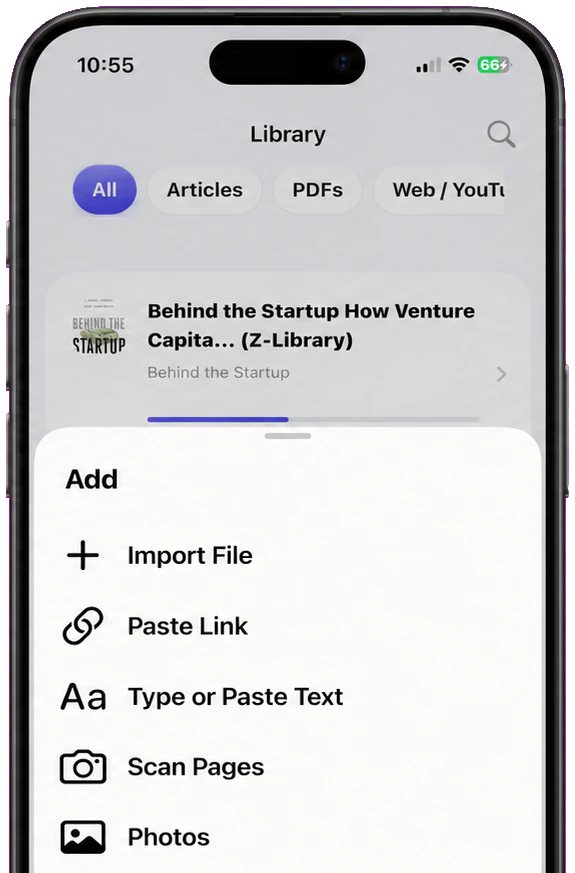
AudioPage can accept a PDF from Files or the share sheet, as well as a camera scan, photo, or screenshot. For supported inputs, text recognition, speech generation, and core playback follow a local-first path on the iPhone. The workflow is useful when you want the recognized material to become a saved, resumable listening item rather than temporary copied text.
Step by step
- Save the scanned PDF to Files, or keep the paper page flat for camera capture.
- In AudioPage, choose the relevant file, camera, or photo import.
- Let recognition finish before starting playback.
- Read the first two paragraphs on screen and compare them with the original.
- Confirm headings, columns, page numbers, and footnotes appear in a sensible sequence.
- Check high-risk characters:
0/O,1/l/I,5/S, decimal points, minus signs, and punctuation. - Select a voice and listen at a moderate speed until you trust the extraction.
AudioPage offers 26 reading and conversational voices across English, French, German, Spanish, Portuguese, and Italian. The first voice setup requires internet to obtain its resources. After that, supported core listening can continue offline. Free supports up to 10 saved items. Lifetime Offline covers unlimited eligible local reading features. Pro’s document-grounded summaries, document chat, and optional sync are connected cloud features and run only when you select them.
That boundary matters for scanned material. You do not need to invoke cloud AI merely to listen through the supported local path. A Pro summary or chat request is a separate action. See offline text-to-speech options on iPhone if travel or sensitive documents are your main concern.
Method 2: use Scan Text in Apple Notes, then speak it
For one or two paper pages, Apple’s built-in tools may be enough.
- Open Notes and create a blank note.
- Tap the attachment button and choose Scan Text.
- Position the page inside the camera frame.
- Select the recognized area and tap Insert.
- Compare the inserted text with the paper.
- Select the text and tap Speak, or use Speak Screen.
Apple’s Notes scanning guide distinguishes Scan Text from Scan Documents. If you choose Scan Documents, Notes captures page images and saves the result as a PDF in the note. That is good for archiving the visual page, but it does not remove the need to confirm a usable text layer for narration.
To enable speech, open Settings → Accessibility → Read & Speak, then turn on Speak Selection or Speak Screen. Apple’s Read & Speak guide documents the controls, voices, rate, highlighting, language detection, and custom pronunciations.
Use this method when you need a quick passage and do not want a permanent document library. A dedicated reader is more convenient for many pages, position tracking, consistent cleanup, and repeated listening.
Method 3: add a searchable text layer before importing
If you have Acrobat or another trusted OCR tool, create a searchable copy before sending the PDF to iPhone. Adobe’s desktop instructions are straightforward: open the scan, choose Scan & OCR, set the correct page range and recognition language, then recognize the text. Adobe recommends keeping a backup and reviewing the converted document.
Preserving the original is essential. OCR can alter or overlay the searchable layer without changing how the page looks. A mistake may therefore remain invisible until search, copy, or speech exposes it. Name the versions clearly, for example:
lease-scan-original.pdflease-scan-ocr-review.pdflease-scan-ocr-corrected.pdf
Do not remove document protections or bypass DRM unless you own the file and have authorization. For school, work, government, or publisher material, request an accessible tagged PDF when available. A clean source file is usually more dependable than repairing a difficult scan.
How to capture pages for better OCR
Recognition quality begins before the software runs. Use this capture checklist:
- Clean the camera lens.
- Put the page on a flat surface with a contrasting background.
- Use diffuse light from both sides; avoid a phone-shaped shadow.
- Hold the camera parallel to the paper.
- Include all four page corners without large borders.
- Flatten the curve near a book’s spine without damaging it.
- Capture one page at a time at the highest practical clarity.
- Select the printed language when the OCR tool asks.
- Retake motion blur instead of hoping the model will infer letters.
Glossy paper can reflect a bright patch that removes several words. Thin paper can show text from the reverse side. Colored backgrounds, dot-matrix print, faint faxes, handwriting, equations, and decorative fonts all increase error risk.
A practical OCR verification sample
Create a test page containing this passage, print or display it, then capture it with the same setup you will use for the real document:
Order SO-1058 contains 10 items. Deliver to O’Neil & Sons by 5:15 p.m. on July 21. Keep between 2–8°C. Call extension 401 if package A-17 is damaged.
Check whether the recognized text preserves:
SO-1058versusS0-1058;10versusIO;- the apostrophe in
O’Neil; 5:15and the period inp.m.;- the en dash and degree symbol in
2–8°C; 401andA-17.
This is a diagnostic sample, not a claim that one result predicts every page. It reveals whether glare, resolution, font, or language settings are causing obvious substitutions.
For single photos rather than PDFs, follow the dedicated photo-to-speech iPhone guide. For a born-digital file, start with the simpler PDF read-aloud workflow instead of running unnecessary OCR.
Troubleshooting scanned PDF narration
The reader says nothing
Try selecting and copying one sentence. If that fails, the file still lacks usable text. Run OCR or import the original page image through a supported recognition flow. Also check media volume and the current Bluetooth output before repeating the conversion.
Every word is recognized, but the order is wrong
OCR and layout analysis are separate problems. A two-column journal page can produce accurate words in an unusable sequence. Crop each column as a separate image, use a text or reflow view, or obtain an accessible edition. Tables and sidebars may still need visual review.
Names and numbers sound plausible but are wrong
Slow the voice and inspect the extracted text. Text-to-speech cannot know that OCR changed 0.5 mg to 05 mg. Never rely only on narration for medication, legal terms, banking details, safety instructions, formulas, or code.
Handwriting produces nonsense
Retake it in even light and isolate a small block. If recognition remains poor, transcribe it manually or ask the writer for typed text. Handwriting varies too much to promise reliable automatic narration.
Offline listening stops
Finish first voice setup while connected, open the recognized document once, and run a one-minute Airplane Mode test. In AudioPage, core playback is local after setup; Pro cloud AI and optional sync still require connectivity.
When Apple’s built-in tools are enough
Use Notes Scan Text plus Speak Selection for a receipt paragraph, printed letter, recipe, or short handout. It is already on the phone and avoids creating another library item. Use a dedicated reader when the scan is long, you need resume position, you process images frequently, or you want a consistent local/offline listening queue.
AudioPage is a reading and listening app, not an MP3 exporter or audiobook-production tool. If the local-first document workflow fits your needs, review free, Lifetime Offline, and connected Pro boundaries at AudioPage purchase support. The site only exposes a store route when the listing is confirmed public.
Frequently asked questions
Can iPhone read a scanned PDF aloud?
Yes. First use OCR to turn the page images into selectable text, verify the recognized words and reading order, then use Read & Speak or a document reader to play the text.
How can I tell whether a PDF needs OCR?
Press and hold a sentence. If you cannot select individual words or copy them into Notes, the page probably contains an image rather than a usable text layer.
Does OCR work on handwriting?
Sometimes, but handwriting is much less predictable than clear printed text. Always compare the recognized result with the page, especially for names, numbers, and instructions.
Can OCR text-to-speech work offline on iPhone?
It depends on the app and voice. AudioPage’s supported recognition and core playback are local-first; the first voice setup needs internet, after which core listening can continue offline.
Why does a scanned PDF read columns in the wrong order?
OCR may recognize every word while guessing the layout incorrectly. Crop columns separately, choose a text-view or reading-order option, or request an accessible source file.
Sources and further reading
- Apple Support: Scan text and documents in Notes using the iPhone camera (checked 2026-07-17)
- Apple Support: Hear iPhone speak the screen and selected text (checked 2026-07-17)
- Apple Support: Use VoiceOver in apps on iPhone (checked 2026-07-17)
- Adobe Acrobat: Recognize text in scanned documents (checked 2026-07-17)
- Apple Support: Read PDFs in Books on iPhone (checked 2026-07-17)
- AudioPage Support (checked 2026-07-17)
About AudioPage Editorial
Guides are produced by the team building AudioPage. Product claims are checked against the current app and repository; third-party features and prices are checked against official sources on the date shown. Read our editorial standards and corrections policy.
Turn the next document into listening time
AudioPage keeps core reading local-first on iPhone. Review the current plan boundaries, then choose the listening setup that fits your documents.