Listening Guides / Scanning and OCR
How to Read Text from a Photo Aloud on iPhone (3 Methods)
Turn a photo, screenshot, menu, or printed page into speech on iPhone. Compare Live Text, Magnifier, and a saved OCR workflow, plus privacy basics.
By AudioPage Editorial · Published · Updated · 12 min read
To turn a photo of text into speech on iPhone, use Live Text for a quick copy-and-listen job, Magnifier when you want the camera to speak nearby text immediately, or an OCR reading app when you want to save the page and resume it later. For AudioPage, choose Add → Photo or Scan pages, review the recognized text, pick a voice, and play. Always verify names, numbers, and instructions before relying on OCR-generated speech.
Quick takeaway: Live Text is fastest for one paragraph already in Photos. Magnifier is best for a label or sign in front of you. A dedicated OCR reader is the useful choice for a handout, recipe, study page, or screenshot you want to keep in a listening library.
Choose the right photo-to-speech method
“Image to speech” combines two separate jobs. Optical character recognition, or OCR, converts pixels into editable text. Text-to-speech then pronounces that extracted text. A good voice cannot repair a wrong OCR result, so recognition quality comes first.
| Your situation | Best first method | What it does well | Main limitation |
|---|---|---|---|
| One clear photo or screenshot | Apple Live Text, then Read & Speak | Uses tools already on iPhone | Awkward for organizing many pages |
| A sign, appliance control, or package in front of you | Magnifier Text Detection | Speaks text directly from the live camera | Not designed as a saved document library |
| A page you want to keep and resume | AudioPage Photo or Scan | Saves recognized text with playback in one library | Image OCR is an eligible paid local feature |
| A long, multi-page handout | Scan pages, verify OCR, then listen | Keeps pages together | More review is needed for columns and page order |
| A critical number, dose, or legal clause | Visual review plus the original | Reduces the risk of acting on an OCR error | Speech alone is not sufficient verification |
Apple documents that Live Text can recognize text in photos, paused videos, and online images, then let you copy, share, translate, or search it. Availability varies by language and region. That makes it a sensible built-in starting point, but not a guarantee that every image will be recognized correctly.
Method 1: import a photo into AudioPage and keep it as a listening item
Use this route when the image is part of something you intend to finish: a class handout, printed memo, recipe, book page, or screenshot of a long passage.
- Open AudioPage and tap Add.
- Choose Photo for an image already in your library, or Scan pages to use the camera.
- Select or capture the page. Keep all four edges visible when possible.
- Let on-device OCR extract the text.
- Read the title and the first paragraph on screen. Correct the source image and retry if the order or words are wrong.
- Choose one of the available voices and start playback.
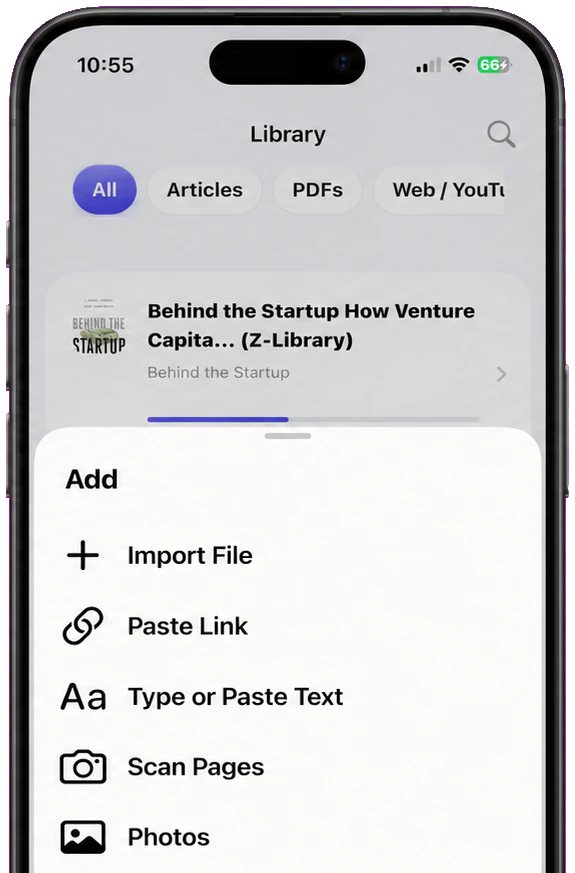
AudioPage supports photos, screenshots, camera scans, PDFs, EPUB books, DOCX files, web articles, and pasted text. It offers 26 reading and conversational voices across English, French, German, Spanish, Portuguese, and Italian. Its supported import, text recognition, voice generation, and core playback path is local-first.
There are important plan boundaries. Free includes local playback for up to 10 saved items, but advanced image OCR and camera scanning are eligible local features available with Lifetime Offline or AudioPage Pro. Lifetime Offline unlocks eligible local tools without adding cloud AI. Pro adds document-grounded summaries, document chat, and optional private sync; those connected features run only when you select them. The first voice setup needs internet, after which core listening can continue offline.
If that matches your workflow, see AudioPage purchase and restore guidance. The site’s article template will show the verified store button separately when a public listing is available.
Method 2: use Live Text for a photo already on your iPhone
Live Text is enough when you need a small amount of text once and do not need a persistent listening library.
- Open the picture in Photos.
- Tap the Detect Text icon if it appears.
- Touch and hold a word, then expand the selection handles.
- Copy the selection into Notes, or use an available speech action.
- If needed, enable Apple’s reading controls under Settings → Accessibility → Read & Speak.
Apple’s current Read & Speak guide says Speak Selection can speak highlighted text and Speak Screen can read the current screen with a two-finger swipe from the top. On current iOS versions, Accessibility Reader can also present and play detected text in a customizable full-screen view.
This path minimizes setup. Its weakness appears when you have ten pages: selecting, copying, naming, and finding each fragment becomes the work. Switch to a scan or library workflow before the fragments become harder to manage than the original paper.
Method 3: have Magnifier speak text in front of you
Magnifier is the better built-in option for immediate surroundings. Apple’s Text Detection and Point & Speak instructions describe how Magnifier can recognize text in the rear camera view and speak it aloud. Point & Speak can target text near your fingertip on supported devices.
Open Magnifier, enter Detection Mode, select Text, and aim the rear camera at the label or page. If nothing is spoken, check Silent mode, volume, and Magnifier’s Detection Feedback settings. Apple warns that detection should not be relied on in high-risk or emergency circumstances, and language availability varies.
That warning matters. Use Magnifier to hear a pantry label or identify a control, but independently confirm anything that could affect health, money, safety, travel, or a binding decision.
A five-minute sample test before scanning a whole stack
Choose one representative page, not the easiest page. It should contain a heading, a normal paragraph, a proper name, a number, and—if your material uses them—a second column or footnote.
Use this sample if you need test text:
Workshop schedule — Room B12
Registration opens at 8:45 a.m. Dr. Amara Lewis begins the first session at 9:10. Bring form RX-104 and confirm the total of $37.50 before submission. The afternoon session moves to Room C7.
After recognition, compare these five checkpoints:
- Does “B12” remain B-one-two, rather than B-I-two?
- Does “8:45” keep its colon and order?
- Is “Amara Lewis” spelled correctly?
- Does “RX-104” keep the hyphen?
- Does the final sentence follow the preceding paragraph rather than a sidebar?
Then listen at your normal speed while following the highlight. If the result is wrong, improve the capture before processing the remaining pages. This small test is faster than discovering an error halfway through a forty-page packet.
How to capture a photo that OCR can actually read
OCR is not human vision. It has to infer characters, lines, and reading order from contrast and geometry. Give it a clean input.
- Wipe the camera lens.
- Put the page on a flat, plain background.
- Use soft, even light; move lamps until glare leaves glossy paper.
- Hold the phone parallel to the page, not from one corner.
- Include the page edges, then crop after capture.
- Fill most of the frame without cutting off margins.
- Capture one logical page at a time.
- Flatten folds and curved book gutters gently.
- For small print, move closer instead of using heavy digital zoom.
- Review the first recognized paragraph before continuing.
Handwriting, decorative fonts, faint thermal receipts, translucent pages, formulas, tables, and mixed-language layouts remain hard cases. For a book page with a curved inner margin, capture the left and right pages separately. For a table, listening row-by-row may still be confusing even if every cell is recognized.
Privacy: know where the image and extracted text go
A photo can contain more than the paragraph you intended to hear: names on nearby mail, a face, an address, or a medical detail at the edge of the frame. Crop unnecessary content before importing it and avoid placing private documents on shared surfaces.
AudioPage’s supported photo recognition and core speech run on the device. Cloud summaries, document chat, and optional sync are Pro features that use connected services only when explicitly selected. Local-first does not mean “ignore permissions”: iPhone still controls whether an app may access Photos or Camera.
Apple explains that you can review or revoke an app’s access under Settings → Privacy & Security in its permission controls guide. Its App Privacy Report can show recent access to sensors and data, including Photos and Camera, plus app network activity. Use both when evaluating any image-reading app, especially one that advertises cloud voices or cross-device sync.
Troubleshooting photo text-to-speech
No text is detected
Retake the image in brighter, even light. Make the page larger in the frame, keep the phone parallel, and confirm the language is supported by the recognition tool. In Live Text, confirm the feature is enabled under Settings → General → Language & Region. If the image came from a messaging app, save the original rather than a compressed preview.
Words are read in the wrong order
Columns, sidebars, captions, and footnotes create multiple plausible paths. Crop to one column and recognize it separately. For a two-page spread, capture each page alone. If the page is available as an accessible PDF or EPUB from its publisher, prefer that structured source.
Names and numbers sound wrong
Compare the extracted text with the image. Common visual ambiguities include 0/O, 1/l/I, 5/S, commas and decimal points, and hyphens. Correct the capture or extracted text before listening. Never use unverified OCR narration as the sole source for medicine, bank details, legal deadlines, equations, or code.
The voice stops when internet is unavailable
Complete voice setup and open the item once while connected, then test Airplane Mode before leaving Wi-Fi. AudioPage’s first voice setup requires internet; supported OCR and core listening work locally afterward. Connected Pro AI and optional sync still need a connection because they are intentionally separate from local listening.
Photo import is unavailable on the free plan
Free supports local playback for up to 10 saved items, while image OCR and camera scanning are eligible local features included with Lifetime Offline or Pro. Use Apple Live Text, Magnifier, or Read & Speak for a no-purchase one-off; use plan and purchase support if you want AudioPage’s saved OCR workflow.
See the AudioPage listening workflow
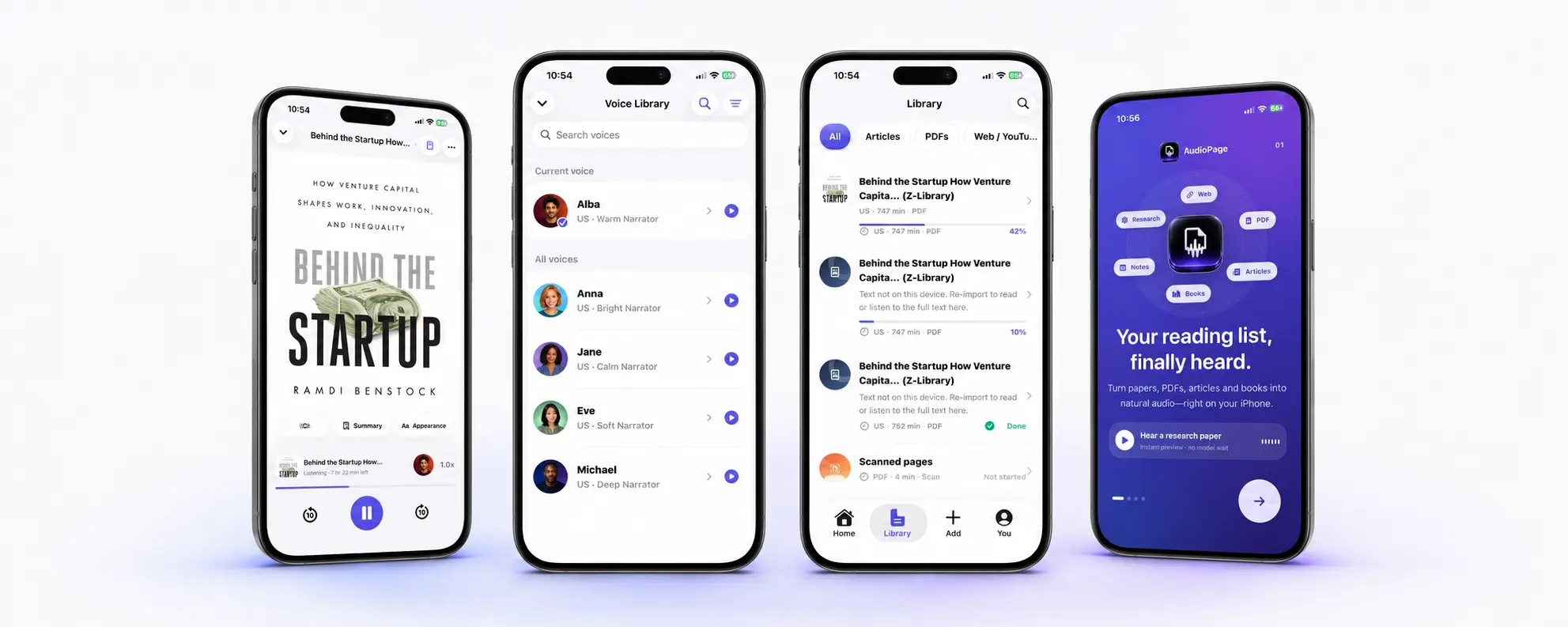
The video is a product overview, not an OCR accuracy demonstration. Recognition results depend on the actual image, print, language, and layout you provide.
For a stack that has already been saved as one file, follow how to read a scanned PDF aloud with OCR. If the PDF already has selectable text, start with how to read a PDF aloud on iPhone.
Frequently asked questions
Can an iPhone read text from a photo aloud?
Yes. Live Text can select recognized words in Photos, Magnifier can speak text in the camera view, and an OCR reader can save the extracted text as a listening item.
Why does my iPhone not recognize text in a picture?
The image may be blurred, angled, dim, low contrast, too tightly cropped, or written in an unsupported language. Retake it square to the page in even light, then test a short paragraph before scanning more.
Is photo-to-speech private on iPhone?
Privacy depends on the workflow. AudioPage performs supported photo text recognition and core voice playback on the device; connected Pro AI and optional sync use cloud services only when you select them.
Can photo text-to-speech work offline?
It can when recognition and speech run locally and the required voice is already installed. AudioPage needs internet for first voice setup; its supported OCR and core playback can then run locally.
Sources and further reading
- Apple Support: Use Live Text to interact with content in a photo or video (checked 2026-07-17)
- Apple Support: Detect text and have it read aloud using Magnifier (checked 2026-07-17)
- Apple Support: Read or listen to text with Accessibility Reader (checked 2026-07-17)
- Apple Support: Control access to information in apps (checked 2026-07-17)
- Apple Support: About App Privacy Report (checked 2026-07-17)
About AudioPage Editorial
Guides are produced by the team building AudioPage. Product claims are checked against the current app and repository; third-party features and prices are checked against official sources on the date shown. Read our editorial standards and corrections policy.
Turn the next document into listening time
AudioPage keeps core reading local-first on iPhone. Review the current plan boundaries, then choose the listening setup that fits your documents.