Listening Guides / PDF listening
How to Read Any PDF Aloud on iPhone
Learn three reliable ways to read a PDF aloud on iPhone, including built-in Apple tools, OCR for scans, offline listening, and practical fixes step by step.
By AudioPage Editorial · Published · Updated · 12 min read
To read a PDF aloud on iPhone, first open it and try Apple’s built-in Speak Screen: go to Settings → Accessibility → Read & Speak → Speak Screen, open the PDF, then swipe down with two fingers from the top. If the PDF is a scan, convert its images to text with OCR first. For long documents, a dedicated reader can keep the document, playback controls, and reading position together.
Quick takeaway: Use Speak Screen for a one-off, selectable-text PDF. Use OCR for scanned pages. Use a dedicated PDF reader aloud when you want a saved listening library, dependable resume position, document-specific controls, or local-first offline playback.
Choose the right method before you start
The file’s contents matter more than its .pdf extension. A text PDF contains characters you can select and copy. A scanned PDF may only contain page-sized images. A protected PDF may block copying or extraction. A complex academic PDF may technically contain text but expose it in the wrong order.
Try this ten-second test: press and hold a sentence in the PDF. If individual words highlight, built-in speech has text to work with. If the whole page behaves like one picture, the file probably needs optical character recognition, or OCR.
| Your situation | Best first method | Why | Main limitation |
|---|---|---|---|
| One short PDF with selectable text | Apple Speak Screen or Speak Selection | Already on iPhone; no extra app | Limited document-library workflow |
| You use VoiceOver already | VoiceOver in Books or Files | Apple documents PDF support directly | Full screen-reader navigation takes practice |
| A photographed or scanned handout | OCR, then speech | Turns pixels into readable text | OCR can misread columns, handwriting, or symbols |
| A long report, ebook, or study pack | Dedicated document reader | Saves content, position, voice, and speed together | Requires an import step |
| Password-protected or DRM-restricted file | Obtain an accessible copy from the owner | Respects the file’s protection and preserves structure | Some files cannot be extracted at all |
Method 1: use Speak Screen, Speak Selection, or Accessibility Reader
Apple includes several overlapping reading tools. The names and settings can vary slightly by iOS version and region, so use Settings search if you do not see the exact label below.
- Open Settings and choose Accessibility.
- Open Read & Speak.
- Turn on Speak Screen. You can also enable Speak Selection.
- Open the PDF in Files, Books, Safari, Mail, or the app where you received it.
- Swipe down with two fingers from the top of the screen to start Speak Screen.
- Use the controller to pause, change speed, or move backward and forward.
Apple’s current Read & Speak instructions also describe Accessibility Reader, a full-screen reading view with adjustable fonts, colors, layout, and optional autoplay. It is a good no-cost first attempt when the source app exposes its text correctly. For the complete built-in speech setup, including Speak Selection, Reader view, and Safari listening, see how to use text to speech on iPhone.
Speak Selection is more precise for a paragraph: highlight the text and tap Speak. Speak Screen is better when you want to continue through a page. Neither is intended to build a listening library, clean a difficult import, or guarantee that multi-column text is narrated in human reading order.
What about VoiceOver?
VoiceOver is a complete screen reader, not merely a “play this document” button. Apple says the Books and Files apps can use VoiceOver to read PDFs and describe structural details such as forms, tables, and lists in supported documents. See Apple’s VoiceOver in apps guide.
Choose VoiceOver if you already navigate iPhone by audio or need screen-reader semantics. If your goal is simply to listen to a report while walking, Speak Screen or a dedicated reader usually requires less setup.
Method 2: import the PDF into AudioPage for a saved listening workflow
AudioPage is designed for people who want documents to behave more like a listening queue. Import a PDF from Files or the iOS share sheet, verify the extracted text, choose a voice, and start playback. The library keeps the reading item available so you can return to it instead of finding the attachment again.
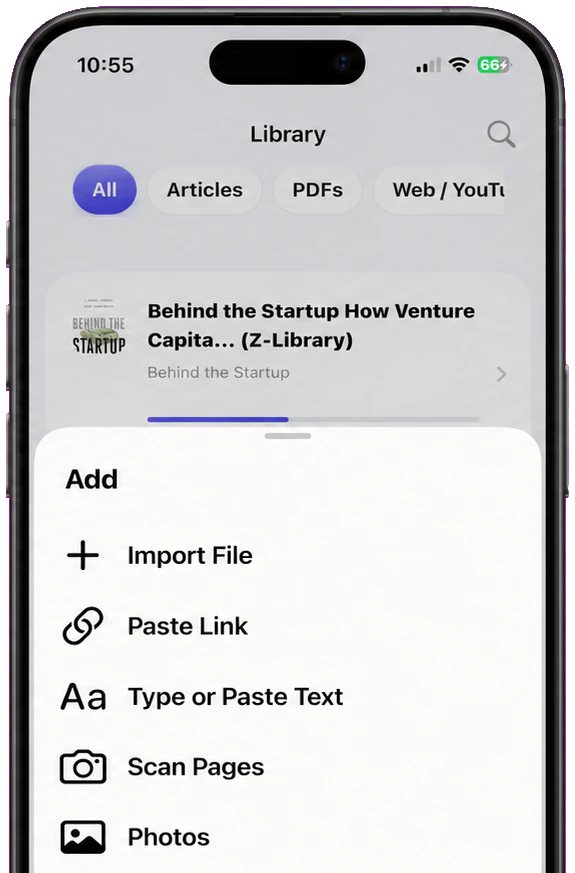
The core reading path is local-first: document import, text handling, speech generation, and playback happen on the device for supported files. The first voice setup needs an internet connection to download the required voice resources. After that setup, core listening can continue offline. Free supports up to 10 saved items. Lifetime Offline covers unlimited eligible local reading features; Pro’s document-grounded summary, chat, and optional sync use cloud services only when you select those connected features.
This separation is worth understanding. Playing a PDF does not require sending it to a cloud AI service. Selecting a Pro summary or document-chat command is a different, connected action. If privacy or unreliable connectivity is your main constraint, stay with the local listening path.
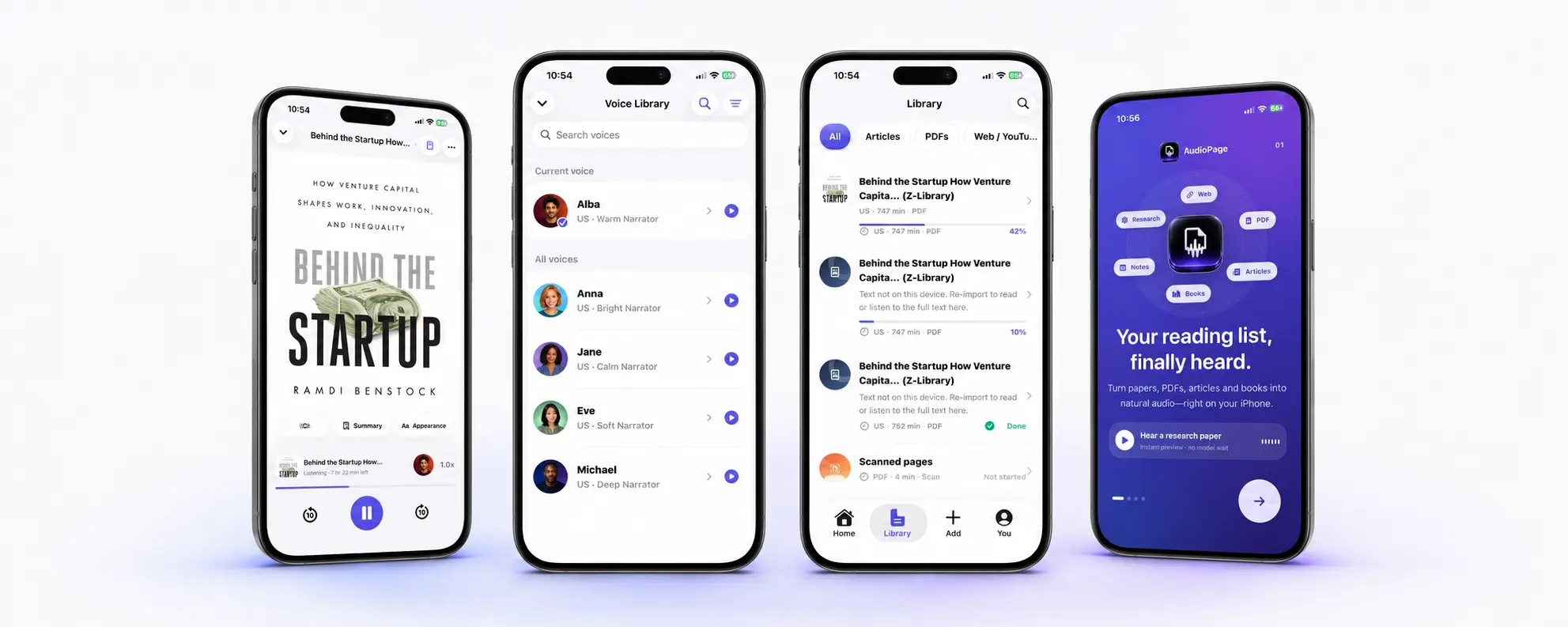
Hear a short voice sample
This brief Anna preview is the same bundled onboarding sample used inside AudioPage. A short sample is useful for checking clarity, but test a full paragraph from your own PDF before choosing a voice for a long listening session.
A practical five-minute setup
Use a low-stakes document first rather than importing a 500-page textbook as your first test.
- Download a two- or three-page text PDF to Files.
- Import it into AudioPage and open the reader.
- Confirm the title and first paragraph look correct.
- Listen at 1× speed for one minute before increasing the rate.
- Lock the phone briefly and confirm the listening behavior matches your routine.
- Stop midway through a paragraph, return to the library, and reopen it to learn how resume works.
- Turn on Airplane Mode only after the selected voice has completed its first setup, then test offline playback.
If you are deciding among readers, our best text-to-speech apps for iPhone guide explains a fair comparison method. If subscription cost is the reason you are switching, see these Speechify alternatives for iPhone. If you only need free reading, the free iPhone text-to-speech comparison starts with Apple’s built-in options. If you read several PDFs and articles in parallel, the reading progress guide shows how to keep each position separate and reliable.
Method 3: run OCR on scanned pages before listening
OCR identifies letters inside an image and produces a text layer. That is what a speech engine needs. AudioPage can accept a camera scan or photo/screenshot workflow, while dedicated PDF software may add OCR directly to a PDF.
Adobe’s scanning and OCR documentation distinguishes image-only scans from searchable text. Regardless of the tool, verify OCR output before trusting it for a contract, medication instruction, formula, code sample, or financial number.
For better recognition:
- Put the page on a flat, contrasting surface.
- Use even light and avoid a shadow from the phone.
- Hold the camera parallel to the page so lines are not trapezoidal.
- Capture one complete page at a time.
- Set the correct document language before recognition when the tool offers that option.
- Check names, decimal points, minus signs, footnotes, and line breaks.
Two-column research papers are a special case. OCR may recognize every word yet alternate incorrectly between columns. Listen to the first full page while watching the highlight. If the voice jumps from the left column to the right mid-sentence, look for a crop, reading-order, or text-view option—or obtain an accessible tagged PDF from the publisher.
A sample PDF listening checklist
Copy this checklist into Notes and use it before a commute or study block:
Document: Quarterly safety report
Text test: I can select individual words
First-page order: Heading → introduction → first section
Voice downloaded: Yes
Speed: 1.2×
Names checked: Three project names pronounced correctly
Offline test: 60 seconds in Airplane Mode
Visual review later: Table 2 and the diagram on page 8
The final line prevents a common mistake: listening is not always a substitute for looking. A voice can convey surrounding prose but may not explain the visual relationship in a chart. Mark those pages and return to them on screen.
Troubleshooting: when the PDF will not read correctly
Nothing happens when I start speech
Check the iPhone’s media volume and audio route, then try selecting and copying one sentence. If no text can be selected, treat the file as a scan. If text is selectable, reopen the PDF in Files or Books and try Speak Selection on a small passage to isolate whether the issue is the document or the original app.
The reader says the header and footer on every page
Repeated page furniture is embedded in many PDFs. Look for a text view or cleanup option in your reader. If none exists, a better-tagged source file—EPUB, DOCX, or the publisher’s accessible PDF—may produce a cleaner result than manually fighting the PDF.
Sentences play in the wrong order
This usually comes from columns, sidebars, footnotes, or an incorrect PDF text layer. Compare the highlighted text with the page. OCRing a fresh copy can help an image-only scan, but it will not always repair a badly structured born-digital PDF. Ask the publisher for an accessible version when accuracy matters.
Pronunciation is distracting
Slow the voice while checking the source language, then try another voice in that language. Apple also provides pronunciation customization in Read & Speak. Names and acronyms may still need phonetic adjustment or a small text correction in tools that permit editing.
Offline playback stops
Complete the voice download while connected, open the document once, and test it before leaving Wi-Fi. In AudioPage, core listening is local after first voice setup, but Pro cloud AI and optional sync are intentionally unavailable without a connection.
When is Apple’s built-in reader enough?
Use the built-in option when the PDF is short, selectable, correctly ordered, and disposable. It costs nothing extra and avoids another import. A dedicated app becomes useful when you listen often, keep many documents, need a reliable resume point, switch among voices and speeds, or want an explicit local/offline workflow.
AudioPage is not an MP3 exporter or audiobook-production studio. It is an iPhone reading and listening app. If that matches your use case, review the local and connected plan boundaries on AudioPage support; the page will show an App Store route only when the public listing is confirmed.
Frequently asked questions
Can an iPhone read a PDF out loud without an app?
Yes. If the PDF contains selectable text, Apple’s built-in Speak Screen, Speak Selection, Accessibility Reader, or VoiceOver may read it without a separate app.
Why will my iPhone not read a scanned PDF aloud?
A scanned PDF may contain pictures of words instead of actual text. Run OCR or import the pages through a camera or image-to-text workflow before starting speech.
Can I listen to a PDF offline on iPhone?
Yes, provided the PDF text and required voice are already on the phone. In AudioPage, the first voice setup needs internet; core playback can then run locally offline.
What is the easiest way to read a long PDF aloud?
Import the file into a dedicated document reader, verify the first page and reading order, choose a comfortable voice and speed, then save your position before a long session.
Can a PDF reader aloud understand charts and formulas?
Usually not completely. Text-to-speech can read accessible labels and extracted text, but visual charts, complex equations, and poorly tagged tables may need manual review.
Sources and further reading
- Apple Support: Hear iPhone speak the screen, selected text, and typing feedback (checked 2026-07-17)
- Apple Support: Use VoiceOver in apps on iPhone (checked 2026-07-17)
- Apple Support: Read or listen to text in apps with Accessibility Reader (checked 2026-07-17)
- Adobe Help: Scan documents to PDF (checked 2026-07-17)
- AudioPage Support (checked 2026-07-17)
About AudioPage Editorial
Guides are produced by the team building AudioPage. Product claims are checked against the current app and repository; third-party features and prices are checked against official sources on the date shown. Read our editorial standards and corrections policy.
Turn the next document into listening time
AudioPage keeps core reading local-first on iPhone. Review the current plan boundaries, then choose the listening setup that fits your documents.