Listening Guides / Offline listening
Offline Text to Speech Apps for iPhone (No Wi-Fi Needed)
Compare offline text to speech options for iPhone, from Apple’s free Speak Screen to local-first readers, and what to download before a flight or commute.
By AudioPage Editorial · Published · Updated · 11 min read
Best Offline Text-to-Speech Apps for iPhone
The best offline text-to-speech choice depends on what “offline” means for you. Apple’s free Speak Screen can read visible text with installed system voices. AudioPage keeps supported document processing, speech, and playback local-first after its first voice setup. Voice Dream Reader explicitly advertises no-internet reading. ElevenReader offers offline downloads, but its official help describes preparing audio before disconnecting. The decisive test is not a marketing label: load your real file, enable Airplane Mode, and press play.
Quick takeaway: An offline reader needs three things on the phone—the app, the content, and a usable voice or previously generated audio. Prepare all three before the connection disappears.
The best offline options at a glance
This comparison uses product documentation, not a claim that we personally tested every app. Features and plan limits can change, so confirm the current purchase screen before paying.
| Option | Offline model described by its maker | Best fit | Important preparation |
|---|---|---|---|
| Apple Speak Screen | Uses iPhone accessibility speech and installed system voices | Free reading of visible text and selections | Download any preferred enhanced voice; put the document or page on-device |
| AudioPage | Local-first import, text processing, speech, and playback | Saved PDFs, EPUBs, DOCX, articles, pasted text, photos, and scans in one listening library | Complete the first voice setup online and import each item before travel |
| Voice Dream Reader | Official site says it works without an internet connection | Established document reader for iOS and Mac | Install the desired voice and files, then verify with Airplane Mode |
| ElevenReader | Converts text to audio before going offline; stored downloads replay without Wi-Fi or data | Listeners who want ElevenLabs voices and can pre-generate audio | Offline downloads are plan-limited; prepare each download while connected |
The table reveals an easily missed distinction: offline synthesis and offline playback are not always the same. A local voice can create speech from stored text without a server. A cloud service can also feel offline after it has rendered and downloaded the audio. Both may work on a flight, but they have different preparation, privacy, storage, and usage-limit implications.
1. Apple Speak Screen: best free starting point
iPhone can read an entire screen or selected text without a third-party reader. Go to Settings → Accessibility → Read & Speak, enable Speak Screen, then swipe down with two fingers from the top of a document. Apple says the controller can pause, adjust speed, navigate forward or back, and use Speak on Touch. Apple documents the controls here.
Speak Screen is enough when your file already opens cleanly in Files, Books, Safari, or another app and you do not need a separate listening library. It is also a good zero-cost baseline: if it handles your document layout and resume needs, there may be no reason to buy anything.
Voice preparation still matters. Apple says iOS uses a compact voice by default and that enhanced-quality voices can be 100 MB or larger; it recommends Wi-Fi to download them. See Apple’s voice and speed guide. An enhanced voice that has not finished downloading is not a safe choice five minutes before takeoff.
Speak Screen’s weakness is structure. It reads what an app exposes on screen and does not automatically turn every PDF, scan, and article into one organized library. Image-only documents need OCR first. Controls and page furniture can also enter the spoken stream in some apps.
2. AudioPage: best for a local-first iPhone listening library
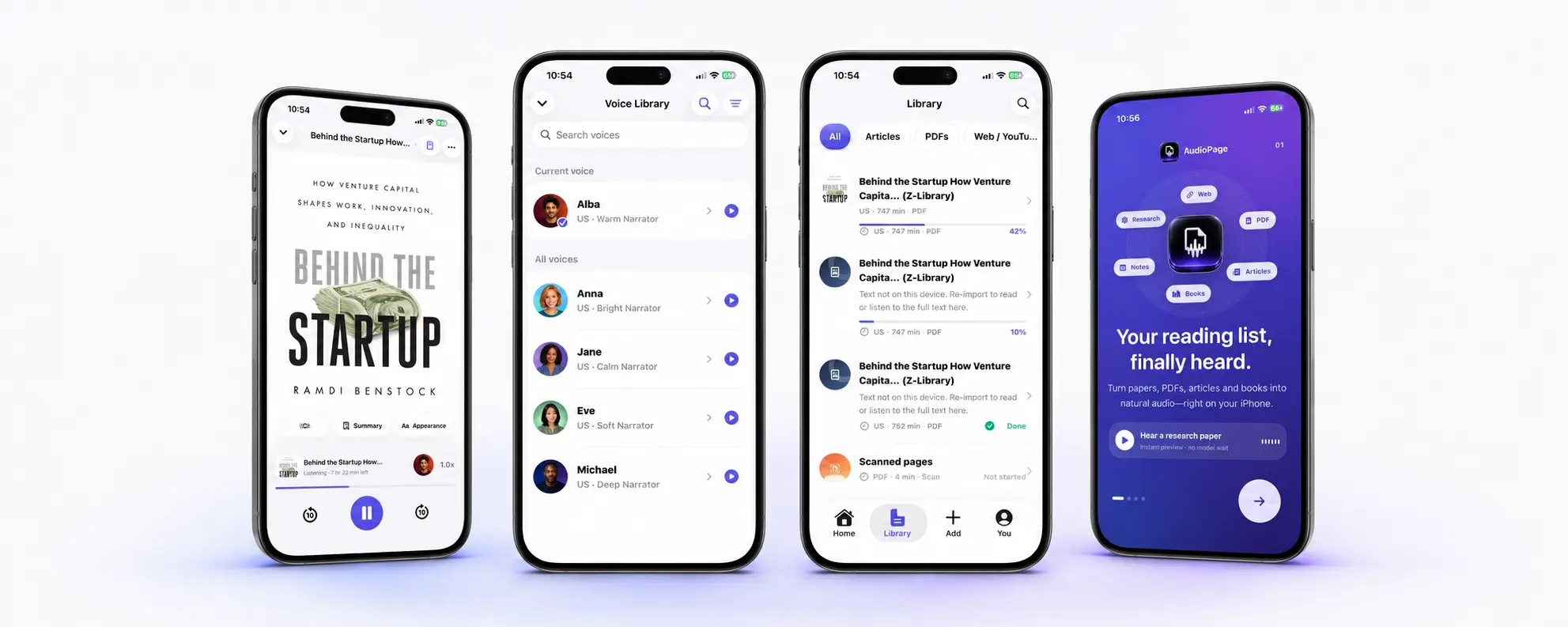
AudioPage treats PDFs, EPUBs, DOCX files, web articles, pasted text, camera scans, and photos as saved reading items. Import and text recognition, supported speech generation, and core playback are local-first. That design is useful when “offline” means more than replaying one prepared clip: you want to move among stored documents and preserve a listening position without depending on a connection.
There is one essential setup boundary. The first voice setup needs internet access. Download and initialize the voice before you travel. Once the voice and source material are ready, core listening can continue offline. The free tier supports up to 10 saved items. Lifetime Offline covers eligible local features. Optional Pro cloud summary, document-grounded chat, and sync use the network only when you choose those features; they should not be counted as offline capabilities.
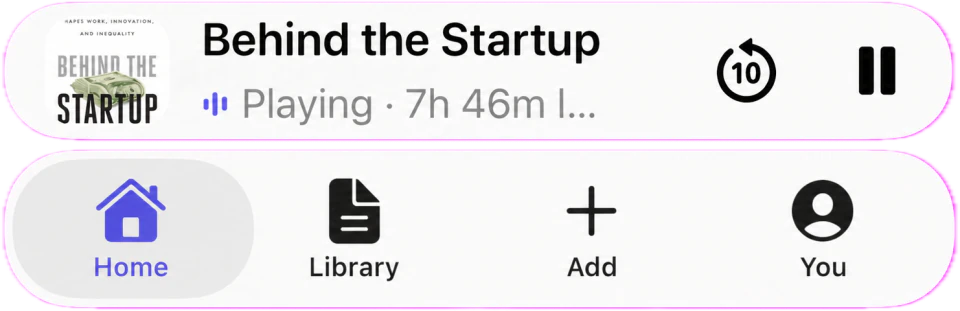
AudioPage is not an MP3 export studio or an audiobook-publishing workflow. It is for personal reading and listening. If that matches your use case, check current availability and purchase details on AudioPage support. You can also follow the step-by-step guide to read a PDF aloud on iPhone.
3. Voice Dream Reader: best for an established offline reader workflow
Voice Dream Reader’s official product page says its text-to-speech app works without an internet connection and supports material such as PDFs, textbooks, emails, documents, articles, scans, and ebooks. Review Voice Dream’s current product claims. That makes it a relevant shortlist option when broad import support and a mature iOS document-reader experience matter.
Do not treat “works offline” as permission to skip preparation. The selected voice, app, and document still need to exist locally. Pricing, included voices, and platform availability can change, so inspect the current App Store offer in your region and test your actual file before committing to a trip or accommodation workflow.
4. ElevenReader: best if prepared offline audio meets your needs
ElevenReader supports articles, EPUBs, PDFs, and text with ElevenLabs voices. Its official overview describes an app for expressive speech across multiple content types. Its offline mechanism is more specific: ElevenLabs says offline downloads convert text to audio before going offline, then store that audio in the app for playback without Wi-Fi or data.
At the time checked, the offline-download help page says this is an Ultra feature with a monthly download allowance and a maximum duration per download. Because limits and plans change, verify the live offer rather than relying on this article for a purchase number.
This route is appropriate if you value the available voices and are comfortable preparing each item in advance. It is less suitable if you expect to import a fresh, long document after losing connectivity and generate all of its speech locally.
How to evaluate “offline” without being misled
Ask these questions before choosing an app:
- Where is speech created? On the iPhone, or on a server before download?
- Where is the text stored? On-device, in cloud storage, or both?
- What happens to a new file in Airplane Mode? Can it be imported, parsed, and spoken?
- What happens to an old file? Does it replay only the sections already cached?
- Does the selected voice need a separate download? A visible voice name does not prove its data is local.
- Are offline downloads plan-limited? Count limits, hours, and maximum duration can alter the real fit.
- Which features remain connected? AI chat, summaries, sync, and account checks may be separate from core listening.
Avoid a single “offline: yes” checkbox. A commuter who prepares five articles at home can be happy with downloaded audio. A field researcher who adds documents without service needs local parsing and synthesis. Those are different requirements.
A practical Airplane Mode test
Use a representative sample instead of a polished demo paragraph. Pick one normal text PDF, one scanned page, and one long article if those are part of your week.
While connected
- Install the app and complete account or purchase restoration.
- Download or initialize the exact voice you plan to use.
- Save source files under On My iPhone when possible, not only behind an iCloud download icon.
- Import each item and inspect its first and last paragraphs.
- Play at least 20 seconds, move to the middle, and close the item.
- Check Settings → General → iPhone Storage if space is tight.
Without a connection
- Enable Airplane Mode, then manually turn Wi-Fi off if it remains enabled.
- Reopen the app from a cold start.
- Resume the prepared item from the saved position.
- Jump to a section you did not previously play.
- Import a small new local text file, if offline import is part of your requirement.
- Change speed and move between two documents.
Record what succeeds. If only previously played sections work, you may be seeing a cache rather than full offline synthesis. If the text is present but the voice silently changes, the preferred voice may not be installed.
Try the same process after reading how to save and read web pages aloud so your article queue is prepared as carefully as your PDFs.
Troubleshooting offline text to speech
The document opens, but pressing play does nothing
Reconnect briefly and confirm the selected voice finished its initial setup. Then play the document, quit and reopen the app, and retest in Airplane Mode. A partially downloaded voice can look selectable without being ready.
A file in iCloud Drive will not open offline
The filename can appear in Files while the content remains in iCloud. In Files, download the item and keep it on the device, or copy it into On My iPhone. Apple distinguishes device storage from iCloud storage; offline access requires a local copy.
A scanned PDF is silent or contains nonsense
A scan is a collection of images until OCR extracts text. Run the reader’s scan/photo import while connected if its OCR requires a server, or use a local OCR route. Review names, columns, headers, and page order before listening. See the dedicated guide to reading scanned PDFs aloud with OCR for a deeper workflow.
The voice changes after disconnecting
The preferred premium or enhanced voice may be cloud-only or unfinished. Choose a clearly downloaded voice and repeat the Airplane Mode test. Do not assume every voice in an app’s catalogue shares the same offline behavior.
Playback loses the last position
Open the item while online once, seek to a known sentence, leave it normally, and return. If position still resets, check available storage and whether you are opening duplicate imports. Use a short filename and one canonical copy during diagnosis.
Frequently asked questions
Can text to speech work on iPhone without internet?
Yes, if the document and the required voice or generated audio are already stored on the iPhone; importing new material or downloading a new voice may still require a connection.
Does AudioPage work offline?
AudioPage’s core import, text processing, speech, and playback are local-first, but the first voice setup needs internet and optional Pro cloud summary, chat, and sync require a connection when selected.
What should I download before a flight?
Download the app and chosen voice, keep the source file on the device, import and open each item, play a short section, and repeat the test in Airplane Mode.
Is offline playback the same as offline text-to-speech generation?
No. Some services generate or download audio while online and only replay that cached audio offline, while a local-first reader can synthesize supported text on the device after its voice is installed.
Choose for the disconnected moment
Apple Speak Screen is a capable free answer for visible text; the free text to speech apps for iPhone comparison covers what each no-cost tier actually includes. AudioPage suits an iPhone-first library whose supported processing and listening should remain local after setup. Voice Dream Reader is worth comparing for its documented offline reader focus. ElevenReader can serve listeners who deliberately prepare downloadable audio. The right choice is the one that survives your exact Airplane Mode exercise—not the one with the loudest “offline” label.
Sources and further reading
- Apple Support: Hear iPhone speak the screen and selected text (checked 2026-07-17)
- Apple Support: Adjust voice and speed for Speak Screen (checked 2026-07-17)
- Apple Support: Save webpages to Reading List for offline reading (checked 2026-07-17)
- Voice Dream Reader: Official product page (checked 2026-07-17)
- ElevenLabs Help: How ElevenReader offline downloads work (checked 2026-07-17)
- ElevenLabs Help: ElevenReader overview (checked 2026-07-17)
About AudioPage Editorial
Guides are produced by the team building AudioPage. Product claims are checked against the current app and repository; third-party features and prices are checked against official sources on the date shown. Read our editorial standards and corrections policy.
Turn the next document into listening time
AudioPage keeps core reading local-first on iPhone. Review the current plan boundaries, then choose the listening setup that fits your documents.