Listening Guides / Web articles
How to Read Web Pages Aloud on iPhone: 3 Methods Compared
Safari’s Listen to Page is free, Speak Screen covers more apps, and saving an article keeps it for offline listening. Compare all three iPhone methods.
By AudioPage Editorial · Published · Updated · 10 min read
How to Read Web Pages Aloud on iPhone
The fastest way to read a web page aloud on iPhone is already in Safari: open a supported article, tap the Page Menu beside the address field, then tap Listen to Page. You can also ask Siri to “Read this.” For a one-off article, that free built-in method is usually enough. If you want to save articles, resume later, keep a listening queue, or prepare them for offline playback, share the page to a dedicated reader such as AudioPage instead.
Quick takeaway: Start with Safari’s Listen to Page. Move an article into AudioPage when the page needs to become a durable item in your listening library rather than a temporary browser tab.
Three ways to make an iPhone read a website
These methods solve slightly different problems. Do not install another app until the built-in option fails your actual workflow.
| Method | Best for | What it gives you | Main limitation |
|---|---|---|---|
| Safari Listen to Page | One article you are viewing now | Play and pause from Safari, no separate import | Available only on supported webpages; the article remains a browser page |
| iPhone Speak Screen | Reading visible text in almost any app | System-wide gesture, rate controls, selected-text option | Can read navigation or other interface text; not a saved article library |
| Share to AudioPage | A repeatable article-listening habit | Clean saved item, listening position, local-first playback, library history | Requires an initial import and a first voice setup while online |
Apple’s current iPhone guide says Safari can read supported webpages aloud and documents the Page Menu → Listen to Page sequence. The word “supported” matters: Safari must be able to detect an article-like body rather than merely see text somewhere on the screen. See Apple’s Listen to Page instructions.
Method 1: use Safari’s Listen to Page
- Open the article in Safari.
- Wait for the page to finish loading, especially if it builds the article after an animation or consent screen.
- Tap the Page Menu button next to the address field.
- Tap Listen to Page.
- Return to the Page Menu to pause or resume.
Apple also supports a hands-free route. With the page open, activate Siri and ask it to “Read this” or “I want to listen to this page.” That shortcut is documented in Apple’s Siri app-actions guide.
Safari is the right choice when you are deciding whether an article is worth finishing, listening to a recipe while cooking, or hearing one news story without organizing it. There is no useful reason to turn every temporary tab into a permanent library item.
Make the page easier for Safari to understand
If a page is cluttered, try Show Reader from the same Page Menu before starting audio. Apple says Reader reformats supported webpages around the relevant text and images while hiding navigation and other distractions. It is not available on every page, but its presence is a strong sign that Safari has recognized the article body. Apple explains Reader here.
Reader is also useful for visually following along. A clean column makes it easier to relocate a sentence when you pause the audio to take a note.
Method 2: turn on Speak Screen for broader coverage
When Listen to Page is missing, iPhone’s accessibility speech can read onscreen content beyond Safari’s article detector.
- Open Settings → Accessibility → Read & Speak.
- Turn on Speak Screen.
- Optionally turn on Show Controller and highlighting.
- On a webpage, swipe down with two fingers from the top of the screen.
Apple’s Read & Speak guide says the controller can pause, change rate, move forward or back, and use Speak on Touch. You can also enable Speak Selection, select a smaller passage, and tap Speak. That is useful when the page contains a short definition or a comment you want to hear, not the whole document.
Speak Screen is a fallback, not always a clean article parser. It may encounter buttons, labels, cookie notices, or navigation because its job is to speak what is on the screen. Try Reader first; if the page still behaves poorly, saving the article into a dedicated reader creates a more predictable item.
Method 3: save the article in AudioPage
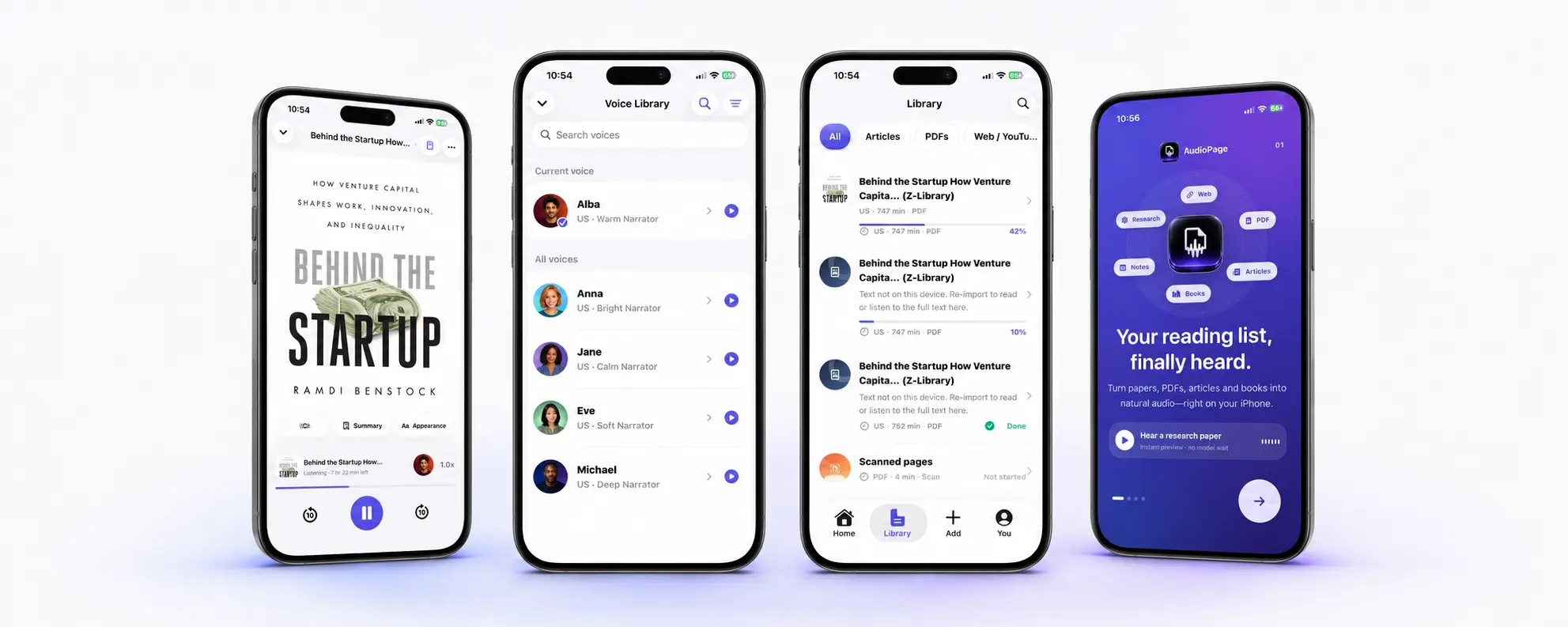
AudioPage is designed for the point where “read this tab” becomes “keep my place in this reading.” From Safari, use Share, choose AudioPage, review the imported article, and add it to your library. Web extraction, text processing, speech, and core playback are local-first. The first voice setup needs internet access; once the required voice is ready and the article has been imported, core listening can continue offline.
The free tier supports up to 10 saved items, which is enough to test a small commute or study queue. Lifetime Offline covers eligible local features without turning connected AI into an offline claim. Pro cloud summary, document chat, and optional sync run only when you select those connected features.
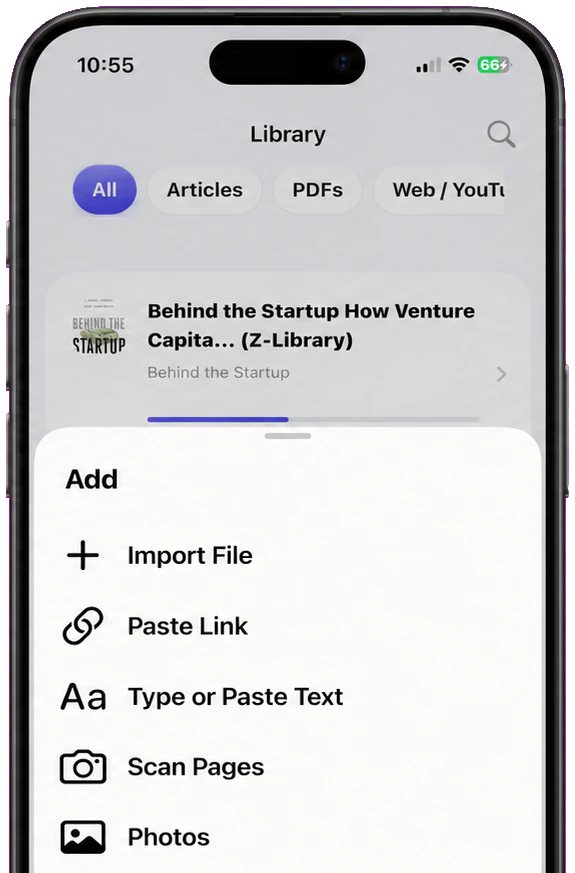
Use a dedicated reader when you need at least two of these:
- a library that survives after the original tab is closed;
- a reliable resume position across a long article;
- the same speed and voice choices across articles and documents;
- a prepared item for a flight, train, or weak-signal commute;
- an intentional queue rather than dozens of open Safari tabs.
If that is your workflow, review the purchase options and availability notes on AudioPage support. For a broader comparison, see the best article reader apps for iPhone and the offline text-to-speech guide.
A five-minute sample exercise
Use one substantial article you genuinely need to finish—roughly 1,000 words is enough to expose navigation and resume problems.
- In Safari, start Listen to Page and play for one minute.
- Pause, lock the phone, reopen Safari, and check whether returning to the page feels simple.
- Turn on Reader and note whether menus, captions, or newsletter prompts disappear.
- Share the same article into AudioPage and verify the title, first paragraph, byline residue, and ending.
- Start playback, jump ahead, leave the item, and reopen it.
- Choose the route that preserves the article and position with the least cleanup.
Do not judge only the voice. For long-form listening, correct extraction, position recovery, and removing repeated page furniture can matter more than a dramatic demo sentence.
Prepare a web article for offline listening
“Offline” has two separate requirements: the content must be on the phone, and the speech resource must be ready.
For Safari, Apple provides an offline Reading List option. Add a page to Reading List, then go to Settings → Apps → Safari and turn on Automatically Save Offline. Apple says saved Reading List items can then be read without an internet connection. Follow Apple’s Reading List steps. Whether Listen to Page works for every saved page still depends on page support, so test an item before travel.
For AudioPage, complete the first voice setup while connected, import the article, start it briefly, and then test with Airplane Mode. Connected Pro actions such as cloud summary, document chat, and sync are not part of the offline path.
Pre-flight checklist
- Open every article you expect to use.
- Confirm the text begins and ends correctly.
- Complete the selected voice’s initial setup.
- Play at least ten seconds of each important item.
- Turn on Airplane Mode and replay one item.
- Pack a charger; continuous audio is still battery work.
Troubleshooting web-page read aloud
“Listen to Page” is not in the menu
First reload the page and dismiss any cookie or sign-in layer. Try Show Reader. If neither Reader nor Listen to Page appears, Safari may not recognize the layout as a supported article. Use Speak Screen for the visible content or share the page into a reader that can extract and save it.
Safari reads menus, ads, or unrelated labels
Confirm that you chose Listen to Page rather than the broader Speak Screen gesture. If you did use Speak Screen, enable Reader before starting. For a persistent article, import it and inspect the extracted first and last paragraphs before committing to a long session.
A paywalled article imports only a preview
The share target can only work with content the browser makes available. Sign in through the publisher’s normal access route, reopen the full article, and share again. Do not use extraction tools to bypass a publisher’s access rules.
Playback stops when the page changes
A browser tab is a live page, so reloads, redirects, and media behavior can affect the session. Save the article as a library item if you need a stable resume point. Also check Low Power Mode, available storage, and whether the browser or reader was force-quit.
The article is in the wrong language or pronunciation is awkward
In Settings → Accessibility → Read & Speak, review the default language, voice, language detection, rate, and custom pronunciations. In a reader app, choose a voice that matches the article language rather than assuming automatic detection will always resolve mixed-language pages.
Frequently asked questions
Can Safari read a web page aloud on iPhone for free?
Yes. On a supported page, open Safari’s Page Menu and tap Listen to Page; this built-in option does not require a separate reader app.
Why is Listen to Page missing in Safari?
Listen to Page appears only when Safari can identify readable article text, so it may be unavailable on web apps, highly interactive pages, image-only pages, or some paywalled layouts.
Can Siri read a website aloud?
Yes. With a supported page open in Safari, ask Siri to “Read this” or say “I want to listen to this page.”
How do I save a web article to listen to later?
Use Safari’s Share menu to add the page to an article-reading app such as AudioPage, then confirm the extracted title and text before you leave the network.
The practical choice
Safari’s Listen to Page is not a lesser solution; it is the sensible first tool for a supported article you need once. Speak Screen expands coverage when Safari does not recognize the page. AudioPage fits the next stage: turning articles into saved, resumable listening alongside PDFs, EPUBs, DOCX files, scans, and pasted text. Start with the smallest method that solves today’s page, then build a library only for reading you intend to keep.
Sources and further reading
- Apple Support: Listen to a webpage in Safari on iPhone (checked 2026-07-17)
- Apple Support: Use Siri with apps on iPhone (checked 2026-07-17)
- Apple Support: Hear iPhone speak the screen and selected text (checked 2026-07-17)
- Apple Support: Use Reader in Safari on iPhone (checked 2026-07-17)
- Apple Support: Save webpages to read later in Safari on iPhone (checked 2026-07-17)
About AudioPage Editorial
Guides are produced by the team building AudioPage. Product claims are checked against the current app and repository; third-party features and prices are checked against official sources on the date shown. Read our editorial standards and corrections policy.
Turn the next document into listening time
AudioPage keeps core reading local-first on iPhone. Review the current plan boundaries, then choose the listening setup that fits your documents.