Listening Guides / Apple built-in speech
How to Use Speak Screen on iPhone
Turn on Speak Screen on iPhone, use the two-finger gesture, adjust voice and speed, and troubleshoot apps, controls, language, and lock-screen limits.
By AudioPage Editorial · Published · Updated · 10 min read
How to Use Speak Screen on iPhone
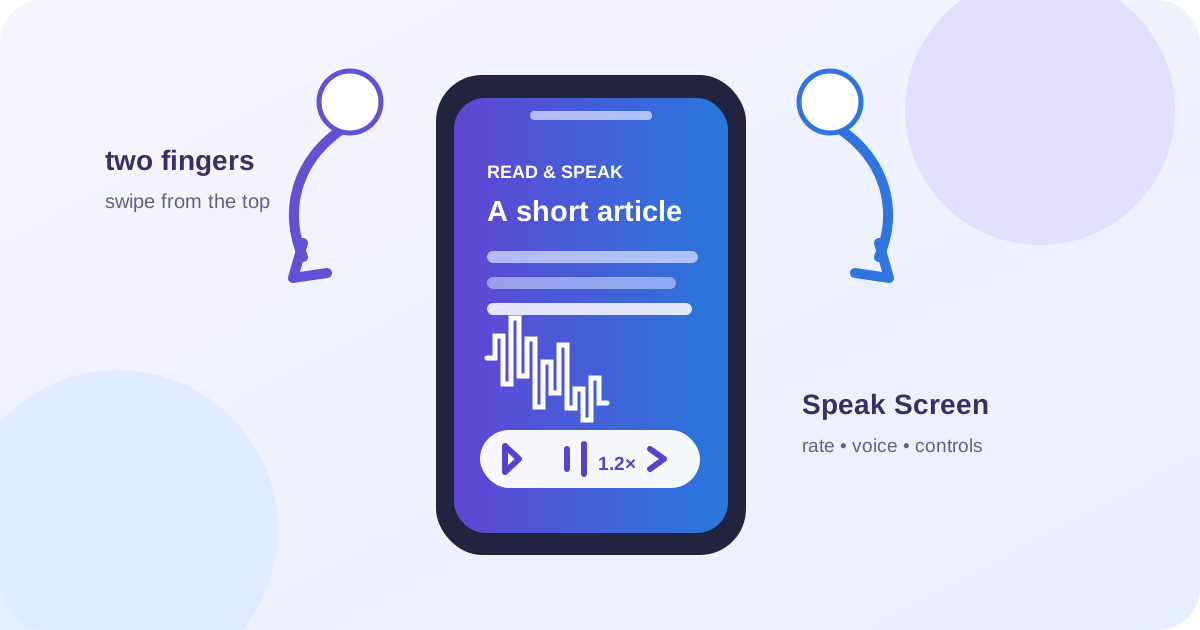
To use Speak Screen on iPhone, open Settings → Accessibility → Read & Speak, turn on Speak Screen, open readable text in an app, and swipe down with two fingers from the top of the screen. The speech controller lets you pause, change the speaking rate, move through the content, and use Speak on Touch when available. Speak Screen is useful for a page you are looking at now; it is not automatically a saved document library, an EPUB converter, or an MP3 exporter.
Quick takeaway: Try Speak Screen first for a short selectable-text page, PDF, email, or web article. Use Speak Selection when you want one paragraph. Use VoiceOver for full screen-reader navigation. Use Accessibility Reader for a cleaner full-screen text view, or a dedicated reader when you need saved items and a tested offline workflow.
Turn on Speak Screen
Apple’s current Read & Speak guide gives this path:
- Open Settings.
- Tap Accessibility.
- Tap Read & Speak.
- Tap Speak Screen.
- Turn on Speak Screen.
While you are there, review Highlighting, Show Controller, and Controller Actions. Apple says you can customize the highlight style, color, and selection for spoken text, keep the controller visible, and choose what long-press or double-tap actions do. Menu labels can vary by iOS release or language, so use Settings search for “Speak Screen” if the path looks different.
Do not enable every speech feature at once. Start with Speak Screen, read one page, and then decide whether you also need Speak Selection, Accessibility Reader, or VoiceOver. Separate settings make troubleshooting easier.
Start, pause, and navigate speech
Open an app with actual text on screen. A web article, a Mail message, a text document, or a selectable-text PDF is a better first test than a page made entirely from images.
- Put the screen at the beginning of the text you want to hear.
- Swipe down with two fingers from the top of the screen.
- Wait for the speech controller and the first sentence.
- Use pause, forward, back, and the speaking-rate control.
- If enabled, use Speak on Touch to tap a part of the screen and hear that text.
Speak Screen is screen-scoped. It may include a title, navigation labels, buttons, captions, a message signature, or repeated page furniture if the app exposes those as text. For a single paragraph, select the text and use Speak instead. For a Safari article, Apple also supports the page-specific Page Menu → Listen to Page route on supported pages; our web-page read-aloud guide compares that option with Speak Screen.
| Goal | Apple tool | Start action | What to verify |
|---|---|---|---|
| Hear the visible text flow | Speak Screen | Two-finger swipe from the top | The current screen contains only the intended material |
| Hear one paragraph | Speak Selection | Select text, tap Speak | The selection does not include a heading or signature by accident |
| Read and listen in a clean view | Accessibility Reader | Open it from shortcut or Control Center | Apple detects text in the current app |
| Navigate every control by audio | VoiceOver | Turn on VoiceOver and use its gestures | You are ready for a full screen-reader interaction model |
| Listen to a supported Safari page | Listen to Page | Page Menu → Listen to Page | Safari recognizes the page as a supported webpage |
Adjust voice, language, and rate
In Settings → Accessibility → Read & Speak, Apple exposes voice and dialect choices, a default language, optional language detection, speaking rate, and pronunciation customization. Use a short sample to set the rate. A fast setting that sounds good for a familiar article may be too quick for names, code, legal wording, or a document with numbers.
Use the language controls deliberately:
- choose the document’s primary language when it is consistent;
- turn on language detection only when a mixed-language document actually needs it;
- test proper names, abbreviations, URLs, and numbers;
- add a pronunciation when one repeated term is distracting;
- use the controller’s rate adjustment for a temporary change rather than rewriting your default.
Speech highlighting can help you see whether the spoken text follows the visible sentence. It does not prove that a PDF’s columns, table cells, or footnotes are in a correct reading order. Compare the highlight and the source page before trusting a long document.
Speak Screen versus VoiceOver
Speak Screen and VoiceOver both speak content, but they are not interchangeable. Apple’s VoiceOver in apps guide describes VoiceOver as a navigation model for apps, with gestures and spoken information about controls, lists, forms, tables, and other structure in supported content.
Choose Speak Screen when:
- you are already looking at a page and want its readable text spoken;
- you want a quick two-finger gesture;
- you do not want to change how every control on the iPhone is navigated.
Choose VoiceOver when:
- you want the phone to announce controls as you move through the interface;
- the app’s structure matters as much as the body text;
- you already know or are ready to learn VoiceOver gestures.
The distinction avoids a common troubleshooting mistake: turning on VoiceOver because Speak Screen did not interpret a scanned page will not create text where none exists. A scan needs OCR or an image-to-text workflow first. Our PDF read-aloud guide explains the selectable-text test and scan boundary.
Speak Screen and the lock screen
Apple’s documentation explains how to start Speak Screen and use the onscreen controller. It does not promise that every app, document, audio route, and iOS release will continue identically after the iPhone is locked. Treat lock-screen continuation as a workflow test, not a universal feature claim.
Test it with the exact material you plan to use:
- Start a short article or PDF.
- Confirm the controller and audio route.
- Lock the phone.
- Listen for one minute without interacting.
- Unlock and check whether the controller, position, and app state are still useful.
- Repeat with headphones if that is your real routine.
If you need a saved listening position across multiple documents, a dedicated reader may be more predictable. AudioPage is designed for supported PDFs, EPUBs, DOCX files, web articles, pasted text, and photos or scans. Its first voice setup needs internet; after that, supported core listening can continue locally offline. Free supports up to 10 saved items, Lifetime Offline covers eligible local features, and Pro connected summaries, document chat, and optional sync are separate cloud features. AudioPage does not export MP3 files.
A four-page Speak Screen test
Use four small fixtures instead of only a clean web page:
Test fixtures: one article, one selectable-text PDF, one Mail message, and one image-only scan.
- Open the article and start Speak Screen. Note whether navigation text enters the flow.
- Open the selectable PDF and listen through a heading and paragraph.
- Open the Mail message and check whether the subject, quoted reply, or signature is included.
- Open the scan and see whether there is useful selectable text.
- Stop and use Speak Selection on one known paragraph.
- Adjust rate, highlight, and language for the text you actually read.
- Test lock-screen continuation only if your routine requires it.
Pass if the content is selectable, the start position is predictable, and you know where the screen boundary is. Fail if the page is image-only, the app exposes too much interface text, or the audio route behaves differently from the setting you intend to use.
Troubleshooting Speak Screen
The two-finger swipe does nothing
Confirm that Speak Screen is enabled in Read & Speak, then try the gesture from the very top of the screen with two fingers moving down together. Test a simple text page. If Speak Selection also has no Speak action, the current app may not expose selectable text.
The voice reads menus instead of the article
Scroll the article into a clean position, use Speak Selection, or switch to Safari’s Listen to Page for a supported webpage. Accessibility Reader can provide a more focused text view when it detects the content.
The PDF is a blank page to speech
Press and hold a word. If you cannot select individual text, the PDF may be a scan or image-only file. Use OCR or a supported scan workflow; Speak Screen cannot narrate pixels as words without a text layer.
The rate is too fast or too slow
Use the controller for a temporary adjustment, then set the default Speaking Rate under Read & Speak. Recheck numbers, names, and punctuation after changing speed.
Multiple languages sound wrong
Set the primary language or enable language detection, then test a mixed-language paragraph. A voice may still pronounce a name or acronym differently from your expectation; use Pronunciations when the term repeats.
Speech stops after locking the phone
Reproduce it with your actual app, iOS release, and audio route. Apple documents the controller and gesture, not a universal lock-screen guarantee. If the workflow matters, use a dedicated reader with a saved position and verify it before travel.
Frequently asked questions
How do I turn on Speak Screen on iPhone?
Open Settings > Accessibility > Read & Speak, tap Speak Screen, and turn it on. Then open readable text and swipe down with two fingers from the top of the screen.
What is the difference between Speak Screen and Speak Selection?
Speak Screen reads the text on the current screen after a two-finger swipe, while Speak Selection speaks only the text you select and then choose Speak.
Can Speak Screen read a PDF on iPhone?
Yes, when the PDF exposes selectable text to the app displaying it. Scanned or image-only PDFs may need OCR or a different reading workflow first.
Can Speak Screen keep reading when the iPhone is locked?
Do not assume a universal lock-screen behavior. Apple documents the on-screen controller and gesture, but continuation depends on the app, audio route, iOS version, and the exact content, so test your workflow.
Is Speak Screen the same as VoiceOver?
No. Speak Screen is a read-aloud command for onscreen text, while VoiceOver is a full screen reader with navigation gestures and spoken descriptions of interface elements.
The practical answer
Speak Screen is a strong first tool because it is built into iPhone and takes one setting plus one gesture. Keep its boundary clear: it reads exposed onscreen text, not every visual element, and it does not create a reusable audiobook file. Move to Speak Selection for precision, Accessibility Reader for a clean full-screen view, VoiceOver for navigation, or a dedicated reader when saved documents and offline preparation matter.
For the product-specific local and connected paths, see AudioPage support. Start with Apple’s built-in feature, test the actual source, and only add a reader when your workflow needs more than one screen at a time.
Sources and further reading
- Apple Support: Hear iPhone speak the screen, selected text, and typing feedback (checked 2026-08-07)
- Apple Support: Read or listen to text in apps with Accessibility Reader (checked 2026-08-07)
- Apple Support: Use VoiceOver in apps on iPhone (checked 2026-08-07)
- Apple Support: Listen to a webpage in Safari on iPhone (checked 2026-08-07)
- AudioPage Support (checked 2026-08-07)
About AudioPage Editorial
Guides are produced by the team building AudioPage. Product claims are checked against the current app and repository; third-party features and prices are checked against official sources on the date shown. Read our editorial standards and corrections policy.
Turn the next document into listening time
AudioPage keeps core reading local-first on iPhone. Review the current plan boundaries, then choose the listening setup that fits your documents.