Listening Guides / Apple built-in speech
How to Use Accessibility Reader on iPhone
Learn how Accessibility Reader on iPhone detects text, opens a clean full-screen view, reads aloud, changes layout, and handles no-text cases.
By AudioPage Editorial · Published · Updated · 10 min read
How to Use Accessibility Reader on iPhone
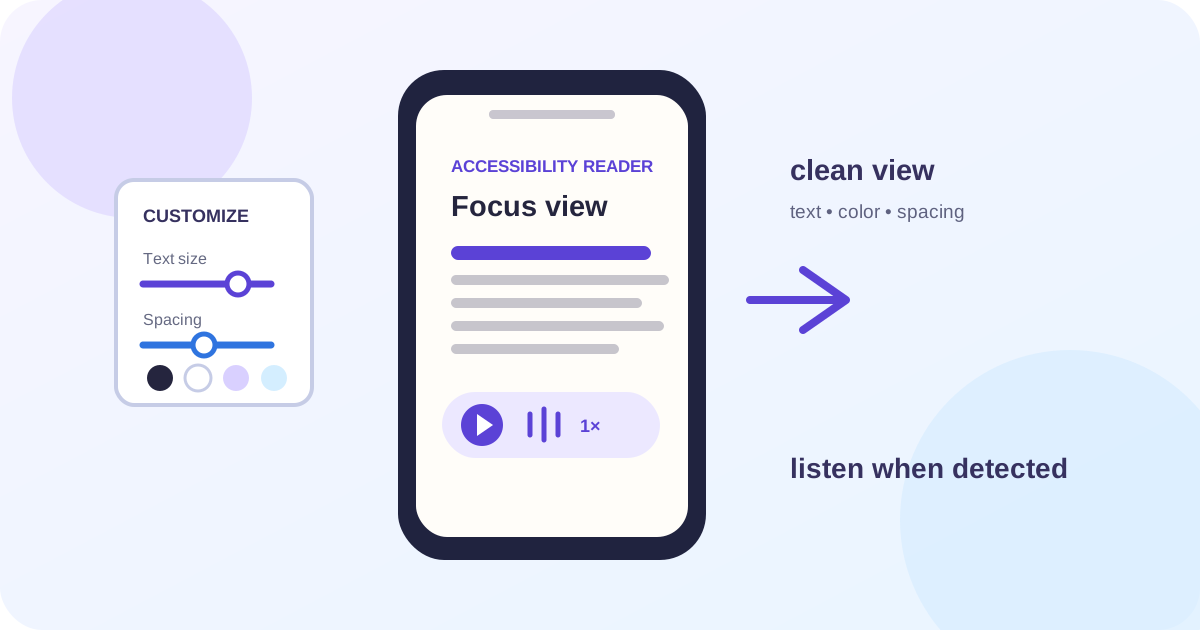
Accessibility Reader on iPhone opens detected text in a full-screen reading view. Turn it on in Settings → Accessibility → Read & Speak → Accessibility Reader, then launch it from the Accessibility Shortcut or Control Center. In that view you can adjust fonts, text size, colors, spacing, links, highlighting, speaking rate, and playback controls. If Apple cannot detect text, it shows a no-text warning; that is a useful diagnostic, not a reason to claim that every PDF, scan, or app is supported.
Quick takeaway: Accessibility Reader is a good built-in choice when you want a clean, adjustable view of text from the app currently open. Use Speak Screen for a quick screen-scoped gesture, Safari’s Listen to Page for a supported webpage, or a dedicated library such as AudioPage when you need saved documents, resume state, and offline preparation.
What Accessibility Reader does
Apple describes Accessibility Reader as a full-screen way to read or listen to text in apps, with customization for fonts, layouts, and background colors. Its current iPhone guide also says the feature is built into Magnifier for captured text, such as text in the environment. That gives it two related jobs:
- re-present text that an app exposes;
- provide a readable view and audio controls for that detected text.
It is not a general document importer. It does not turn a protected ebook into a transferable file, repair every PDF’s reading order, or create an MP3. It operates on text Apple can detect in the current context.
| Need | Accessibility Reader | Better first option when it does not fit |
|---|---|---|
| Clean full-screen view of current text | Strong fit | None; try it before adding an app |
| Adjustable font, color, and spacing | Built in | Reader-specific settings in a dedicated app |
| Read detected text aloud | Play, pause, skip, rate controls | Speak Screen or Speak Selection for a smaller scope |
| One supported Safari article | Possible through detected text | Safari Listen to Page is more direct |
| Image or scan with no detected text | Shows a warning | OCR, Magnifier capture, or a scan workflow |
| Many files saved for later | Not a document library | AudioPage or another dedicated reader |
| Protected store book | Does not remove protection | Use the app that owns the book |
| MP3 or audiobook production | Not an exporter | Use an audio-production tool |
The right test is therefore “does this current app expose the text I want in this moment?” rather than “does my iPhone support reading aloud?”
Turn on Accessibility Reader and choose a launch path
Use the settings path first:
- Open Settings.
- Tap Accessibility.
- Tap Read & Speak.
- Tap Accessibility Reader.
- Turn it on.
- Turn on Autoplay only if you want detected text to begin automatically.
Apple documents two launch routes: use the Accessibility Shortcut by opening an app and triple-clicking the side button, or add Accessibility Reader to Control Center and open it there. If the shortcut contains multiple features, choose Accessibility Reader from the list. The exact button names can vary with language and iOS version, but Settings search should find the feature.
Start with one simple article in Safari or one plain message in Mail. Do not begin with a protected ebook, a two-column research PDF, or an image-only scan. A clean text test tells you whether the launch path works before document structure adds another variable.
Customize the reading view
Once Accessibility Reader is open, tap More and then Customize Reader. Apple lists controls for text color, background color, text size, font, high-legibility characters when using the system font, bold text, line spacing, word spacing, character spacing, and link display. You can create and name themes so you can return to a preferred configuration.
The customization has two separate purposes. First, it can make the current text easier to inspect visually. Second, it can make the speech workflow less surprising by exposing headings, links, and line breaks more clearly. Neither purpose guarantees that the source document’s semantic structure is perfect.
Try this small routine:
- keep links visible during the first test so you know whether buttons or URLs are entering the text;
- use a moderate text size while comparing the reader with the original page;
- change line spacing only after confirming that paragraph boundaries remain clear;
- save a named theme for a long reading session instead of repeatedly adjusting controls;
- reset the theme when a highly customized view makes a different document confusing.
If the app contains a complex layout, compare the original and Accessibility Reader view. A clean full-screen view is a reading aid, not a proof that captions, sidebars, footnotes, or table relationships have been preserved.
Listen to detected text
In Accessibility Reader, use the audio controls to play, pause, skip backward or forward, change speaking rate, or drag the playback position. Apple says you can hide or show those controls from the More menu. Turn on Autoplay only after you understand what text is being captured; automatic playback is convenient, but it can start on content you did not intend to hear.
Use the screen for the first minute. Confirm:
- The title or opening line is correct.
- The language and voice sound appropriate.
- The first paragraph is not preceded by navigation, cookie text, or a button label.
- The playback highlight follows the sentence you see.
- The speed remains understandable for numbers, names, and punctuation.
If your goal is just one paragraph, Apple’s Speak Selection and Speak Screen controls may be faster. Speak Screen reads the current screen after a two-finger gesture; Accessibility Reader deliberately changes the presentation first.
No-text diagnostics
Apple says Accessibility Reader alerts you when no text is detected. Treat that alert as a branch in the workflow:
| What you see | Likely reason | Next test |
|---|---|---|
| No text detected on a scan | Page is an image without a usable text layer | Capture or OCR a short section |
| No text detected in a web app | Content is interactive or hidden behind a view | Try Safari Reader or the page’s text view |
| Text appears but order is wrong | Columns, sidebars, or app extraction boundary | Compare with Speak Selection or a clean source |
| Only a title appears | Body is loaded dynamically or not exposed | Wait for loading, scroll, or open the article view |
| Protected content is unavailable | Owning app controls the content | Use its reading or audiobook options |
| Captured text has errors | Photo angle, lighting, or small type | Capture one flat, well-lit section and verify it |
For captured text in Magnifier, Apple provides a separate guide for viewing text in a format that is easier to read. The captured-text documentation is a better reference than assuming Accessibility Reader can extract every camera image inside every app.
Do not describe a no-text result as a product failure without checking the source. A scan, a protected document, and an interactive webpage fail for different reasons.
When Apple’s built-in reader is enough
Accessibility Reader is enough when:
- the source app exposes the text you need;
- you want a clean, temporary view rather than a saved file;
- you need adjustable typography and playback controls;
- the article or message is short enough to reopen from its original location;
- you do not need to combine several formats in a library.
Apple Books may still be the better choice for a book that is already in Books, because the book’s library, chapters, bookmarks, and annotations stay together. Safari’s Listen to Page may be more direct for a supported web article. Use the tool that owns the content when protection or licensing determines the reading path.
When a saved reading library is worth it
Accessibility Reader starts from whatever is open now. A saved library starts with an intentional import. Use a dedicated reader when you want to:
- keep supported PDFs, EPUBs, DOCX files, articles, pasted text, and photos or scans together;
- reopen an item without finding the original email or browser tab;
- save a reading position and return later;
- perform a document-specific first-page and reading-order check;
- prepare supported core listening for offline use after voice setup.
AudioPage follows that local-first model. Import a supported item from Files or the Share Sheet, verify its text, choose a voice, and test a short section. The first voice setup needs internet. After setup, supported core listening can continue locally offline. Free supports up to 10 saved items. Lifetime Offline covers eligible local features. Pro summary, document chat, and optional sync are separate connected features. AudioPage is not an MP3 exporter or audiobook-production tool.
The choice is not “Apple versus AudioPage” in every case. Use Apple’s built-in reader when it is already enough. Use the library when the repeatability of the workflow is the problem. Our web-page listening guide covers the browser branch, and our PDF guide covers selectable text, scans, and reading order.
A practical Accessibility Reader test
Use four sources and write down the result:
Test fixtures: a plain Safari article, a Mail message, a selectable-text PDF, and one captured page from Magnifier.
- Add Accessibility Reader to the Shortcut or Control Center.
- Open the Safari article and launch Reader.
- Confirm the first paragraph, links, and autoplay state.
- Change font, spacing, background, and speaking rate.
- Open the Mail message and see whether the current text boundary is acceptable.
- Open the PDF and test a heading, a table, and a page transition.
- Capture one clean page in Magnifier and open its text view.
- Record which source produces a no-text alert or incorrect order.
- Decide whether each source should remain temporary or be saved to a library.
Pass if the view opens, detected text is correct enough to review, and playback starts where expected. Fail if the content is unavailable, the structure is misleading, or your real habit requires a saved item that disappears when you leave the source app.
Troubleshooting Accessibility Reader
Accessibility Reader is not in Control Center
Add it to Control Center or use the Accessibility Shortcut. If the side-button triple-click opens a feature list, select Accessibility Reader. Confirm the feature is enabled under Read & Speak.
Reader opens but says no text detected
Try a simple web article or Mail message. If those work, the original file may be an image-only scan, a protected view, or an app that does not expose its content. Use OCR or a supported alternate source when appropriate.
The reader includes navigation or link text
Turn off autoplay, compare the original and Reader view, and use Speak Selection for the exact paragraph. Safari’s Listen to Page may produce a cleaner article boundary on supported webpages.
Playback starts from the wrong place
Stop and reopen Reader after scrolling to the intended passage. Because Accessibility Reader is tied to the current app context, it is not the same as a saved chapter queue. Use a dedicated reader when reliable resume is central.
A PDF looks fine but reads badly
Check for columns, tables, footnotes, and an image-only page. Select a sentence in the PDF and compare it with the spoken order. If the file is important, obtain a better-structured source or use a document reader with an explicit extraction view.
The reader loses audio after leaving the app or locking the phone
Test the exact app, iOS version, audio route, and content. Apple documents Accessibility Reader controls but does not promise identical lock-screen behavior for every workflow. A saved local reading item may be more predictable if the phone needs to become a listening device rather than a screen.
Frequently asked questions
What is Accessibility Reader on iPhone?
Accessibility Reader is an Apple full-screen view that can display detected text with adjustable fonts, layouts, colors, spacing, and playback controls for listening.
How do I open Accessibility Reader on iPhone?
Turn it on in Settings > Accessibility > Read & Speak > Accessibility Reader, then open it from the Accessibility Shortcut or Control Center after adding it there.
Can Accessibility Reader read a PDF aloud?
It can read detected text from an app when the PDF exposes text, but an image-only or poorly detected scan may produce a no-text alert and needs another text-extraction step.
Why does Accessibility Reader say no text was detected?
The current app or page may not expose readable text, or the content may be an image, scan, protected view, or interactive layout that the reader cannot capture at that moment.
When do I need a saved reading library instead?
Use a saved reading library when you need to keep supported documents, resume across sessions, prepare local playback offline, or combine PDFs, EPUBs, DOCX files, articles, and pasted text in one place.
The practical answer
Accessibility Reader is a useful built-in bridge between a visual app and a focused reading view. Turn it on, test a plain article, and learn what the no-text warning means before you rely on it for a scan or complex document. Move to Speak Screen for a quick screen gesture, Safari’s Listen to Page for a supported webpage, Apple Books for a book already in its library, or AudioPage when you need saved supported files and offline preparation.
For AudioPage’s current local and connected boundaries, see support and purchase details. The best workflow is the one whose source, reading order, and resume behavior you have actually checked.
Sources and further reading
- Apple Support: Read or listen to text in apps with Accessibility Reader (checked 2026-08-07)
- Apple Support: Hear iPhone speak the screen, selected text, and typing feedback (checked 2026-08-07)
- Apple Support: View captured text in a format that is easier to read (checked 2026-08-07)
- Apple Support: Listen to a webpage in Safari on iPhone (checked 2026-08-07)
- AudioPage Support (checked 2026-08-07)
About AudioPage Editorial
Guides are produced by the team building AudioPage. Product claims are checked against the current app and repository; third-party features and prices are checked against official sources on the date shown. Read our editorial standards and corrections policy.
Turn the next document into listening time
AudioPage keeps core reading local-first on iPhone. Review the current plan boundaries, then choose the listening setup that fits your documents.