Listening Guides / Study and research listening
Text-to-Speech for Language Learning on iPhone
Use iPhone speech tools for language practice with rate controls, pronunciation checks, sentence replay, bilingual text, downloaded voices, and an offline test.
By AudioPage Editorial · Published · Updated · 10 min read
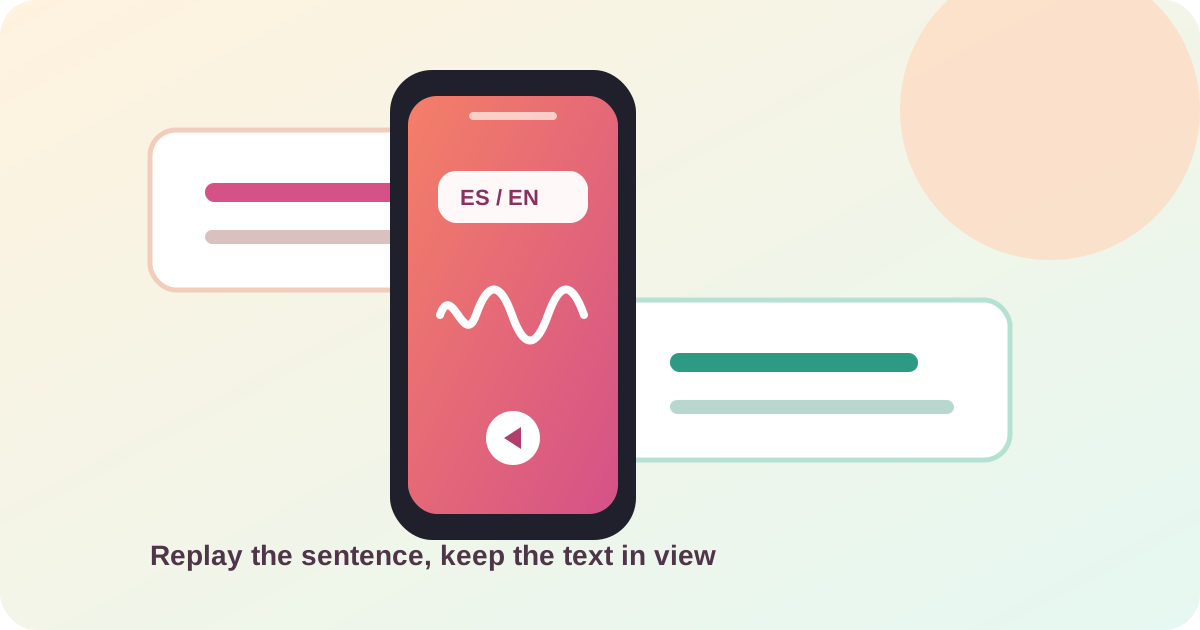
Text-to-speech for language learning on iPhone is most useful when the written sentence stays in view. Choose the target language, set a rate you can follow, replay short sentences, and check proper nouns or mixed-language lines instead of assuming automatic detection is correct. Apple’s Read & Speak tools can be enough for selected text. A saved reader becomes more useful when you want a queue of articles, EPUB chapters, PDFs, or pasted practice material that remains available after voice setup.
Quick takeaway: Use speech to create repeatable listening practice, but make the text, voice, and language choice explicit. The goal of a session is a traceable comparison between what was written and what was spoken—not a vague promise that an app will make you fluent.
Choose the right listening setup
There are three sensible starting points. The best one depends on whether you need a quick sentence, a mixed-language document, or a saved offline item.
| Situation | Start with | Why it fits | Verify before a long session |
|---|---|---|---|
| One sentence in Safari, Notes, or a message | Speak Selection | Quick and close to the source | The selected voice and pronunciation |
| A page with two languages | Read & Speak or VoiceOver | Can keep text visible while speech moves | Language detection on the exact paragraph |
| A series of articles or chapters | AudioPage or another saved reader | Keeps a listening queue and position | Voice setup, order, and offline playback |
| A photo of a menu, sign, or worksheet | Live Text, then speech | Converts selectable image text into a handoff | Recognition of accents, names, and numbers |
| A purchased book or audiobook | Apple Books | Keeps the title in its original ecosystem | Download status and rights for that title |
Apple’s Read & Speak documentation lists voices, a default language, Detect Languages, speaking rate, and custom pronunciations. Those are useful controls, but language support can vary by voice, document, and iOS version. Treat the settings as a menu to verify, not as evidence that every language or dialect is available.
Build a sentence-replay loop
Language listening is easier to inspect when each unit is small. Use a paragraph of four to six sentences rather than a whole chapter for your first check.
- Read silently once. Notice punctuation, accents, names, and words you already know.
- Set the voice. Pick the target language and a rate slow enough to distinguish word boundaries.
- Listen once without stopping. Keep the source visible and avoid translating every word immediately.
- Replay one sentence. Use Speak Selection or the reader’s position controls so the replay begins at a clear boundary.
- Compare text and sound. Mark a word that sounded different from your expectation, then verify its spelling.
- Change one variable. Try a different rate or pronunciation only after you understand what the first setting did.
The point is a controlled practice loop. If the voice changes, the text disappears, and the rate moves too quickly at the same time, you cannot tell which change helped. This also keeps a reading app from becoming an unmeasured background soundtrack.
Use Apple’s built-in tools for short passages
For selectable text, enable Settings → Accessibility → Read & Speak → Speak Selection. Select a sentence and tap Speak. Use Speak Screen when the page is already in a readable order. Apple documents highlighting, rate controls, forward and backward navigation, language detection, and pronunciation adjustments in the same guide.
Use Speak Selection for pronunciation work because it gives you a narrow replay unit. Speak Screen is better for a longer article preview. If you use VoiceOver already, Apple’s VoiceOver guide describes PDF reading in Books and Files and gives you a more structured navigation model. It is a full screen reader, so choose it because its navigation fits your needs, not because it is a shortcut to a language course.
Pronunciation controls without overcorrecting
Apple provides a pronunciation setting for phrases that the selected voice consistently says incorrectly. Use it for a proper noun or recurring term only after checking the written source. A custom pronunciation is a local correction for your listening workflow; it is not proof that the voice has the right regional accent for every word.
Test three items separately:
- a common word in the target language;
- a proper noun or place name;
- a sentence with punctuation and an apostrophe.
If the common word sounds right but the proper noun does not, add a pronunciation adjustment or replay that name manually. If the whole paragraph uses the wrong language, change the voice or document language before editing individual words.
Handle bilingual pages and language detection carefully
Mixed-language material includes menus, bilingual news pages, vocabulary lists, and a sentence followed by its translation. Automatic detection can be convenient, but it may encounter headings, abbreviations, names, or borrowed terms that are not representative of the surrounding paragraph.
Run a small test with:
- one paragraph entirely in the target language;
- one line containing a name or place;
- one bilingual sentence with the translation on the next line;
- one number, date, or abbreviation.
Listen with the text visible. If the voice switches at a sensible boundary, keep the setting and continue testing. If it switches in the middle of a name or treats the translation as part of the target sentence, select each language block separately or keep one voice active and use the written translation as the visual reference.
Live Text can help with an image. Apple’s Live Text documentation explains that supported iPhones can select text in photos and that selected Live Text can be spoken with Speak Selection. Apple also notes that Live Text availability varies by language and region. Use the copy-and-check step before sending a photo into a speech workflow; an OCR error in an accent, accent mark, or number changes the thing you are trying to hear.
When a saved reader makes sense
Use AudioPage when the practice material is spread across supported PDFs, EPUBs, DOCX files, web articles, pasted text, photos, or scans and you want one saved listening queue. Import only material you have permission to use, inspect the first paragraph, and begin with a short sample.
AudioPage’s core listening path is local-first after the first voice setup. The first voice setup needs internet; afterward, eligible local listening can continue offline. Free supports up to 10 saved items. Lifetime Offline covers eligible local features. Pro summary, document chat, and optional sync are separate connected features and should not be confused with the local listening path. See AudioPage support for the current product boundary.
AudioPage is not an MP3 exporter or audiobook-production tool. If your goal is to create a distributable audiobook file, this workflow is the wrong promise; the useful question here is whether your own reading material can be heard, paused, replayed, and resumed in the app.
A language-support verification test
Use a fixture you can keep for future checks: a bilingual paragraph with one proper noun, one number, one punctuation-heavy sentence, and one line of translation. Test it in the exact app and voice you plan to use.
| Check | Pass condition | If it fails |
|---|---|---|
| Target-language paragraph | Words are spoken in the expected language | Choose a supported voice or isolate the text |
| Rate | You can distinguish word boundaries | Slow down before changing the source |
| Sentence replay | Replay starts at the intended sentence | Select a smaller unit or use a saved position |
| Proper noun | Name is recognizable against the page | Add a verified pronunciation or check visually |
| Bilingual boundary | Switch occurs at a useful boundary | Split language blocks manually |
| Offline readiness | Same item plays after voice setup with connectivity off | Reconnect and complete voice setup first |
Checklist:
- The target language and voice are explicitly selected.
- The test includes a paragraph, proper noun, number, and bilingual boundary.
- Text stays visible while the voice plays.
- Sentence replay works without losing the place.
- A pronunciation change was checked against the written word.
- Downloaded voice resources are ready before leaving Wi-Fi.
- Connected features are not being mistaken for offline playback.
Troubleshooting pronunciation and replay
The entire page uses the wrong language. Stop and set a target-language voice. Do not fix every word individually until the voice is correct for a plain paragraph.
The voice changes in the middle of a sentence. Test a shorter selection. Names, abbreviations, and inline translations can trigger unexpected detection; split the blocks or disable automatic switching if the setting allows it.
The rate is fast but not useful. Return to a comfortable rate and shorten the replay unit. Speed is not the same as comprehension, and an unreadable sentence is a poor practice sample.
A photo is read with strange words. Recheck Live Text selection against the image. Retake a sharper photo with the page flat, or type the sentence into a clean note before replaying it.
Offline practice cannot start. AudioPage needs internet for the first voice setup. Complete setup while connected, then test the saved item in Airplane Mode. Pro summary and chat remain connected actions when selected.
Frequently asked questions
Can an iPhone read a foreign language aloud?
Yes, when the selected voice and language are supported and the source exposes selectable text. Apple’s Read & Speak settings include voices, a default language, language detection, speaking rate, and pronunciation controls.
How should I replay a sentence when learning a language?
Keep the written sentence visible, select or isolate one sentence, listen at a comfortable rate, replay it once, and then compare the words you heard with the printed text before moving on.
Can text-to-speech switch languages inside one document?
It may detect or switch between supported languages, but mixed-language documents need a short verification test because names, loanwords, headings, and inline translations can be pronounced unexpectedly.
Can I practice a language offline on iPhone?
Yes, after the required voices and reading item are ready. In AudioPage, first voice setup needs internet; core listening can continue locally offline for supported content afterward.
Make the workflow measurable enough to improve
Keep a small log with the text fixture, voice, rate, and one sentence that needed replay. That gives you a concrete way to decide whether a setting is helping without making medical, academic, or fluency claims. For app-level tradeoffs, compare the best text-to-speech apps for iPhone. For a listening queue that survives a commute, see offline text-to-speech options. AudioPage purchase details are at support and purchases.
Sources and further reading
- Apple Support: Hear iPhone speak the screen, selected text, and typing feedback (checked 2026-08-07)
- Apple Support: Copy and translate text from photos on iPhone (checked 2026-08-07)
- Apple Support: Use VoiceOver in apps on iPhone (checked 2026-08-07)
- Apple Support: Read books in the Books app on iPhone (checked 2026-08-07)
- AudioPage Support (checked 2026-08-07)
About AudioPage Editorial
Guides are produced by the team building AudioPage. Product claims are checked against the current app and repository; third-party features and prices are checked against official sources on the date shown. Read our editorial standards and corrections policy.
Turn the next document into listening time
AudioPage keeps core reading local-first on iPhone. Review the current plan boundaries, then choose the listening setup that fits your documents.