Listening Guides / Web articles
How to Read a Web Page Aloud in Chrome on iPhone
Learn how to read a web page aloud from Chrome on iPhone using Reading mode, Speak Screen, Safari alternatives, sharing, offline tests, and saved articles.
By AudioPage Editorial · Published · Updated · 10 min read
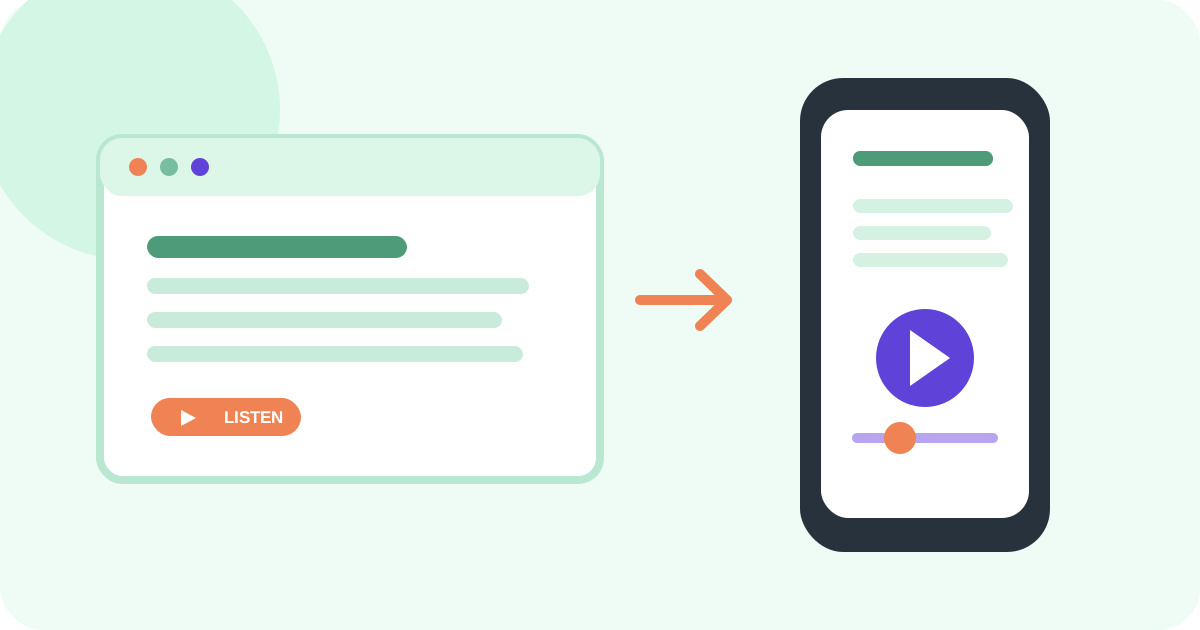
To read a web page aloud from Chrome on iPhone, first separate Chrome’s visual Reading mode from an audio workflow. Google’s iPhone help documents Reading mode for reducing distractions, changing the typeface, font size, and color theme; its read-aloud voice and speed controls are described under the computer instructions. On iPhone, use Speak Screen, open the public article in Safari and choose Listen to Page, or share the page into a dedicated reader such as AudioPage.
Quick takeaway: Chrome is a useful starting point for finding and sharing an article, but it is not always the shortest route to audio on iPhone. Test the page in Chrome Reading mode first, then choose Safari for a one-off or a dedicated reader for a saved, offline-ready listening item.
What Chrome on iPhone can and cannot do for audio
The words “read aloud” describe different features across devices. Google’s Chrome Reading mode help lists the iPhone and iPad experience as a visual reading mode. The same page separately says that, on a computer, Chrome can listen to text read aloud, choose a voice, and change voice speed. Do not carry the desktop controls over to Chrome on iPhone without testing your own version.
That does not mean a Chrome page cannot become audio. The browser is one step in a larger iPhone workflow:
| Your goal | First route to try | Why it fits | What can interrupt it |
|---|---|---|---|
| Hear a public article once | Open the same page in Safari and use Listen to Page | Apple documents this as a direct Safari feature | Only supported webpages show the control |
| Keep reading in Chrome but hear visible text | Turn on Speak Screen and read the current screen | Uses iPhone speech over the current app | It may include menus, ads, or controls |
| Remove distractions before listening | Chrome Reading mode, then Speak Screen | Simplifies the visual page first | Reading mode may fail on some pages |
| Save an article for later | Share Chrome’s page into AudioPage | Creates a reusable listening item | Extraction must be checked before leaving Wi-Fi |
| Prepare a page for offline use | Chrome Reading List or a dedicated reader | Downloads or saves content ahead of time | A live login or dynamic page may not be complete offline |
Method 1: use Chrome Reading mode, then Speak Screen
Chrome Reading mode is useful when the page has distracting navigation, but it is not a guarantee that the page is ready for narration. In Chrome:
- Open the public article.
- Tap More beside the address bar or in the page menu.
- Choose Turn on Reading mode when the option is available.
- Adjust the font or theme if you also need to follow along visually.
- Turn on Settings → Accessibility → Read & Speak → Speak Screen in iPhone settings.
- Return to the simplified Chrome view and swipe down with two fingers from the top of the screen.
- Listen to the heading and first two paragraphs while checking that the speech stays on article text.
Google says Reading mode can return an error when a page is not available in that mode. That is a signal to try the normal page, Safari Reader, or a share-to-reader workflow—not a reason to assume the page is inaccessible to every tool.
Speak Screen is a system gesture applied to what the current app exposes. It may speak a navigation label, cookie banner, or button if those elements remain in the page. If you need a clean article, first look for a reader view or a text-focused copy.
Method 2: open the article in Safari for a one-off
Safari has a direct listening feature for supported webpages. If the article is public and you do not need a permanent library, open the page in Safari, tap the Page Menu, and tap Listen to Page. Apple’s Safari listening guide describes that sequence and provides play and pause controls.
Safari Reader is a separate cleanup step. Apple says Reader formats a webpage to show the relevant text and images and hide navigation distractions on supported sites. If Listen to Page is missing, try Show Reader first. Then open the Page Menu again and check whether the listening option appears for the simplified view.
This is a good route when:
- You are listening to one article now rather than building a queue.
- The page is public and does not require a login.
- The article has a recognizable main body.
- You want Apple’s built-in rate and playback behavior.
It is less useful when you want to return to the same article tomorrow, collect PDFs and web pages together, or preserve a reading position outside the browser. For those jobs, see our web-pages-aloud guide and best article reader apps comparison.
Method 3: share a Chrome page into AudioPage
Chrome’s official share instructions say you can share a page from the address bar and choose another app. Use that share sheet to send a public article to AudioPage when you want the page to become a saved listening item.
The safe sequence is:
- Finish loading the article in Chrome.
- Close or dismiss overlays that obscure the main text.
- Tap Share beside the address bar.
- Choose AudioPage, using More if it is not visible in the first row.
- Wait for the import to finish.
- Check the title, opening paragraph, headings, and any link or image that carries essential meaning.
- Start playback on a short section before saving the item for a long session.
AudioPage supports supported web articles along with PDFs, EPUBs, DOCX files, pasted text, photos, and scans. Core listening is local-first after first voice setup, but the first voice setup needs internet. Free supports up to 10 saved items. Lifetime Offline covers eligible local features. Pro connected summary, chat, and optional sync are separate cloud actions and are not required for ordinary local listening.
AudioPage is not an MP3 exporter or audiobook-production tool. The useful result here is a saved reading item you can listen to in the app, not a promise that the web page becomes a portable audio file. Review AudioPage support for the current product boundaries.
Dynamic pages and login walls need a different plan
A public article is easier to import than a web application. The visible words may be rendered only after JavaScript runs, loaded as an embedded document, or hidden until you sign in. A page can look complete while its share payload contains only the title or a shell.
Use this decision table before spending time troubleshooting a missing audio button:
| Page type | What to check | Better fallback |
|---|---|---|
| Public news or blog article | Reader mode and main-body extraction | Safari Listen to Page or share to AudioPage |
| Recipe with long navigation | Reader mode, ingredients, and steps | Save a clean article copy and verify quantities visually |
| Login-required dashboard | Whether you are allowed to copy or export the content | Use the service’s own export or accessibility feature |
| Paywalled article | Whether your account grants access to the text | Do not bypass the paywall; use the publisher’s allowed reading route |
| Infinite-scroll feed | Whether the full item is loaded before sharing | Share one post or save an accessible article page |
| Embedded PDF or slide viewer | Whether the file is downloadable and selectable | Use the original PDF workflow and test reading order |
Lawful access matters. A text-to-speech workflow should operate on content you are allowed to view, save, or share. Do not treat an import tool as permission to copy a protected article, bypass a login, or defeat a download restriction.
Prepare an article for offline listening
Chrome’s Read pages later and offline guide says you need to be online to save a page to Reading List, and that Chrome can download pages ahead of time for offline reading. That prepares the page for Chrome’s own reading experience; it does not automatically produce offline speech in every setup.
For an audio session, test the complete chain:
- Load the page while connected.
- Save it in Chrome Reading List or import it into a dedicated reader.
- Confirm the main text is present, not just a placeholder.
- Complete first voice setup while connected if the reader requires local voice resources.
- Play the first minute while online.
- Enable Airplane Mode and play the same minute again.
- Reconnect before relying on a live page, image caption, or embedded media.
AudioPage’s local-first path can continue offline after first voice setup for supported reading items, but Pro connected summary, chat, and optional sync are not offline features. Our offline text-to-speech guide explains why “saved page” and “offline audio” are separate checks.
A five-minute Chrome article test
Use one public article and one login or dynamic page. Record results instead of judging from the first tap.
- Load: Does the full article appear before you share it?
- Clean: Does Chrome Reading mode show the headline, byline, body, and useful images?
- Speak: Does Speak Screen begin with the headline rather than navigation?
- Share: Does the receiving reader show more than the URL and title?
- Resume: Can you pause, leave, and return near the same place?
- Offline: Does the prepared item play for 60 seconds with Airplane Mode on?
- Verify: Are recipe quantities, legal wording, prices, and dates checked on screen?
The final item is especially important for narration from web pages. A voice can read a sentence while missing that a number belongs to a side note, an image caption, or a table. Listening and visual verification are complementary tasks.
Troubleshooting Chrome pages that will not read aloud
There is no Reading mode option. The page may not meet Chrome’s reader-mode rules or may be an app-like view. Try the normal page with Speak Screen, open the public URL in Safari, or share the page after it finishes loading.
Chrome reads menus instead of the article. Use Reading mode if available, close overlays, or switch to Safari Reader. Speak Screen reads what the current app exposes; it does not automatically know which text is editorial content.
The share sheet sends only a link. Confirm the page is fully loaded and public. A login wall, dynamic shell, or embedded viewer may not provide an extractable article body. Use the publisher’s permitted export or an accessible HTML version.
Offline Chrome opens a stale page. Google notes that Chrome can load a live version again when you are back online. If the article changed or required a session, compare the saved copy with the current page before relying on it.
AudioPage imports a broken paragraph order. Check whether the source was a multi-column page or a script-rendered feed. Try the article’s clean print or reader version and inspect the first page before keeping the item.
Frequently asked questions
Can Chrome read a web page aloud on iPhone?
Chrome on iPhone provides Reading mode for a less distracting visual view, while Google documents read-aloud controls under its computer instructions. For audio on iPhone, use Speak Screen, open the page in Safari, or share the article to a dedicated reader.
How do I send a Chrome page to a reading app on iPhone?
Open the page in Chrome, tap Share beside the address bar, choose the reading app from the share sheet, and confirm that the title and extracted text look correct before leaving the page.
Why will a Chrome webpage not read aloud on my iPhone?
The page may be a login screen, a dynamic app, an embedded viewer, or a page whose text is not exposed cleanly. Try Chrome Reading mode, Speak Screen, Safari Reader, or share a public article version instead.
Can I listen to a Chrome page offline on iPhone?
Yes, but you must prepare it first. Chrome can save pages for later and offline reading, while a dedicated reader can import the article for offline listening after its text and required voice resources are ready.
Sources and further reading
- Google Chrome Help: Use reading mode on iPhone and iPad (checked 2026-08-07)
- Google Chrome Help: Share pages on iPhone and iPad (checked 2026-08-07)
- Google Chrome Help: Read pages later and offline on iPhone (checked 2026-08-07)
- Apple Support: Listen to a webpage in Safari on iPhone (checked 2026-08-07)
- Apple Support: Hide distractions when reading articles in Safari (checked 2026-08-07)
- Apple Support: Hear iPhone speak the screen and selected text (checked 2026-08-07)
- AudioPage Support (checked 2026-08-07)
About AudioPage Editorial
Guides are produced by the team building AudioPage. Product claims are checked against the current app and repository; third-party features and prices are checked against official sources on the date shown. Read our editorial standards and corrections policy.
Turn the next document into listening time
AudioPage keeps core reading local-first on iPhone. Review the current plan boundaries, then choose the listening setup that fits your documents.