Listening Guides / Everyday listening
How to Read a Recipe Aloud on iPhone
Set up a hands-busy recipe workflow on iPhone with Safari Reader, Speak Screen, Voice Control, saved article imports, and quantity checks.
By AudioPage Editorial · Published · Updated · 10 min read
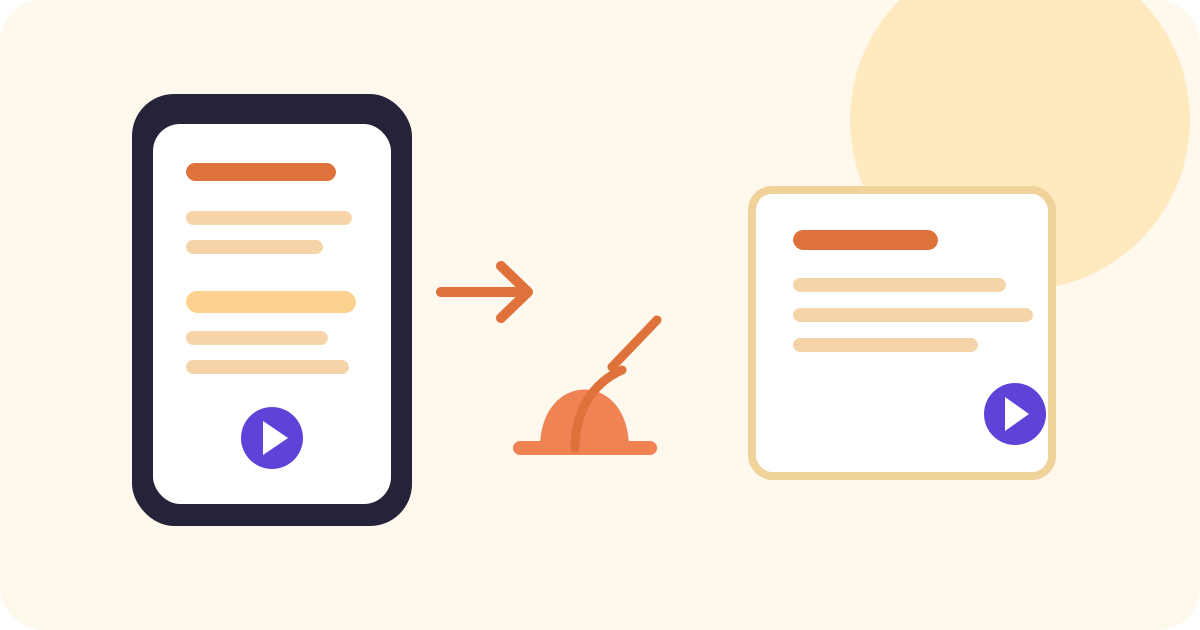
To read a recipe aloud on iPhone, open the recipe in Safari and try Page Menu → Listen to Page. For a cleaner page, turn on Safari Reader first. If you cook from the same recipes repeatedly, share the page to a dedicated reader such as AudioPage so the ingredients and steps become a saved listening item. Keep the phone’s screen or printed recipe available: narration is convenient for hands-busy moments, but every quantity, temperature, allergen note, and safety instruction still needs visual verification.
Quick takeaway: Prepare the recipe before your hands are messy. Remove page clutter, confirm the ingredient list was imported, test pause and resume, then use voice playback for steps while keeping measurements and safety details visible.
Choose a cooking-friendly recipe workflow
The best setup depends on whether you are cooking one dish now or building a reusable collection. The fastest method is not always the safest for a recipe with multiple timers, fractions, or substitutions.
| Cooking situation | Best first method | What it does well | Limitation to test |
|---|---|---|---|
| One public recipe right now | Safari Listen to Page | Quick playback without another library | Only supported webpages expose the control |
| Recipe page has ads and navigation | Safari Reader, then Listen to Page | Focuses on relevant text and images | Reader may omit a note or embedded instruction |
| You need to move through visible steps | Speak Screen or Accessibility Reader | System playback with rate and pause controls | May include labels, links, or page furniture |
| You cook from this recipe often | Share to AudioPage or another reader | Keeps a saved listening item and position | Extraction and quantities need checking first |
| Recipe is a screenshot or printed card | Live Text or photo-to-speech workflow | Recognizes a page already in Photos or in front of you | OCR can misread fractions, symbols, and line order |
Apple’s Safari listening guide applies to supported webpages. Apple’s Reader guide says Reader formats a webpage to show relevant text and images while hiding distractions on supported sites. “Supported” is important for recipes because publishers structure ingredient lists and step cards differently.
Method 1: use Safari Listen to Page
For a public recipe that you will cook once, start in Safari:
- Open the recipe and wait for the ingredient list and method to finish loading.
- Tap the Page Menu beside the address field.
- If Show Reader is available, open it and inspect the ingredient list.
- Open the Page Menu again and choose Listen to Page.
- Listen to the recipe title and first three ingredients before starting any preparation.
- Use the Page Menu playback controls to pause and resume as you move around the kitchen.
Do not start with a recipe that is already half-scrolled or hidden behind a consent dialog. The first minute tells you whether the page exposes the useful content in the order you expect. If Safari starts with author biography, comments, or related recipes, use Reader or another source rather than trying to cook from a noisy narration.
Make a recipe-specific bookmark
Before pressing play, note three things in Notes or on paper:
- The total number of servings and whether the recipe scales them.
- The ingredient list, including “divided,” “plus more,” and optional items.
- The steps where the recipe asks you to wait, split an ingredient, or reserve a portion.
This is not busywork. A voice can speak the correct words while the page’s visual design makes a parenthetical instruction easy to miss. Use audio for movement through steps, not as the only record of measurements.
Method 2: use Speak Screen when Safari’s button is missing
If Listen to Page does not appear, use iPhone’s general speech tools. Apple’s Read & Speak documentation describes Speak Screen, Speak Selection, Accessibility Reader, and speech highlighting.
- Open Settings → Accessibility → Read & Speak.
- Turn on Speak Screen.
- Return to the recipe and position the screen at the title or ingredient list.
- Swipe down with two fingers from the top of the screen.
- Pause after the ingredients and compare them with your written setup.
- Continue through the method, stopping before each high-risk or measurement-heavy step.
Speak Screen reads what the current app exposes. On a web page, that can include buttons, navigation labels, image descriptions, or repeated text. Safari Reader or a clean print view usually produces a better narration sequence than a full page with comments and advertisements.
Accessibility Reader can also provide a full-screen text view with playback controls and highlighting when it detects text. It is useful for following a step visually, but it may not preserve the recipe’s original two-column ingredient layout or the relationship between a photo and its caption.
Method 3: use Voice Control for hands-busy navigation
Voice Control can reduce the number of times you touch the phone with wet or floured hands. Apple’s Voice Control guide documents commands for tapping, swiping, showing names or numbers, and locking the screen. It also says the initial setup requires a download; after that, Voice Control can work without Wi-Fi in supported configurations.
Set it up before you start cooking:
- Go to Settings → Accessibility → Voice Control.
- Complete the initial download while connected.
- Say “Show me what to say” to review available commands.
- Use “Swipe up,” “Swipe down,” “Go back,” or “Show numbers” to navigate the recipe.
- Use “Lock screen” only after you have tested how your audio session behaves.
Voice Control is an interaction tool, not a recipe reader. It can help you reveal the next step, start or pause a control, or lock the phone, but your device may interpret commands differently depending on what is on screen. Use a low-risk test recipe first.
Test the lock-screen behavior
Do not assume that locking the phone will preserve every web audio session. Start a short recipe, say “Lock screen,” wait ten seconds, wake the phone, and confirm whether playback continues or pauses. If it pauses, leave the phone in a stable, clean location with the display dimmed rather than relying on an untested lock state. Keep the original recipe available so you can recover without touching the screen repeatedly.
Method 4: save a recipe in AudioPage
When a recipe is part of a weekly routine, a saved reading item is more practical than hunting for the same tab each time. Use Safari or Chrome’s share sheet to send the public page to AudioPage, then inspect the import before you start cooking.
The import checklist is short:
- Confirm the recipe title and serving count.
- Check that the ingredient list begins at the start, not halfway down the page.
- Look for fractions such as 1/2, 1/4, or 3/4 and listen to how they are spoken.
- Find the temperature, timer, and resting instructions.
- Confirm that “divided,” “reserved,” and “to taste” notes were not dropped.
- Start playback for one ingredient paragraph and one method step.
- Save the item only after those checks pass.
AudioPage supports supported web articles, pasted text, PDFs, EPUBs, DOCX files, photos, and scans. Core listening is local-first after first voice setup; first voice setup needs internet. Free supports up to 10 saved items. Lifetime Offline covers eligible local features. Pro connected summary, chat, and optional sync are separate cloud features. AudioPage is not an MP3 exporter or audiobook-production tool. See AudioPage support for current product boundaries.
For recipes in Photos or on a printed card, our photo-to-speech guide explains the OCR checks. For web recipes, our web-pages-aloud guide covers Safari and saved article tradeoffs. If you collect many sources, the article reader comparison gives you a broader decision method.
Ingredients and measurements need a visual safety pass
Recipe narration has an unusual failure mode: an incorrect word can sound perfectly natural. Treat the voice as an assistant for sequence, not as an authority on the measurement.
Before measuring, visually verify:
- Fractions, decimal points, and ranges.
- Teaspoons, tablespoons, cups, grams, milliliters, and other units.
- “Fresh” versus “dried,” “whole” versus “ground,” and similar qualifiers.
- Ingredient quantities marked divided or reserved.
- Oven temperature, pan size, heat level, and preheating instructions.
- Timer duration, resting time, chilling time, and serving temperature.
- Allergen statements and substitutions from the original publisher.
- Whether the recipe has been scaled for a different number of servings.
Do not infer an omitted ingredient from context. If the audio skips a line, pause and look at the source. If a recipe is in a language or typeface that produces poor OCR, find a clean text version rather than relying on a guess.
A hands-busy cooking test protocol
Run this before starting a complex recipe:
- Choose a short public recipe with five ingredients and four steps.
- Prepare a paper or Notes checklist of the ingredient list.
- Test Safari Reader and Listen to Page for the first paragraph.
- Start Speak Screen or your saved reader and listen to one step.
- Pause, put the phone down, and resume without looking at the page.
- Use Voice Control to swipe to the next step if you plan to keep the screen locked.
- Lock the screen for ten seconds and observe playback.
- Compare the spoken quantity, unit, temperature, and timer with the source.
- If using AudioPage, enable Airplane Mode only after first voice setup and test the saved item for one minute.
- Mark any step that still requires visual inspection.
This test tells you whether the workflow is genuinely hands-busy or merely sounds convenient in a short demo. Recipes with multiple bowls, timing dependencies, or safety-sensitive temperatures deserve the full check.
Troubleshooting recipe narration
Safari has no Listen to Page button. The page may not be supported, or its structure may not be recognized as an article. Try Show Reader, open the public page in another browser, or use Speak Screen.
The ingredients are read after the method. The source may use a script-rendered recipe card or a page layout that orders sections unexpectedly. Find a print or reader view, then verify the first imported section before cooking.
The voice says a fraction unclearly. Pause and read the original measurement visually. If a saved reader allows text cleanup, correct only what you can compare with the source; never rewrite a quantity from memory.
Voice Control does not recognize “next.” Say “Show me what to say,” use “Show numbers,” or create a custom command before cooking. Keep a touch-based fallback available.
The phone locks and audio stops. Test the exact app and source before cooking. Wake the device, resume playback, and position it somewhere clean and stable if the session cannot continue while locked.
A recipe photo produces strange words. Improve lighting and camera angle, capture the full page, and use the OCR checklist in photo text to speech on iPhone. Never trust a smooth-sounding quantity that you have not compared with the image.
Frequently asked questions
Can my iPhone read a recipe aloud while I cook?
Yes. Safari can listen to supported webpages, Speak Screen can read visible text, and a dedicated reader can save a recipe for playback later. Choose the method that keeps the ingredients and steps easy to verify.
How can I keep my iPhone screen from getting in the way while cooking?
Prepare the recipe before cooking, start playback, and test the lock-screen or display behavior with a low-risk recipe. Voice Control can lock the screen with the command “Lock screen,” but playback and wake behavior still need to be checked on your device.
Can a recipe reader speak ingredient quantities accurately?
It can narrate recognized quantities, but you should verify every number, unit, fraction, temperature, and timing instruction on screen or against the original recipe before measuring or cooking.
How do I save a recipe to listen to later on iPhone?
Use Safari or Chrome’s share sheet to send the public recipe to a dedicated reader such as AudioPage, then confirm the title, ingredients, and steps before saving it for playback.
Sources and further reading
- Apple Support: Listen to a webpage in Safari on iPhone (checked 2026-08-07)
- Apple Support: Hide distractions when reading articles in Safari (checked 2026-08-07)
- Apple Support: Hear iPhone speak the screen, selected text, and typing feedback (checked 2026-08-07)
- Apple Support: Use Voice Control on iPhone (checked 2026-08-07)
- Apple Support: Use Live Text to interact with content in a photo or video on iPhone (checked 2026-08-07)
- AudioPage Support (checked 2026-08-07)
About AudioPage Editorial
Guides are produced by the team building AudioPage. Product claims are checked against the current app and repository; third-party features and prices are checked against official sources on the date shown. Read our editorial standards and corrections policy.
Turn the next document into listening time
AudioPage keeps core reading local-first on iPhone. Review the current plan boundaries, then choose the listening setup that fits your documents.