Listening Guides / Documents and files
How to Read a DOCX Aloud on iPhone
Read a Word DOCX aloud on iPhone with Apple tools or AudioPage. Learn how headings, tracked changes, tables, comments, and imports affect speech.
By AudioPage Editorial · Published · Updated · 10 min read
How to Read a DOCX Aloud on iPhone
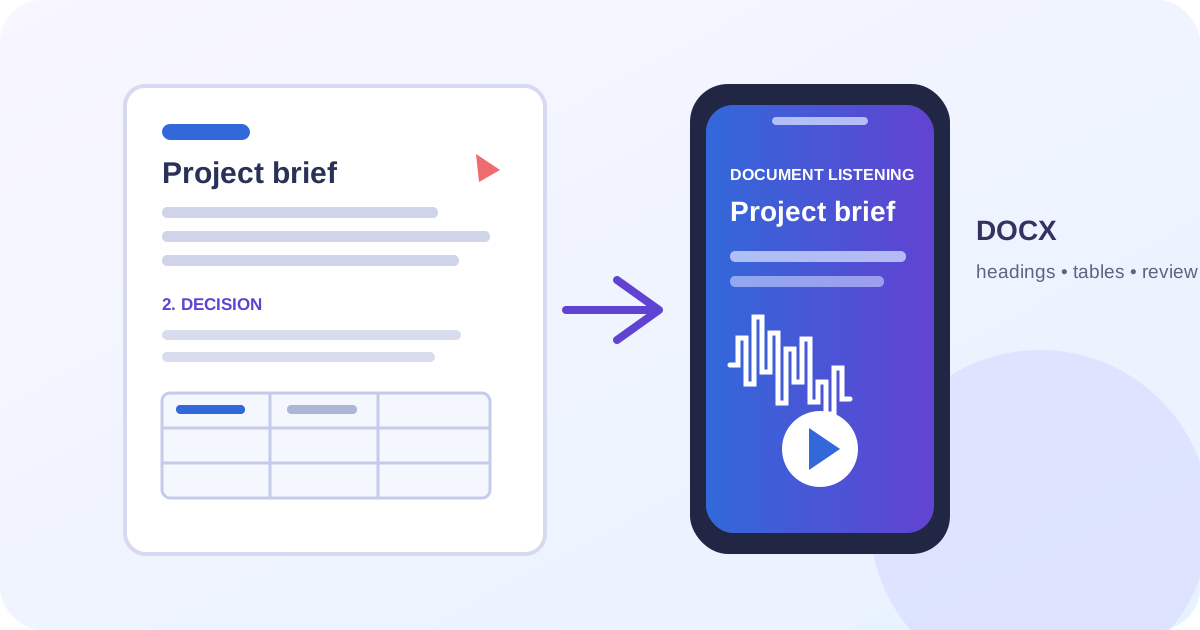
To read a DOCX aloud on iPhone, open the Word file in Microsoft Word or Apple Pages, make sure the document exposes clean selectable text, and use Apple Read & Speak or a dedicated reader such as AudioPage. The important preparation is not the .docx extension alone. Headings, tracked changes, comments, tables, text boxes, and conversion artifacts can all change what a speech reader extracts. Clean a copy, listen to a representative section, and test offline playback before you rely on it while travelling.
Quick takeaway: Use Word or Pages when you need to edit or review the document. Use Apple’s built-in speech for a short, one-off read. Use AudioPage for a supported DOCX that you want to save as an iPhone listening item, resume later, and prepare for local-first offline playback after voice setup.
What changes when a DOCX becomes speech?
A Word document is a structured package, not a flat page of paragraphs. A visual document can contain heading styles, page headers, footers, tracked revisions, comments, tables, captions, text boxes, footnotes, and floating objects. The screen can make those pieces look obvious while a speech reader receives a different text order.
Apple’s Pages guide for opening documents on iPhone confirms that Pages can open and edit Microsoft Word .doc and .docx files, then save copies in Word, PDF, or EPUB formats. That makes Pages a useful inspection and conversion tool, but conversion is not automatically the same as a clean listening source.
| DOCX feature | What can happen in speech | Preparation that helps | Check it with |
|---|---|---|---|
| Heading styles | A heading may be clear, repeated, or flattened into body text | Use real heading styles and a logical outline | First heading and one section transition |
| Tracked changes | Insertions, deletions, or markup may remain visible to the reader | Accept or reject revisions in a working copy | A paragraph containing a revision |
| Comments | Review notes may be separate, inline, or absent from the main flow | Resolve or intentionally preserve comments | One commented paragraph |
| Tables | Cells may be read across rows, down columns, or as a dense sequence | Reduce complex tables or add a plain-text summary | A two-column and a multi-column table |
| Headers and footers | Repeated page furniture can interrupt every page | Remove unnecessary repeats in a listening copy | Page transition with a running header |
| Text boxes and shapes | Content may be extracted late or not at all | Move essential text into the body | A callout or sidebar |
| Images and charts | Captions may be read while visual meaning is lost | Keep a note to inspect the image visually | One chart and its caption |
This is why “the file opened” is not a sufficient test. The listening version should have a known reading order and a deliberate review boundary.
Step 1: make a clean copy before importing
Keep the original DOCX unchanged. Create a working copy for listening and review. In Word, use the Review tools to display revisions and move through changes. Microsoft’s current Word support guide explains that Word for iPhone can show or hide tracked changes, move through changes and comments, and accept or reject them.
For a listening copy:
- Save a duplicate with a clear name such as
report-listening-copy.docx. - Decide whether the spoken document should represent the original or the proposed final version.
- Accept or reject tracked changes according to that decision.
- Resolve comments that are editorial instructions rather than content.
- Keep essential comments in a separate review note if they must not be lost.
- Check the document outline: title, headings, sections, appendices.
- Inspect tables, footnotes, captions, and text boxes.
- Save the clean copy before opening it in another app.
Do not hide markup and assume it is gone. A display setting can make revisions invisible on screen while the document still contains them. The goal is a clean copy whose extracted text matches what you intend to hear.
Step 2: import the DOCX from Files or Mail
The safest iPhone route is to keep the file in Files and share a copy to the destination app. Apple documents file sharing from Files as: touch and hold the file, tap Share, then choose an app or service. If the file arrived in Mail, Apple’s attachment guide says you can touch and hold the attachment, choose Save to Files, or tap Share and choose another app.
For AudioPage, use this sequence:
- Save the cleaned DOCX to Files.
- Touch and hold it, tap Share, and choose AudioPage.
- Wait for the title and extracted content to load.
- Compare the first page with the source document.
- Listen to a heading, a paragraph, and a table before importing the entire work.
- Keep the original DOCX separate so you can return to the visual layout.
AudioPage supports DOCX as part of its iPhone reading workflow, but a supported format is not a promise that every Word feature becomes a perfect spoken outline. Core listening is local-first after the first voice setup. That first setup needs internet to download voice resources. Free supports up to 10 saved items; Lifetime Offline covers eligible local features; Pro summary, document chat, and optional sync are separate connected features.
AudioPage is not an MP3 exporter. If you need a narrated file for a production workflow, use an audio-production tool and confirm its rights and export requirements. If you only need to listen to your document, keep the job inside a reader.
Our text-to-speech app comparison explains how to compare document handling rather than judging only by voice demos. If the DOCX is being prepared for travel, use the offline listening checklist before leaving your connection.
Headings and chapters: make the outline audible
A real heading is more useful than bold, larger text. Apply heading styles to section titles and keep the hierarchy sensible: a main title, major headings, then subheadings. Do not make every bold line a heading; that creates noise and can make navigation less meaningful.
Listen to this sequence:
- Document title.
- First heading.
- Two body paragraphs.
- Subheading.
- First paragraph after the subheading.
- Page break or section break.
If speech announces an empty heading, repeats the title, or jumps to the appendix, revise the working copy. If the reader has a navigation view, use it to jump to a later heading and check that the destination matches the visible document.
Tables need their own decision. A small two-column table can be understandable when each row is short. A wide table with ten columns is often a poor listening object. Create a plain-language summary before the table, keep the original table for visual reference, or convert the table into short labeled paragraphs in the listening copy. Do not delete a table that carries legal or financial meaning without retaining a visual copy.
The before-travel DOCX test
Use a representative document that includes the features you actually receive. A plain memo will not tell you whether your contract or research report will work.
Test fixture: a DOCX with a title, two heading levels, one tracked revision, one comment, a two-column table, a footnote, a page header, and one chart caption.
- Open the original and listening copy side by side when possible.
- Confirm the listening copy has the intended revision state.
- Import it from Files through the Share Sheet.
- Listen to the title, first heading, and first paragraph at 1×.
- Jump to the second heading and confirm the transition.
- Listen through the table and note whether row labels remain clear.
- Check whether the comment is absent, separate, or unexpectedly inline.
- Listen across a page break and a repeated header.
- Stop halfway through a paragraph, close, and reopen the item.
- Complete first voice setup, turn on Airplane Mode, and play for one minute.
Pass if the section order is usable, revisions are intentional, tables are understandable enough for listening, and the selected voice plays offline. Fail if hidden comments appear as instructions, important text disappears, the table becomes ambiguous, or the document requires a cloud action you did not plan to use.
Troubleshooting DOCX speech
The DOCX opens in Pages but the formatting changes
Apple warns that opening and converting documents can produce compatibility differences. Use Pages for inspection, but compare the original and the exported copy. For listening, prioritize clean text order over exact visual pagination; keep the original for layout-sensitive work.
Tracked changes are being spoken
Return to Word, show the markup, and accept or reject every revision in the listening copy. Hiding markup is not the same as resolving it. Save, close, and reimport the copy after the review state is final.
The reader skips a text box or chart
Move essential words into the body or create a short text summary. A speech reader cannot infer every visual relationship in a floating object. Keep the chart visible for later inspection.
The table sounds like a list of numbers
Try a short table first. If column relationships are unclear, create labeled sentences in the listening copy: “Region: North. Revenue: …” Preserve the original table and note that the spoken version is an interpretation of its cells.
The DOCX is unavailable in the Share Sheet
Save it to Files first, confirm the extension is .docx, and try the Share action from Files. A file stored only inside a proprietary app or protected workspace may restrict transfer. Do not upload sensitive documents to an unknown converter just to make the menu appear.
Offline playback fails
Complete AudioPage’s first voice setup while online, open the document once, and test the same voice in Airplane Mode. Pro summary, chat, and optional sync are separate connected actions; they are not part of the local listening test.
Frequently asked questions
Can an iPhone read a DOCX file aloud?
Yes. You can open a DOCX in Pages or Word and use selectable text with Apple Read & Speak, or import a supported document into a dedicated reader such as AudioPage.
Will tracked changes be read aloud in a Word document?
They can affect what a reader sees or extracts, depending on the app and view. Accept or reject revisions and save a clean copy before using the DOCX as a listening document.
How do I prepare a Word document for text to speech?
Save a clean DOCX, resolve tracked changes and comments, apply real headings, simplify complex tables, then import a short representative section and listen for reading order.
Can I listen to a DOCX offline on iPhone?
Yes, if the document and required voice resources are already on the iPhone. AudioPage needs internet for first voice setup, then supported core listening can continue locally offline.
Does AudioPage export a DOCX as an MP3?
No. AudioPage reads supported documents inside its iPhone listening workflow; it is not an MP3 exporter or audiobook-production tool.
The practical answer
Word or Pages is enough when you need to edit, review, accept revisions, or preserve layout. Apple Read & Speak is enough for a short clean section. AudioPage is useful when a supported DOCX should become a saved iPhone listening item with a local-first path and an explicit offline test. The quality comes from the preparation: resolve review markup, apply headings, simplify tables, and listen to the features your real documents contain.
For the local and connected plan boundaries, see AudioPage support. Keep the original DOCX, keep the listening copy honest, and do not describe the result as an exported audiobook.
Sources and further reading
- Apple Support: Open a document in Pages on iPhone (checked 2026-08-07)
- Apple Support: Convert to Word, PDF, or another file format in Pages (checked 2026-08-07)
- Microsoft Support: Track changes and comments in Word (checked 2026-08-07)
- Apple Support: Transfer files between your iPhone and other devices (checked 2026-08-07)
- AudioPage Support (checked 2026-08-07)
About AudioPage Editorial
Guides are produced by the team building AudioPage. Product claims are checked against the current app and repository; third-party features and prices are checked against official sources on the date shown. Read our editorial standards and corrections policy.
Turn the next document into listening time
AudioPage keeps core reading local-first on iPhone. Review the current plan boundaries, then choose the listening setup that fits your documents.