Listening Guides / PDF listening
PDF Text-to-Speech Highlighting on iPhone
Compare Apple and dedicated reader workflows for PDF text-to-speech highlighting on iPhone, with sentence-following tests, extraction checks, and visual review.
By AudioPage Editorial · Published · Updated · 10 min read
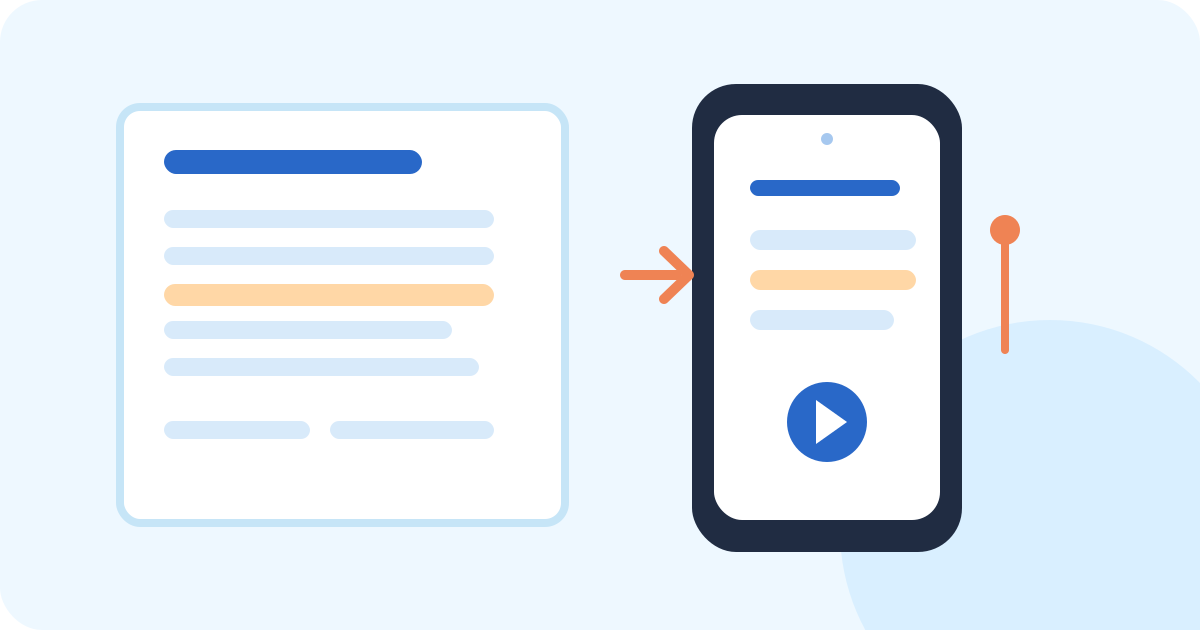
To use PDF text-to-speech highlighting on iPhone, start with a selectable-text PDF and Apple’s Read & Speak settings. Turn on Speak Screen or Accessibility Reader, enable highlighting, and listen to one representative page while watching whether the sentence highlight follows the voice. If the highlight jumps, the problem is usually the PDF’s text layer or reading order—not the speech rate. Dedicated readers can add a better saved-document workflow, but their highlighting and extraction behavior still needs a document-specific test.
Quick takeaway: Highlighting is a useful verification aid, not proof that every visual element was understood. Test headings, columns, tables, footnotes, and a page break. Use the highlight to compare spoken text with the PDF, then look at the original page whenever layout or numbers matter.
What “highlighting” can mean in a PDF reader
People often use one phrase for three different behaviors:
- Sentence or word highlighting: The reader marks the text currently being spoken.
- Selection highlighting: You select a passage and ask iPhone to speak only that selection.
- Progress highlighting: A reader marks a larger block or shows a moving position without matching every spoken word.
These behaviors depend on the text representation the app receives. A clean HTML article may map neatly to sentences. A PDF can contain text boxes, line fragments, page numbers, and labels that do not have a simple paragraph sequence. A scan may contain no characters until OCR recognizes them.
Apple’s Read & Speak guide documents highlighting controls for spoken onscreen text. Apple’s Accessibility Reader guide describes full-screen playback, speed controls, skipping, and highlighting customization. These are the best first checks because they let you separate an iPhone setting problem from a PDF extraction problem.
Compare Apple, a dedicated reader, and a saved listening workflow
| Workflow | Highlight or follow-along behavior to test | Best use | Main limitation |
|---|---|---|---|
| Apple Speak Selection | Highlights or speaks the selected passage, depending on the source app | Checking one sentence or paragraph | Not a document library or universal PDF repair tool |
| Apple Speak Screen | Follows spoken onscreen content with system playback controls | Listening to a short, readable PDF in place | Can include page furniture or miss difficult structures |
| Apple Accessibility Reader | Displays detected text in a focused view with playback and highlighting options | Reading a text-heavy PDF with fewer visual distractions | Requires detectable text and may not preserve page layout |
| Dedicated PDF reader | May offer sentence highlighting, extraction, speed, and resume controls | Repeated study or long-document listening | Features vary; extraction still depends on the source PDF |
| AudioPage | Saves supported imports as listening items with local-first core playback | A reusable queue for PDFs and other reading sources | Do not assume a specific highlight mode or automatic layout repair |
The table is a decision aid, not a promise that every PDF will behave the same way. The same file can highlight well in one view and poorly in another because each app builds its own text representation.
Set up Apple highlighting first
Use a short PDF you can inspect visually. A two-page report with a heading, three paragraphs, and one table is better than a novel for the first test.
- Open Settings → Accessibility → Read & Speak.
- Turn on Speak Screen and, if available in your current iOS version, configure its highlighting style.
- Turn on Accessibility Reader and its playback highlighting options.
- Open the PDF in Files, Books, Mail, or its source app.
- Select one sentence and use Speak if the app exposes selection speech.
- Start Accessibility Reader or Speak Screen for the whole page.
- Adjust the speaking rate only after checking the alignment at a comfortable speed.
Apple’s PDF guidance for Books is useful for confirming that the file opens as a PDF document rather than as a preview image. If the sentence cannot be selected, do not spend time changing highlight colors. Diagnose the document first.
Read the highlight as a diagnostic
Watch four transitions:
- The end of the heading into the first paragraph.
- The last line of one column into the next column.
- A sentence that references a table or figure.
- The final sentence of a page into the next page’s heading.
If the highlight moves through these transitions in a human reading sequence, the PDF is a reasonable candidate for listening. If it jumps, note the first incorrect region. A mismatch that begins at a column points to reading order. A mismatch that begins only at a table points to structure or the limits of text-to-speech with visual data. A mismatch across the whole page points to extraction.
Extract text before expecting alignment
Highlighting cannot repair text that was never extracted. Press and hold on the PDF. If you can select individual words, it has a usable text layer—or at least one that the current view can expose. If the whole page selects as an image, it is likely a scan. Use OCR or a text version before expecting sentence-level follow-along.
OCR is not a complete answer. It recognizes characters in pixels but still has to decide the order of lines and regions. Keep an eye on:
- Two columns that might be read across instead of down.
- Headers and footers repeated on every page.
- Footnotes placed before the paragraph they explain.
- Hyphenated words split at line endings.
- Decimal points, minus signs, superscripts, and units.
- Captions, labels, and text inside a figure.
The PDF reading-order technique from W3C explains why tagged structure matters: assistive technology follows a meaningful sequence rather than merely copying the visual coordinates of the page. Adobe’s PDF accessibility guide describes how tags identify headings, paragraphs, tables, and other elements and how reflow can expose a single-column reading view.
For a document you do not own, the cleanest fix is often to request the publisher’s tagged PDF, EPUB, HTML, or accessible alternative. A new source can save more time than trying to coax a damaged PDF into a good highlight sequence.
A dedicated-reader workflow without overpromising
A dedicated reader earns its place when you listen often enough that a one-off system gesture becomes inconvenient. The useful features to compare are not just “does it speak?” Look at:
- Whether it keeps the original file attached to the reading item.
- Whether it saves a position after you pause and leave.
- Whether it exposes the extracted text for correction or inspection.
- Whether highlighting follows words, sentences, paragraphs, or only a broad block.
- Whether it can handle PDFs, EPUBs, DOCX files, web articles, pasted text, and images relevant to your workflow.
- Whether the required voice and document are available for the offline test you intend to run.
Our best text-to-speech apps for iPhone guide uses this kind of task-based comparison. Our read PDF aloud guide covers the Apple-first decision in more detail.
AudioPage is an iPhone reading and listening app for supported PDFs, EPUBs, DOCX files, web articles, pasted text, and photos or scans. Its core listening path is local-first after first voice setup; first voice setup needs internet. Free supports up to 10 saved items. Lifetime Offline covers eligible local features, while Pro connected summary, chat, and optional sync are separate cloud features. AudioPage is not an MP3 exporter or audiobook-production tool.
When you import a PDF into AudioPage, use the same document test: verify the title, first paragraph, column transition, and any important numbers before a long session. Do not assume that an app’s saved-library behavior means its text extraction or highlighting is perfect. For current plan boundaries, use AudioPage support.
A sentence-highlighting test protocol
Run this ten-minute exercise before comparing readers:
- Choose a one- or two-page PDF with selectable text.
- Mark a heading, a short paragraph, a two-column section, and a table caption.
- Start Apple Accessibility Reader and listen at 1× for the opening paragraph.
- Record whether the highlight follows the sentence, the paragraph, or a larger block.
- Repeat the same passage in the dedicated reader you are considering.
- Pause halfway through a sentence, close the view, and reopen it.
- Check whether the reader returns near the same location or restarts at a page boundary.
- Listen to the table caption, then stop and inspect the table visually.
- Repeat the first minute with Airplane Mode if offline listening matters.
The test has two outputs: a narration result and a visual verification result. A reader can narrate the paragraph correctly while failing to convey the arrangement of rows and columns in a table. Keep those results separate in your notes.
Checklist for reliable follow-along listening
- The PDF has selectable text or has been deliberately OCRed.
- Apple highlighting is enabled and visible in the chosen view.
- The first page was checked at a comfortable rate.
- A heading, paragraph, column transition, and page break were tested.
- The highlight did not skip names, numbers, or punctuation that matters.
- Tables, charts, formulas, and diagrams are marked for visual review.
- The chosen reader’s resume behavior was tested.
- The voice setup was completed while connected.
- Offline playback was tested only after the document and voice were ready.
Troubleshooting PDF highlighting
No text highlights at all. Try selecting one sentence. If selection fails, the PDF may be image-only, protected, or opened in a view that does not expose its text. Try Accessibility Reader; if it reports no text, use OCR or obtain another source.
The highlight is one paragraph behind the voice. First slow the speech and replay a short section. If the mismatch remains, the app may be using a different text segmentation than its visual highlight. Compare the extracted text and report the behavior to the app maker before trusting long sessions.
The highlight jumps at a column. Treat that as a reading-order failure. Use the workflow in fix PDF reading order on iPhone and look for an accessible copy.
The reader highlights table cells but the sentence is meaningless. This is a visual-structure problem. Listen for labels and captions, then inspect the original table yourself. Speech is not a substitute for verifying a measurement or calculation.
Offline playback works but highlighting does not. The voice and document may be available locally while the reader’s visual text view requires a different representation. Test both behaviors independently and keep the original PDF available for visual checking.
When Apple’s built-in tools are enough
Apple is usually enough for a short, selectable PDF that you will hear once and can keep open on screen. It gives you speech settings, rate controls, Accessibility Reader, and highlighting without an additional document library. Choose a dedicated reader when you repeatedly return to long documents, need a saved queue, need better resume behavior, or want to compare several import types.
Do not choose based on highlighting screenshots alone. A good decision comes from the exact PDF, a representative page, and a test that includes visual material. If your need is simply to hear the document on iPhone, our PDF-to-audio guide explains why in-app listening is different from creating an exported audio file.
Frequently asked questions
Can an iPhone highlight text while reading a PDF aloud?
Yes. Apple’s Read & Speak settings include highlighting options for spoken onscreen text, and Accessibility Reader can highlight text during playback when the PDF exposes detectable text.
Why does PDF highlighting not follow the spoken sentence?
The PDF may have a broken text layer, incorrect reading order, columns, tables, or text that the current reader cannot map cleanly to the page. Test a short passage and compare the highlight with the source.
Does PDF text-to-speech highlighting work on scanned PDFs?
Only after the scan has usable recognized text. OCR can create selectable words, but highlighting still needs a correct text sequence and may not align with every visual region.
Is a dedicated PDF reader better than Apple’s built-in highlighting?
It depends on the task. Apple is usually enough for a short selectable PDF, while a dedicated reader can be more useful when you need a saved library, resume position, or document-specific controls.
Sources and further reading
- Apple Support: Hear iPhone speak the screen, selected text, and typing feedback (checked 2026-08-07)
- Apple Support: Read or listen to text in apps with Accessibility Reader (checked 2026-08-07)
- Apple Support: Read PDF documents in the Books app on iPhone (checked 2026-08-07)
- Adobe Acrobat Help: Accessibility features in PDFs (checked 2026-08-07)
- W3C WAI: Ensuring correct tab and reading order in PDF documents (checked 2026-08-07)
- AudioPage Support (checked 2026-08-07)
About AudioPage Editorial
Guides are produced by the team building AudioPage. Product claims are checked against the current app and repository; third-party features and prices are checked against official sources on the date shown. Read our editorial standards and corrections policy.
Turn the next document into listening time
AudioPage keeps core reading local-first on iPhone. Review the current plan boundaries, then choose the listening setup that fits your documents.