Listening Guides / PDF listening
How to Fix PDF Reading Order on iPhone
Fix PDF reading order on iPhone when columns, headers, footnotes, or OCR make text-to-speech jump. Learn how to test tags and find accessible copies.
By AudioPage Editorial · Published · Updated · 11 min read
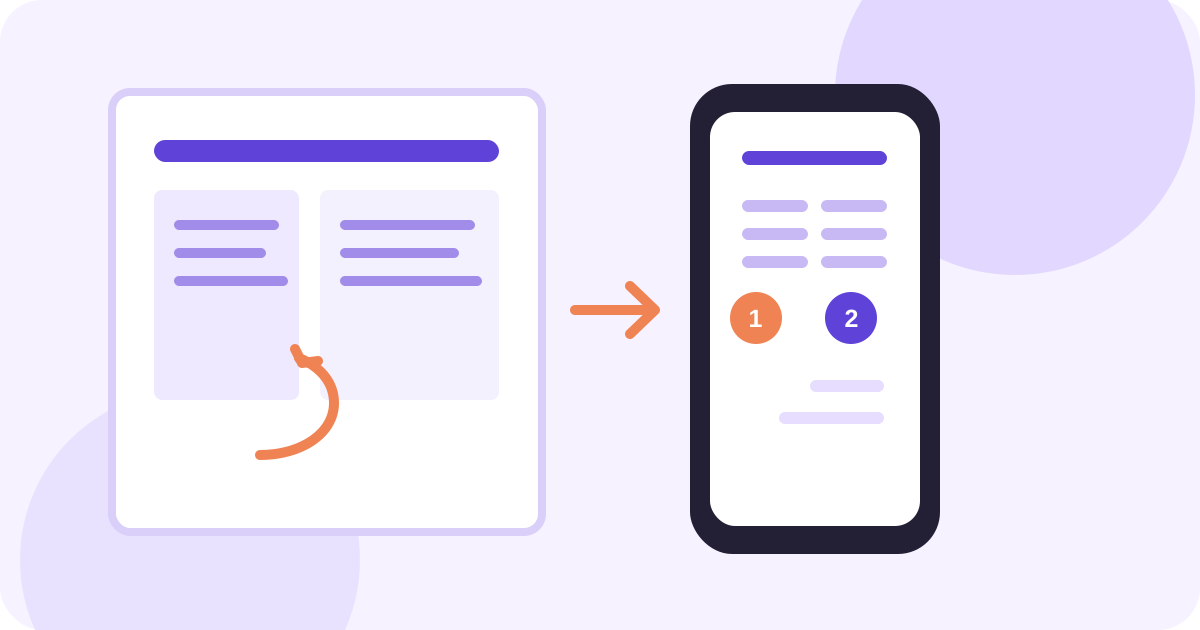
If a PDF reads in the wrong order on iPhone, start by checking the document’s text layer and then listen to one complete page while watching the selected text. Columns, repeating headers, footnotes, sidebars, and OCR can all make a PDF look correct while exposing a different sequence to text-to-speech. The most dependable fix is usually a tagged or accessible copy from the publisher; OCR is mainly for pages that contain pictures of words.
Quick takeaway: Test a short page before a long listening session. If the order is wrong in a born-digital PDF, look for a better structured source. If it is a scan, recognize the text and verify every region. Do not treat “the words were found” as proof that the reading order is correct.
Why a PDF can look right but read wrong
A PDF is a page-description format, not automatically a reflowable book. The visual page can place text boxes, columns, images, and footnotes exactly where a person expects them. The underlying text objects may still be stored in a different sequence. On a phone, the speech tool or reader has to choose an order from that underlying representation.
W3C’s PDF reading-order technique explains that tagged PDF structure helps define a meaningful sequence. A tag tree can identify headings, paragraphs, lists, tables, and other elements. If those tags are missing or wrong, a reader may speak content in a sequence that makes no sense even though the page looks polished.
The most common trouble spots are:
- Two or more columns: The reader may move across the page line by line instead of finishing the left column first.
- Running headers and footers: A page title, date, or page number can be inserted between every paragraph.
- Footnotes and endnotes: Notes can appear after a sentence, before it, or at the end of the page depending on how the PDF was built.
- Sidebars and pull quotes: A highlighted box may be stored before the main paragraph that introduces it.
- Tables and formulas: Individual cells or symbols can be exposed in a sequence that does not explain their visual relationship.
- Scanned pages: There may be no text objects at all. OCR creates a text layer, but its region order still needs testing.
Identify the PDF type before changing anything
Press and hold a sentence in the PDF. If individual words can be selected and copied, it is probably born-digital or has a searchable text layer. If the page behaves like one image, it is likely image-only. If you can select text but it appears scrambled when copied, the file may contain a damaged or poorly ordered text layer.
| What you observe | Likely document type | Best next step | What to verify |
|---|---|---|---|
| Words select cleanly and copy in sentence order | Born-digital, usable text layer | Test a full page with Speak Screen | Columns, repeated page furniture, footnotes |
| Words select but copied text jumps between columns | Born-digital with poor structure | Find a tagged/accessibility copy or repair the source | First paragraph, column transition, headings |
| No words select; each page behaves like a picture | Image-only scan | Run OCR or capture the page as text | Recognition, language, numbers, reading regions |
| Text selects but symbols and formulas are strange | Specialized or flattened text | Use the original source or visual review | Minus signs, superscripts, equations, units |
| A password or permission blocks extraction | Protected document | Request an accessible version from the owner | That you are not bypassing the file’s controls |
This diagnosis prevents a common detour: running OCR on a clean text PDF can replace a useful structure with a less predictable one. OCR is a recovery path for pixels, not a universal repair tool.
Run a 90-second reading-order test on iPhone
Use a representative page rather than the easiest page. A page with two columns, a heading, a footnote, and a table exposes problems quickly.
- Open the PDF in Files, Books, Safari, Mail, or the app where you received it.
- Open Settings → Accessibility → Read & Speak and turn on Speak Screen or Speak Selection.
- Select the heading and first sentence. Use Speak and confirm that the first words match the page.
- Start Speak Screen and listen until the reader reaches the bottom of the first column.
- Watch the selection or highlighting as the voice crosses to the next column.
- Note whether the page number, running header, caption, or footnote interrupts the paragraph.
- Stop at the next page and check that the final sentence is followed by the next page’s heading, not a sidebar from the previous page.
Apple’s Speak Screen and Speak Selection guide documents the system controls for reading onscreen text. The point of this test is not to certify the PDF. It is to expose the exact first failure so you can choose the right remedy.
Use Accessibility Reader to isolate the text path
Apple’s Accessibility Reader can show or listen to detected text in a full-screen view. It also provides playback controls, speed changes, and optional highlighting. Open Settings → Accessibility → Read & Speak → Accessibility Reader, then invoke it from the app containing the PDF.
The Accessibility Reader documentation says iPhone alerts you when no text is detected. That message is useful evidence: if the PDF is silent there, the problem is probably extraction rather than your chosen voice. If text appears but its order is wrong, compare the reader view with the original page and record whether the error begins at a column, table, or footnote.
If you already use VoiceOver, use it as a separate diagnostic. Apple’s VoiceOver in apps guide describes how VoiceOver navigates app content and supported PDF structures. VoiceOver is a full screen reader, so its gestures and navigation model differ from a simple play button. Turn it on only if that interaction model fits your workflow.
Choose the right repair for each failure
A two-column PDF alternates lines
Do not assume the text is missing. It may be present in the wrong object order. First look for the publisher’s HTML article, EPUB, or accessible PDF. W3C notes that complex layouts such as columns, graphics, tables, footnotes, sidebars, and form fields may need correction even when a PDF is technically tagged.
If you own the source document, fix the order before exporting again. If you only have the PDF, Adobe’s Reading Order tool can visually number regions and help repair simple page structures. That is a desktop editing workflow; an iPhone reader cannot reliably infer your intended order from appearance alone.
Headers and page numbers interrupt every paragraph
Find a text view or cleanup option in the reader. If there is none, compare the same passage in an accessible HTML or EPUB version. Do not delete repeated text blindly when a header contains useful section context. For a study or report, mark the page where the repeated furniture becomes confusing and return to the visual document when you need page references.
Footnotes arrive at the wrong moment
Treat footnote order as a document-design issue, not a voice-speed issue. Slow playback and look at the highlight to learn whether the note is inserted after the sentence or read before the next paragraph. For legal, financial, or research material, keep the original page open for the footnote and citation context.
The scan is silent or full of recognition errors
Use OCR only after confirming there is no usable text layer. Capture one page at a time with even lighting, a square camera angle, and the correct language. Check names, decimal points, minus signs, units, and line breaks before listening. Our guide to reading scanned PDFs aloud on iPhone covers a scan-specific workflow; our PDF-to-audio guide explains why in-app listening is different from exporting an audio file.
A dedicated listening workflow with AudioPage
AudioPage can be useful when the problem is not only “speak this page” but “keep this document and return to the same listening item.” Import a supported PDF from Files or the iOS share sheet, inspect the extracted title and opening text, then start with the representative page you tested above. The app’s core reading path is local-first after the first voice setup; first voice setup needs internet. Free supports up to 10 saved items. Lifetime Offline covers eligible local features, while Pro connected summary, chat, and optional sync are separate cloud actions you choose.
AudioPage does not promise to repair every PDF’s tag tree. If the import displays a bad order, use the source-fallback steps above rather than assuming a different voice will fix it. AudioPage is a reading and listening app, not an MP3 exporter or audiobook-production tool. See AudioPage support for the current product and purchase boundaries.
Verification checklist before a long session
Use this checklist on the actual document you intend to hear:
- I can select words, or I have deliberately run OCR.
- I tested a page with columns, headers, footnotes, or a table.
- The heading comes before the first paragraph.
- The first column finishes before the second begins.
- Running headers and page numbers do not break sentences.
- A footnote or citation is placed where I expect it, or I know where to check it visually.
- Names, numbers, symbols, and units were checked on screen.
- I tested the chosen voice and speed for one complete page.
- I tested the same item offline if I plan to listen without a connection.
The last test matters for a local-first app. Finish first voice setup while connected, open the document, and then briefly enable Airplane Mode. A successful one-minute playback test is better evidence than an assumption based on the file extension.
Troubleshooting wrong PDF order
The first page is fine but later pages are not. Check for a layout change. Many reports begin with one column and switch to two columns, tables, or sidebars later. Test the most complex page, not just page one.
The voice reads the footer before the heading. Try Accessibility Reader or find an accessible copy. If the footer is embedded as ordinary page text, the reader may not know it is decorative or repeated.
OCR created words but the paragraphs still jump. Recognition solved the text-layer problem, not the region-order problem. Re-capture the page, separate columns, or obtain a structured source.
The reader skips a chart or formula. Speech can narrate text and labels but cannot replace the visual relationship in a chart. Pause, inspect the original page, and find a caption or alternate text if the information matters.
AudioPage resumes the wrong place. Reopen the saved item and compare the displayed extracted text with the original page. If the source order is wrong, fix or replace the source before relying on resume position.
Frequently asked questions
Why is my PDF reading in the wrong order on iPhone?
The PDF may use multiple columns, repeated headers, footnotes, sidebars, or an incorrect text layer. A screen reader follows the document structure it receives, which may not match the visual layout.
How can I test PDF reading order on an iPhone?
Listen to the first full page while watching the selected text or highlight. Confirm that the title, first paragraph, columns, footnotes, and page transition are spoken in the order a person would read them.
Does OCR fix the reading order of a PDF?
OCR can create text from a scanned page, but it does not guarantee correct order. Columns, captions, headers, footnotes, and symbols still need to be checked after recognition.
What is the best fix for a PDF that reads badly aloud?
First check for a tagged or accessible copy from the publisher. If the file is an image-only scan, run OCR and retest. For a broken born-digital file, use a corrected source or repair its structure in a PDF editor.
Sources and further reading
- Apple Support: Hear iPhone speak the screen, selected text, and typing feedback (checked 2026-08-07)
- Apple Support: Read or listen to text in apps with Accessibility Reader (checked 2026-08-07)
- Apple Support: Use VoiceOver in apps on iPhone (checked 2026-08-07)
- W3C WAI: Ensuring correct tab and reading order in PDF documents (checked 2026-08-07)
- Adobe Acrobat Help: Reading Order tool for PDFs (checked 2026-08-07)
- AudioPage Support (checked 2026-08-07)
About AudioPage Editorial
Guides are produced by the team building AudioPage. Product claims are checked against the current app and repository; third-party features and prices are checked against official sources on the date shown. Read our editorial standards and corrections policy.
Turn the next document into listening time
AudioPage keeps core reading local-first on iPhone. Review the current plan boundaries, then choose the listening setup that fits your documents.