Listening Guides / Study and research listening
Text-to-Speech for Students on iPhone: Study Workflow
Build an iPhone study-listening workflow for PDFs, EPUBs, lecture notes, highlighting, formulas, and offline review with active study checkpoints.
By AudioPage Editorial · Published · Updated · 10 min read
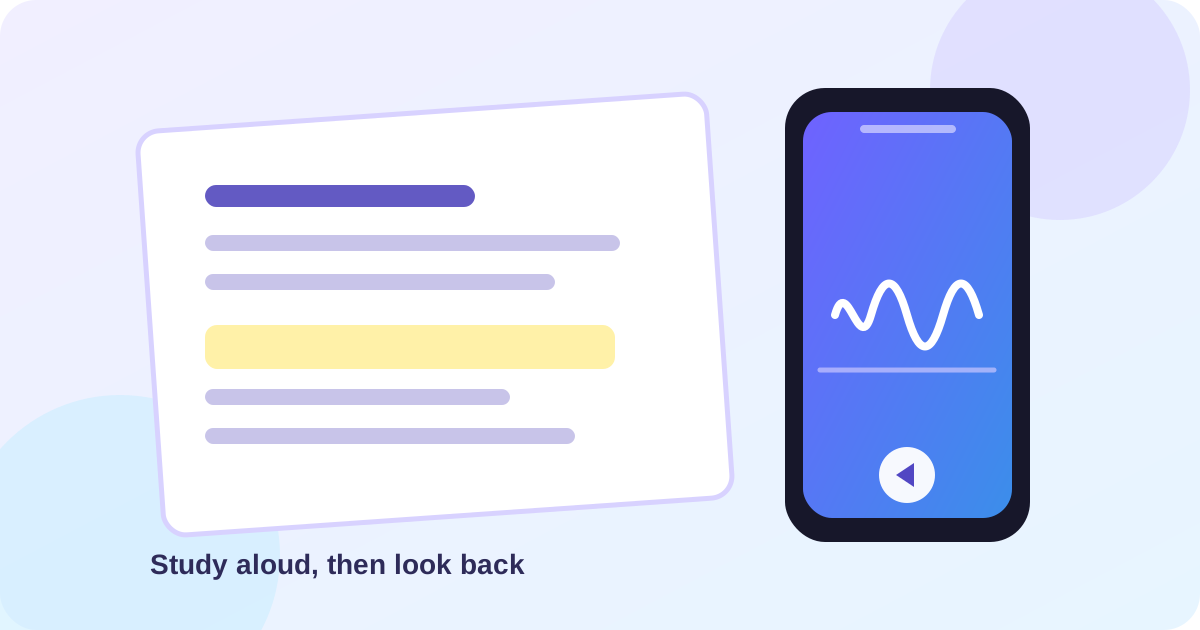
Text-to-speech for students on iPhone works best as a second pass through material you can also see. Import a clean PDF, EPUB, DOCX file, web article, or scan; confirm that headings and paragraphs are in a sensible order; then listen in short blocks while marking questions for later visual review. Apple’s built-in Read & Speak is enough for a one-off selectable-text page. A dedicated reader is more useful when you need a saved study queue, a repeatable resume position, or local-first listening after setup.
Quick takeaway: Treat audio as a flexible review channel, not as proof that a chapter has been learned. Test one representative packet—especially its tables, formulas, and page breaks—before building a commute or revision routine around it.
Start with the study job, not the app
“Listen to my notes” can mean several different things. A student who wants a quick preview needs less setup than someone checking a research packet with equations. Decide what the next session is supposed to accomplish first.
| Study job | Good first method | What to check | Where it stops being enough |
|---|---|---|---|
| Preview a short reading | Apple Speak Selection or Speak Screen | Does selected text follow the visible page? | It does not create a study library or clean a bad PDF |
| Review a prepared packet | Dedicated document reader | Heading order, speed, resume position | Tables, figures, and formulas still need the original page |
| Revisit an EPUB chapter | Apple Books or an EPUB-capable reader | Chapter navigation and saved position | A purchased or protected book may not be importable elsewhere |
| Hear lecture notes while commuting | Saved local-first listening item | Voice setup, offline playback, and page boundaries | Listening alone does not replace questions or problem solving |
| Work from a scan | OCR or a photo-to-text workflow first | Names, numbers, columns, and symbols | Handwriting and low-quality images may remain unreliable |
This decision prevents a common mistake: choosing a reader because it says “text to speech” and only discovering during an exam-week commute that the PDF is a page of images, the table is read row-by-row, or the voice is not available offline.
Prepare a study packet that can be spoken
Before opening a voice control, inspect the source.
- Identify the text layer. Select a sentence in the PDF or EPUB. If you can select individual words, speech has text to work with. If the entire page behaves like a picture, plan an OCR step.
- Remove obvious clutter. For a web article, use Reader view or copy the main text into a clean note. For lecture notes, keep headings and page labels so you can find the matching visual section later.
- Separate visual-heavy pages. A page dominated by a chart, a labeled diagram, or a mathematical derivation is a listening checkpoint, not a page to consume with your eyes closed.
- Keep the original. If OCR or cleanup changes the text, retain the source PDF or image so you can compare a suspicious word, decimal, citation, or symbol.
Apple’s VoiceOver guide explains that VoiceOver can read PDFs in Books and Files and can describe supported forms, tables, and lists. That does not mean every document will expose its structure perfectly. It is a reason to verify the file, not a promise that a complex textbook will sound like a human tutor.
Method 1: use Apple’s built-in speech for a quick review
Apple’s Read & Speak controls include Speak Screen and Speak Selection, with controls for rate, navigation, and spoken-text highlighting. For a short reading, this may be the most direct solution.
- Open Settings → Accessibility → Read & Speak.
- Turn on Speak Screen for a continuous screen reading or Speak Selection for a selected paragraph.
- Open the PDF, note, or article in the app where it lives.
- Use Speak Selection on one paragraph first. If it sounds right, use Speak Screen for a longer section.
- Keep the source visible while the speech highlight moves. Pause when a definition, citation, or unfamiliar term needs a note.
This path is a good fit when you have one assignment and do not need a durable library. It is less useful when the same packet returns every week. It also depends on how the source app exposes its text. A visually simple PDF can work well; a two-column paper or a scanned handout may not.
Method 2: build a saved listening workflow with AudioPage
AudioPage is for turning supported reading material into a repeatable listening item. It accepts supported PDFs, EPUBs, DOCX files, web articles, pasted text, photos, and scans. Import the packet, inspect the extracted title and first paragraph, choose a voice, and begin with a short section rather than the entire semester’s archive.
The product boundary matters. AudioPage is not an MP3 exporter or audiobook-production tool. Its core listening path is local-first after the first voice setup; that initial voice setup needs internet. Free supports up to 10 saved items. Lifetime Offline covers eligible local reading features, while Pro connected summary, document chat, and optional sync are separate features that use connectivity when you select them. The AudioPage support page is the source of truth for current product details.
A practical student setup looks like this:
- Save one packet with a descriptive name such as “Biology — Week 4 — Cell transport.”
- Listen to the first two minutes with the page open.
- Check that headings are not repeated and that footnotes are not inserted between every sentence.
- Stop at a table or formula and compare the spoken text with the source.
- Save your place at a natural section boundary rather than halfway through a citation.
- Before a commute, turn on Airplane Mode and confirm that the already prepared item still plays.
The benefit is consistency: the same voice, speed, and saved position can be used for a series of packets. The cost is one more import-and-check step. Do not skip that check simply because a document has a familiar filename.
EPUBs, lecture notes, and highlighting
An EPUB can be reflowable text or a fixed-layout package. A reflowable chapter usually behaves more like a text document; a fixed-layout workbook may behave more like a set of pages. Apple’s Books guide documents chapter navigation, search, bookmarks, highlights, and visual appearance controls in Books. Those tools are useful when the goal is to read and annotate in the original book environment.
Use a dedicated listening workflow when you need to return to a saved section, but keep the visual source nearby for highlights. For a lecture note, headings such as “Definition,” “Example,” and “Practice” are valuable audio landmarks. If the note is a scan, use OCR first and inspect the result. Adobe’s OCR documentation says OCR creates a searchable text layer and recommends reviewing the result for accuracy. That review is especially important for names, units, negative signs, and decimal points.
Active review versus passive listening
Listening can fit into a study loop without pretending to measure comprehension. Try a 25-minute block:
- Preview for two minutes. Look at the heading and any diagrams before starting audio.
- Listen for eight minutes. Keep the source visible and mark only questions, terms, or claims that need a second look.
- Pause for three minutes. Say or write the section’s main idea without replaying it.
- Listen for eight minutes. Replay a sentence when the wording matters; do not simply increase speed to get through it.
- Verify for four minutes. Check your notes against the original and write one follow-up action.
This is a personal workflow, not an academic outcome guarantee. Adjust the block for the density of the material. A proof, language-heavy passage, or table may need more visual time than a narrative introduction.
A formula and table checkpoint
Do not trust a voice-only pass for a calculation. When a document reaches a formula, pause and record the symbols as shown. For a table, read the column headings visually, then sample a row and verify the relationship between each value and its label. If the audio says “minus” where the page shows an en dash, or drops a superscript, your test has found a boundary where listening should hand the work back to the screen.
Student checklist and test protocol
Use this before a high-stakes commute or revision session:
- The document opens without a password or unsupported restriction.
- A sentence can be selected, or OCR has been run and reviewed.
- The title, first heading, and first paragraph are in the expected order.
- One table, one formula, and one citation were checked visually.
- The voice and speaking rate are comfortable at a ten-minute sample.
- The app returns to a known section after closing and reopening.
- Airplane Mode playback works after voice setup.
- The next active-review step is written down.
For a reproducible test, use the same two-page packet each time: one heading, one bullet list, one table, one formula, and one footnote. Record only pass/fail observations—order, pronunciation, highlighting, resume, and offline playback. This gives you a useful baseline without claiming that one short file represents every course document.
Troubleshooting common study-listening failures
The first paragraph sounds scrambled. Stop and inspect columns, headers, and footnotes. Try a cleaner copy or a reader view. Do not compensate for bad order by changing the speaking rate.
The PDF has no selectable text. It is likely image-based. Run OCR or import a clear photo/scan, then check the recognized text against the page. Keep the original for reference.
The voice reads a formula poorly. Treat the formula as a visual checkpoint. Copy the expression into a text-friendly note only if you can verify every symbol, then compare the spoken version with the original.
Offline playback stops before a session. The initial AudioPage voice setup needs internet. Reconnect, complete voice setup, and replay the exact saved item before leaving. Pro summary or chat also needs connectivity when selected.
The library is full. Free supports up to 10 saved items. Remove finished packets or keep a small active queue; do not assume a saved-item limit is the same as a listening-time limit.
Frequently asked questions
Is text-to-speech useful for studying on an iPhone?
Text-to-speech can make study material easier to review while you follow the source visually, but it should sit alongside active recall, notes, practice questions, and visual checking rather than replace them.
Can I listen to study PDFs offline on an iPhone?
Yes, if the PDF and required voice resources are ready before you leave Wi-Fi. In AudioPage, the first voice setup needs internet; core listening can continue locally afterward for supported documents.
Will an iPhone read formulas and tables correctly?
Not reliably in every document. Text-to-speech may speak extracted labels or cells, while layout, symbols, charts, and complex equations still need visual inspection against the original page.
What is the best way to test a study document before a commute?
Use a short representative packet and check the heading order, one table, one formula, a page change, the resume position, and playback in Airplane Mode before relying on it for a long session.
The practical bottom line
Students do not need a different app for every file. Start with Apple’s built-in speech for a short, selectable passage. Move to a saved reader when a study packet must be revisited, checked, and heard offline after setup. Keep the source visible for structure-heavy pages, and build a small test protocol around the document types you actually receive. For a broader app comparison, see the best text-to-speech apps for iPhone, and for PDF-specific setup, read how to read a PDF aloud on iPhone. If you want to review AudioPage’s purchase options, use support and purchases.
Sources and further reading
- Apple Support: Hear iPhone speak the screen, selected text, and typing feedback (checked 2026-08-07)
- Apple Support: Use VoiceOver in apps on iPhone (checked 2026-08-07)
- Apple Support: Read books in the Books app on iPhone (checked 2026-08-07)
- Adobe Help: Recognize text in scanned PDFs with Acrobat (checked 2026-08-07)
- AudioPage Support (checked 2026-08-07)
About AudioPage Editorial
Guides are produced by the team building AudioPage. Product claims are checked against the current app and repository; third-party features and prices are checked against official sources on the date shown. Read our editorial standards and corrections policy.
Turn the next document into listening time
AudioPage keeps core reading local-first on iPhone. Review the current plan boundaries, then choose the listening setup that fits your documents.