Listening Guides / Study and research listening
How to Read Research Papers Aloud on iPhone
A careful iPhone workflow for listening to research papers with two-column PDFs, citations, formulas, figures, footnotes, reading order, and visual checks.
By AudioPage Editorial · Published · Updated · 10 min read
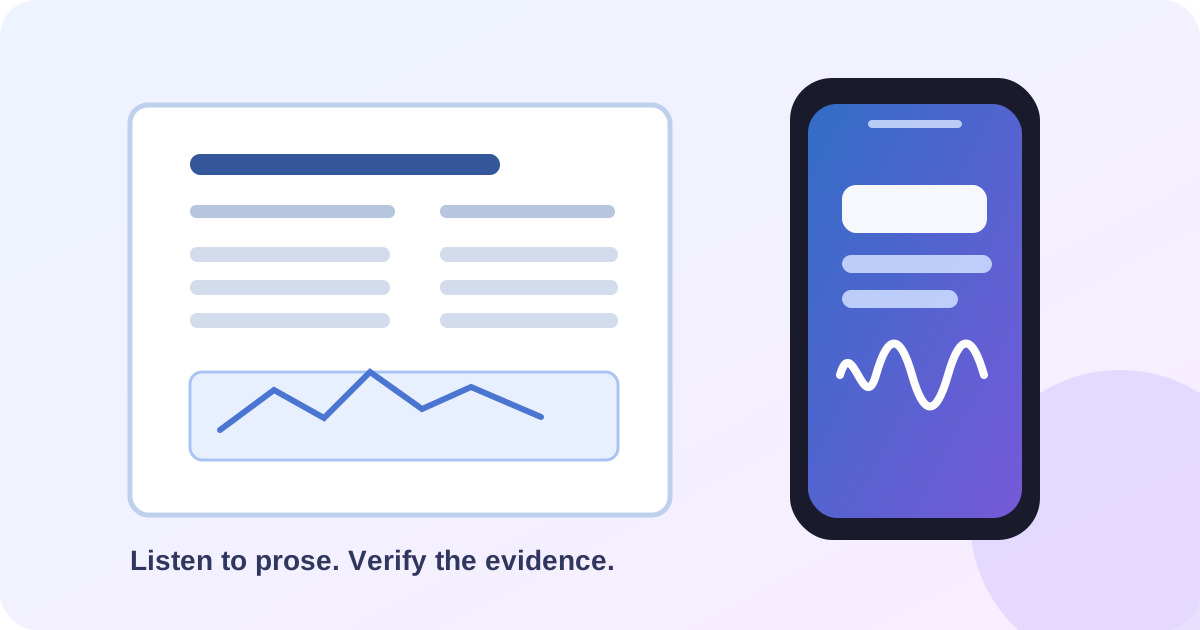
To read research papers aloud on iPhone, start with a one-page structural test rather than pressing play on the entire PDF. Check whether the text is selectable, whether the two columns are read in order, and whether citations, footnotes, captions, formulas, and figure references remain understandable. Apple’s built-in Read & Speak can be enough for a clean, short paper. A dedicated reader such as AudioPage is useful when you want a saved listening item and local-first playback after the initial voice setup.
Quick takeaway: Research-paper listening is a hybrid workflow. Let speech carry prose, definitions, and captions while the PDF remains open for figures, equations, tables, and references. A successful first-page test is more valuable than a claim that every academic PDF will parse perfectly.
Why research papers are a special PDF case
A paper can contain text and still be difficult to hear. Two columns may be exposed as one long stream. A footnote may appear in the middle of a paragraph. A figure caption may be separated from the figure. Superscripts, Greek letters, references, and table headings may be technically present but not spoken in a way that preserves their visual relationship.
| Paper feature | What speech may handle | What you should inspect visually |
|---|---|---|
| Abstract and body prose | Sentences and section headings | Whether columns are in the intended order |
| Citation markers | Author names or reference numbers | Which claim the citation belongs to |
| Footnotes | Text when extracted into the stream | Whether the note interrupts the argument |
| Figures and captions | Caption text if it is selectable | The visual data, axes, legends, and callouts |
| Formulas | Some spoken symbols or labels | Superscripts, subscripts, operators, and grouping |
| Tables | Text in cells if exposed | Row and column relationships |
| Scanned pages | OCR output after recognition | Recognition errors and missing text |
Apple’s VoiceOver documentation says that VoiceOver can read PDFs in Books and Files and describe supported forms, tables, and lists. That is valuable for structured navigation, but the paper itself still controls what semantics are available. Do not treat “PDF support” as a guarantee that every journal layout will become a clean spoken outline.
Step 1: find a usable paper copy
Use a paper you are allowed to access and keep the original file. If the publisher copy is protected or has an image-only page, look for an author manuscript, repository copy, or accessible HTML version provided by the rights holder or institution. Do not remove a restriction just to make a file speak.
Then run a text-layer check:
- Open the first page in Files, Books, or another PDF viewer.
- Press and hold on a sentence.
- Try selecting a few words rather than the whole page.
- Copy the selection into a temporary note if you need to see whether the order is sensible.
- Compare the copied text with the page’s columns, title, and author line.
If selection fails, the page may be an image. Adobe’s OCR documentation explains that OCR creates a searchable text layer from scanned image text and recommends reviewing the result. That review is essential for research: one missing minus sign, superscript, decimal, or variable can change the meaning of a sentence.
Step 2: use Apple’s tools for a short paper
Apple’s Read & Speak guide documents Speak Screen and Speak Selection, including rate controls, spoken-text highlighting, forward/backward navigation, and language detection. Enable Settings → Accessibility → Read & Speak, then test a selected paragraph.
Use Speak Selection when you want to isolate the abstract or one subsection. Use Speak Screen when the current app exposes a single-column page in a readable order. Keep the paper on screen and follow the highlight. If it jumps from the left column to the right column on page one, stop. Changing the voice rate will not fix a structural extraction problem.
VoiceOver may be the better built-in choice when you need navigational information or already use screen-reader gestures. Apple explicitly describes PDF reading in Books and Files, along with information about forms, tables, and lists, in the VoiceOver in apps guide. It is a full navigation model, so allow time to learn its gestures if you are new to it.
Step 3: use AudioPage for a saved listening pass
AudioPage can import supported PDFs and other reading sources, including EPUBs, DOCX files, web articles, pasted text, photos, and scans. For a paper, import a copy, verify the title and first section, and listen for two minutes before saving a long session. The goal is not to make the PDF disappear; it is to make prose easier to revisit while the original remains available for evidence.
AudioPage’s core listening flow is local-first after the first voice setup. That first setup needs internet. Free supports up to 10 saved items. Lifetime Offline covers eligible local features, while Pro summary, connected document chat, and optional sync are separate connected features selected by the user. The AudioPage support page gives the current product boundary.
AudioPage is not an MP3 exporter or audiobook-production tool. A research-paper workflow should therefore be judged by reliable in-app listening, pause and resume behavior, and how clearly it lets you return to the source—not by whether it creates a downloadable audio file.
A section-by-section listening method
Research papers reward a slower sequence than a novel.
Pass 1: orient visually
Look at the title, abstract, section headings, figures, and references. Note whether the paper is one or two columns. Identify sections containing formulas or dense tables. This creates a map for the audio session.
Pass 2: listen to prose in short units
Start with the abstract and introduction. Stop at the first citation cluster. Check that the claim, citation marker, and footnote have not been rearranged. Then move one section at a time. Save a position at a heading, not inside a paragraph with a parenthetical reference.
Pass 3: inspect evidence blocks
When the audio reaches a figure or table, pause and look at it. Hear the caption if available, then verify the axes, units, legend, row labels, and any highlighted region on the page. If the paper’s conclusion depends on a visual relationship, do not substitute the caption for the figure.
Pass 4: replay definitions and limitations
Use sentence replay for a definition, method condition, or limitation. Write down the exact term and section name. A spoken summary can help you locate the passage again, but it is not a citation record.
The reproducible paper test
Before depending on a reader for a full paper, use a fixture with a two-column first page, one footnote, one figure caption, one formula, and a references section. Record these checks:
| Checkpoint | Pass condition | Action if it fails |
|---|---|---|
| Text layer | A sentence can be selected or OCR has been reviewed | Get a better copy or process OCR |
| Title and author line | Spoken order matches the page | Do not continue until order is clear |
| Two-column body | Left column finishes before right column | Use a different source or section-level method |
| Citation and footnote | Marker and note remain intelligible | Read the passage visually and return to source |
| Formula | Spoken symbols can be checked against the page | Treat the formula as visual-only |
| Figure caption | Caption is near the expected section | Open the figure and inspect it manually |
| Resume position | Reopening returns to a known heading | Save a clearer section boundary |
| Offline playback | Prepared item plays after setup with connectivity off | Reconnect and complete voice setup |
Checklist:
- The copy is accessible and within your right to use.
- The first page’s columns and heading order were checked.
- One citation, footnote, formula, figure caption, and table were inspected.
- The voice rate allows you to follow the original page.
- A section boundary was saved for resume.
- Offline playback was tested only after the required voice setup.
- Connected summary or chat has not been confused with local listening.
Troubleshooting paper-reading problems
The paper reads column-to-column randomly. Find another copy or use a text extraction workflow that preserves sections. Do not present the result as reliable evidence until you compare several paragraphs with the page.
References interrupt every sentence. Listen in short selected passages and treat citation-heavy paragraphs as visual checkpoints. A clean reader-view copy may separate references more usefully.
A scanned paper produces wrong symbols. Review OCR on the original page. Adobe recommends correcting uncertain recognized text; for equations and symbols, manual visual checking remains necessary.
The figure is described but not understandable. Open the figure, read the caption, and inspect axes and legend. Speech can carry the caption but may not convey the spatial relationship.
The first setup works online but not on a train. AudioPage’s first voice setup needs internet. Complete it in advance, then test the same saved paper offline. Optional Pro connected actions need connectivity when selected.
A paper is too long for the saved library. Free supports up to 10 saved items. Keep the current reading set small and remove finished papers rather than assuming every imported source must remain saved.
Frequently asked questions
Can an iPhone read a research paper aloud?
Yes, if the paper exposes usable text or has been processed with OCR. Apple’s built-in speech can handle selectable text, and a dedicated reader can provide a saved listening workflow for supported PDF files.
How do I stop a two-column research PDF from reading out of order?
Test the first page before listening to the whole paper. If the speech jumps between columns, find a cleaner or accessible copy, use a reader that extracts a better text flow, or listen to one section while keeping the PDF visible for verification.
Should I listen to figures and formulas in a research paper?
Use audio for surrounding prose and captions, but inspect figures, equations, tables, and unusual symbols visually because text-to-speech may not preserve their full meaning or layout.
Can I listen to a research paper offline on iPhone?
Yes, after the paper and required voice resources are ready. In AudioPage, the first voice setup needs internet; core listening can then continue locally for supported documents.
Use audio as a research navigation layer
The most reliable paper workflow has two synchronized views: spoken prose for moving through the argument and the PDF for checking evidence. For the fundamentals of PDFs, see how to read a PDF aloud on iPhone. For the difference between listening in an app and exporting audio, read PDF to audio on iPhone. When you are ready to review product options, use support and purchases.
Sources and further reading
- Apple Support: Use VoiceOver in apps on iPhone (checked 2026-08-07)
- Apple Support: Hear iPhone speak the screen, selected text, and typing feedback (checked 2026-08-07)
- Apple Support: Read books in the Books app on iPhone (checked 2026-08-07)
- Adobe Help: Recognize text in scanned PDFs with Acrobat (checked 2026-08-07)
- AudioPage Support (checked 2026-08-07)
About AudioPage Editorial
Guides are produced by the team building AudioPage. Product claims are checked against the current app and repository; third-party features and prices are checked against official sources on the date shown. Read our editorial standards and corrections policy.
Turn the next document into listening time
AudioPage keeps core reading local-first on iPhone. Review the current plan boundaries, then choose the listening setup that fits your documents.